
Abelssoft SSD Fresh: Optimize Drive Longevity and Speed on Windows

Unlike conventional mechanical hard drives (HDDs), solid-state drives (SSDs) store data across non-volatile NAND flash memory cells that possess a finite number of program/erase cycles (quantified by Terabytes Written - TBW). By default, the Windows operating system still maintains several legacy background routines originally designed for magnetic platters. Abelssoft SSD Fresh is a focused utility built to adjust these operating system services, reducing unnecessary background write cycles and protecting overall drive health.
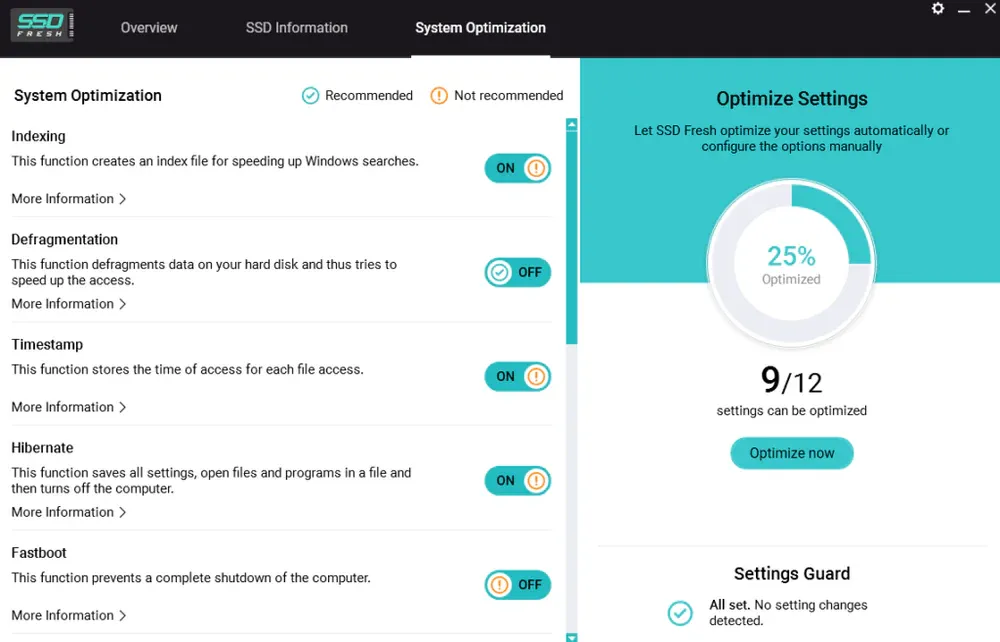
- Mitigate Write Amplification: Reduces repetitive background write wear caused by continuous timestamping, event logging, and legacy indexing.
- Disable Outdated HDD Routines: Automatically deactivates boot-file defragmentation and Prefetch algorithms tailored for slow magnetic disks.
- One-Time System Configuration: Changes are written directly into Windows Registry and Services, meaning the app does not need to stay running in the background.
- Best Suited For: Mainstream SATA SSDs, DRAM-less budget solid-state drives, and high-utilization office or gaming machines.
1. Why Do Solid-State Drives Require Different Optimization?
On mechanical HDDs, physical platters rotate beneath a mechanical actuator arm. Data fragmentation forces the drive head to jump continuously across track sectors, introducing severe read latency. Windows created background defragmentation routines specifically to alleviate this physical limitation.
In contrast, SSDs read memory blocks electronically with microsecond latency (typically under 0.1ms). Performing automatic "defragmentation" on an SSD provides zero speed benefit; worse, it unnecessarily writes and erases gigabytes of redundant data, prematurely exhausting the flash memory cells. Furthermore, default features like NTFS Last Access timestamps and continuous crash logging cause micro-writes throughout the operating system's lifecycle.
2. Core Tuning Parameters in SSD Fresh
The table below details the essential system configurations managed by the SSD Fresh interface:
| Optimization Module | Windows Registry / Service Target | Technical Practical Benefit |
|---|---|---|
| Disable Defragmentation | Prevents scheduled disk defragmentation runs targeting detected solid-state partitions. | Preserves hundreds of gigabytes in unnecessary write cycles, directly extending NAND flash lifespan. |
| Disable Last Access Time | Stops NTFS from updating file metadata timestamps every time an item is inspected. | Significantly cuts down passive background disk read/write operations during file browsing. |
| Enable TRIM Support | Ensures the OS informs the SSD controller of discarded data blocks ready for garbage collection. | Maintains consistent write throughput over prolonged usage by keeping flash blocks clean. |
| Tune Prefetch / SysMain | Adjusts pre-caching behaviors designed for slower spin-up storage devices. | Frees up available system RAM and eliminates redundant cache dumps to disk. |
| Disable 8.3 Name Creation | Halts generation of secondary 8-character DOS-compatible naming records on NTFS. | Streamlines file system metadata generation for modern application suites. |
3. Step-by-Step Installation & Configuration Guide
Setting up and configuring your drive profiles involves only a few straightforward actions:
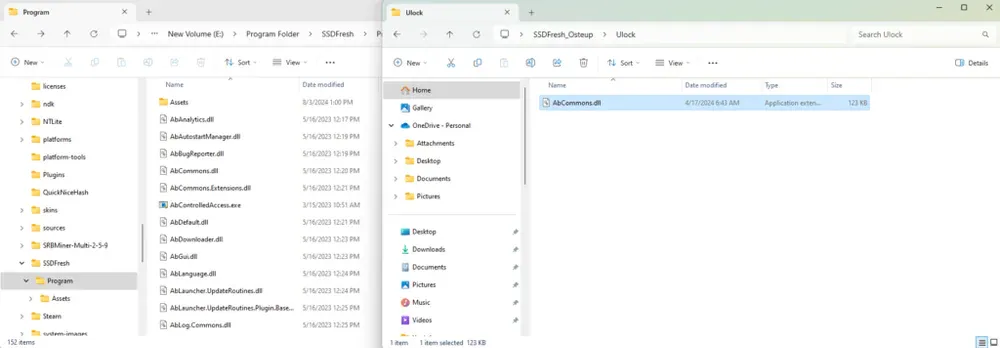
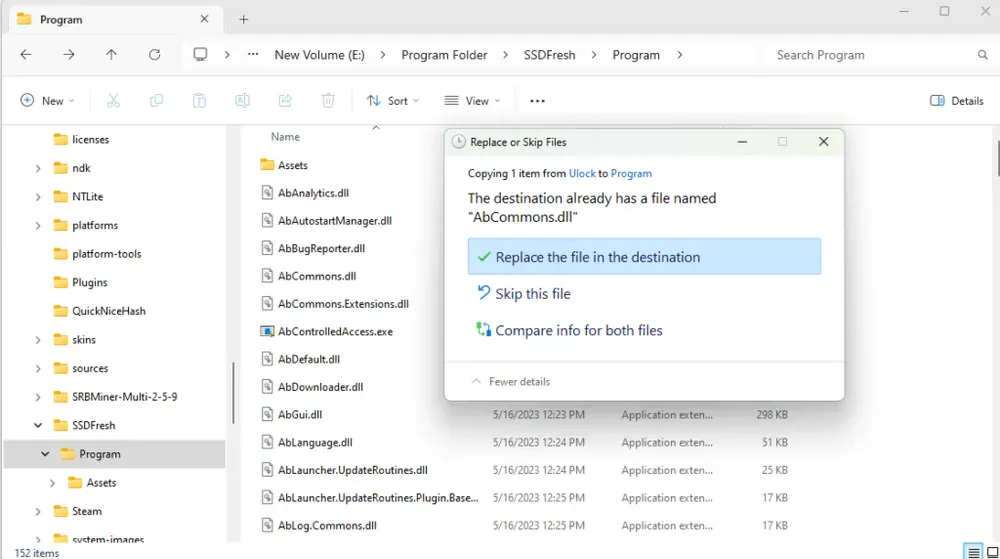
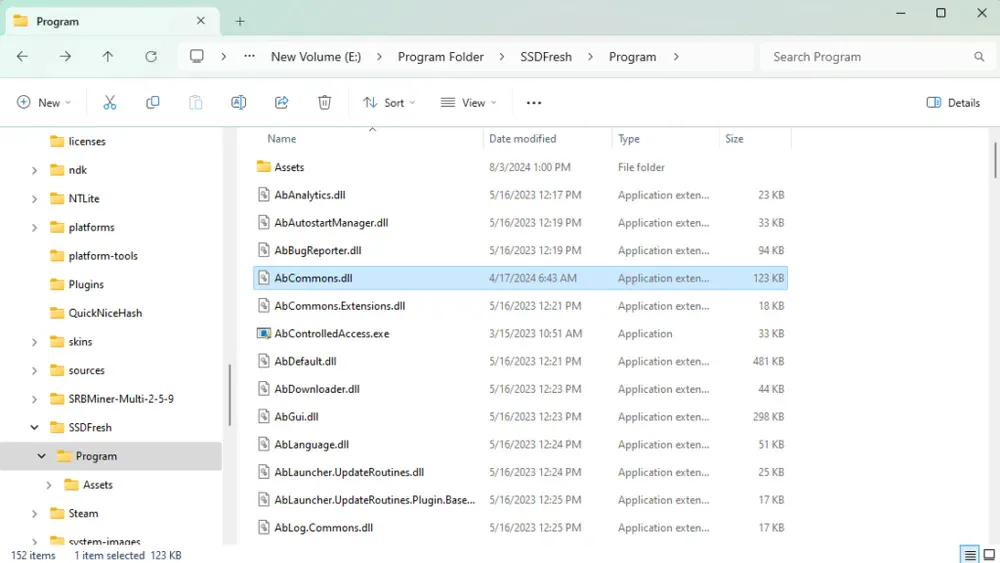
- Download the
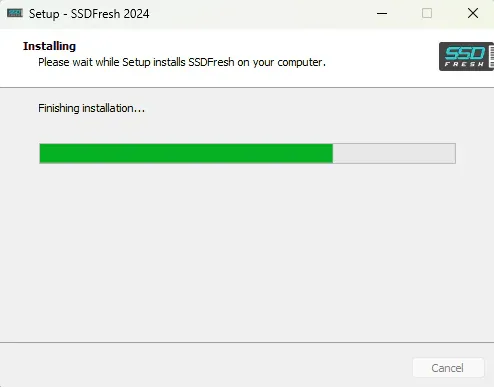
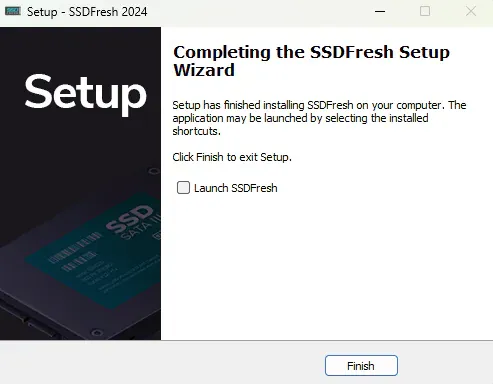
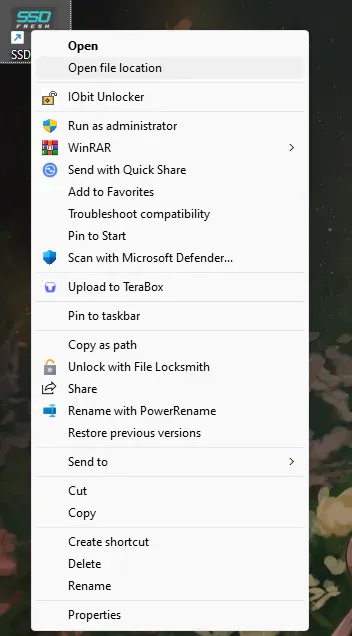
SSDFresh_Osteup.zippackage from the official mirror below and extract its contents. - Launch the installer executable and progress through the guided setup wizard until installation completes.
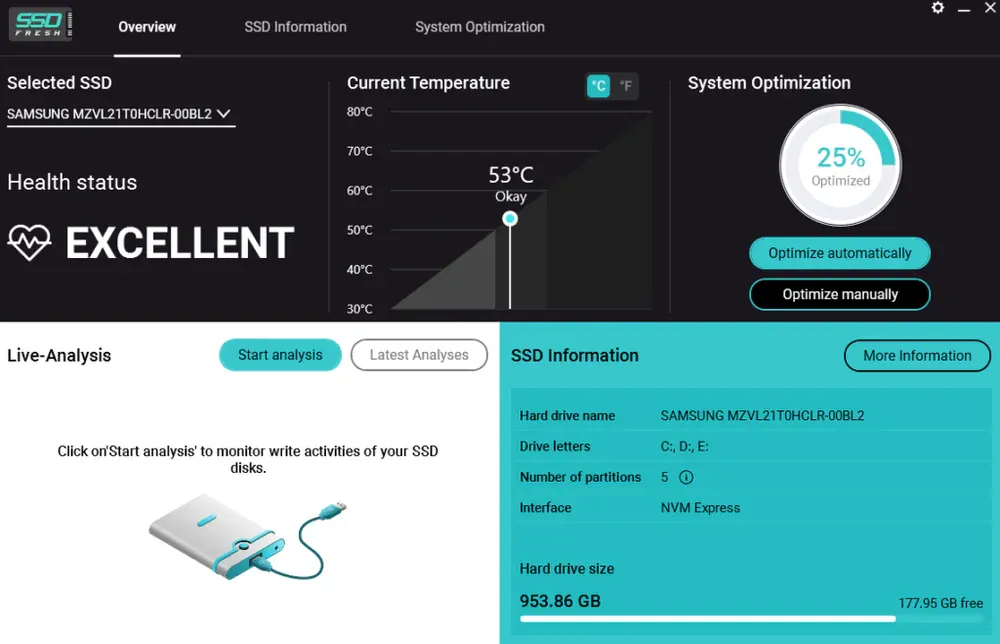
- Open the SSD Fresh application and navigate to the Optimization section on the main screen.
- Select Optimize Now for an automated, balanced configuration, or inspect individual toggles to customize specific behaviors.
- Restart your computer once so the Windows service architecture reloads with the updated system policies.

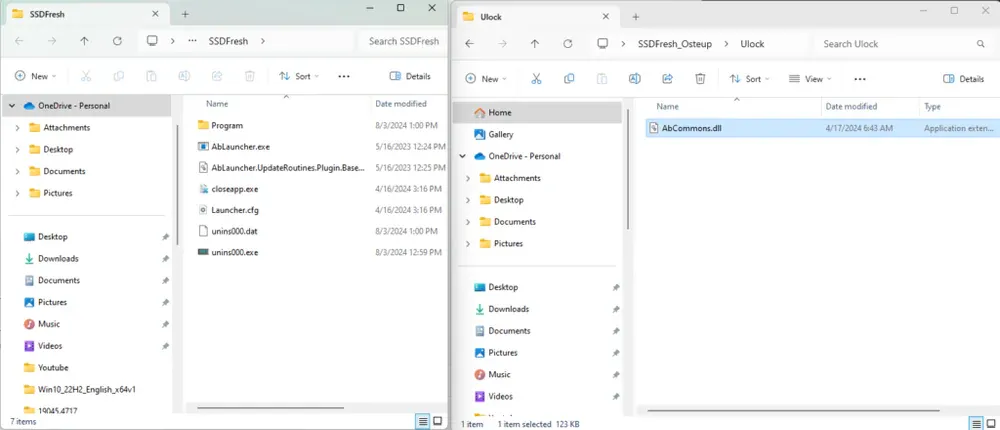
4. Download SSD Fresh Setup Package
Specification details for the verified SSD Fresh archive:
Abelssoft SSD Fresh (System Optimization Suite)
SSDFresh_Osteup.zip5. Frequently Asked Questions
Does SSD Fresh need to remain running in the background constantly?
No. SSD Fresh writes its adjustments directly to Windows Registry keys and operating system services. Once you apply optimizations via Optimize Now, you can safely close the program or disable its startup entry. The configurations remain permanently active in Windows.
Is SSD Fresh necessary for premium modern NVMe PCIe 4.0/5.0 drives?
Flagship modern NVMe drives incorporate highly sophisticated controller hardware and substantial endurance ratings (TBW). While these tweaks are harmless, the perceptible performance difference will be minor compared to budget SATA SSDs or DRAM-less drives where reduced overhead is immediately noticeable.
How can I reset all drive settings back to Windows defaults?
Inside the SSD Fresh control panel, each feature toggle includes an individual reset option, allowing you to return any specific setting back to its original Windows factory state at any time.
Related Articles

BrotX Optimizer v7: Rootless Android System Tuning via Shizuku ADB
Guide to rootless Android system tuning with BrotX Optimizer v7 via Shizuku ADB: enable ANGLE Vulkan GPU, 0ms floating window touch, 80% charge protection, and 58 flags.

iOS Debloat Script: Optimize Performance, Battery Life and Gaming FPS on Jailbroken iPhone
Complete guide to perf.sh iOS debloat script disabling 100+ telemetry and background daemons to reclaim RAM, eliminate thermal throttling, and boost gaming FPS.

OOptimize: Android 7-15 Gaming Tweaks (Root & No-Root)
Optimize SurfaceFlinger and GPU Vulkan pipeline on Android 7-15 with OOptimize: stabilize FPS, eliminate frame drops, and minimize touch input latency.

RAM Purger: Stop Background Processes & Boost Android Gaming Like iPhone
Complete guide to the rootless RAM Purger (frozen.sh) shell script terminating 400+ background app tasks to reclaim RAM and eliminate frame drops on Android.
Comments(5)
Sign in to join the conversation
Sign in with Google, Facebook or Email to leave a comment and get notified of replies.
cái này chạy nhầm ae lưu ý nhé
cái này chạy nhầm nhé ae lưu ý
cái này chạy ngầm hay ấn optimize now phát tắt đi là xong vậy ad?