
Android Gaming Module: Shell Script Guide to Stabilize FPS & Reduce Lag

Intensive mobile titles such as PUBG Mobile, Arena of Valor, and Genshin Impact place sustained processing demands on Android hardware. System thermal throttling and aggressive background thread scheduling frequently cause abrupt frame drops and micro-stuttering. The Android Gaming Module (ModuleGaming.sh) provides a streamlined shell script package engineered to fine-tune system process scheduling, prioritizing CPU and GPU runtime allocations for active games without requiring root privileges.
- Technical Foundation: Directly executed via Shell script (
.sh) using ADB, Brevent, OsteBox, or local Terminal environments. - Optimization Mechanism: Elevates foreground graphics thread priority, streamlines SurfaceFlinger display buffering, and mitigates background service interruptions.
- Permission Tiers: Reaches optimal efficiency on Android 11+ via Wireless Debugging authorization; Android 10 and earlier may encounter sandbox policy restrictions.
- Operational Trade-offs: Sustaining elevated clock speeds moderately raises device temperature and accelerates battery discharge during gaming. A device reboot restores all runtime values to factory defaults.
1. Core Mechanics: How the Gaming Module Operates
Unlike conventional cleaner utilities that merely purge background RAM cache, ModuleGaming.sh interfaces directly with the Android runtime scheduling layer via native command-line APIs:
- Dynamic Thread Priority Adjustments: Elevates foreground gaming process scheduling priority (
renice), directing CPU scheduler cycles toward physics and graphics rendering ahead of auxiliary tasks. - SurfaceFlinger Buffer Latency Reduction: Harmonizes render queue handshakes between the GPU driver and display compositor, reducing frame pacing variance.
- Background WakeLock Throttling: Suppresses non-critical background service synchronizations during active gaming sessions to minimize periodic CPU spikes.
2. Activation Methods & Performance Across Android Versions
Depending on your Android OS version and privilege elevation method, script efficacy varies across distinct tiers:
| Platform & Tool | Prerequisites | Command Execution Scope | Real-World Stability |
|---|---|---|---|
| Android 10 & Below (Qute / Termux / OsteBox Weak) | Direct terminal app installation without PC tethering. | Constrained by OS sandboxing; select system-level commands may return permission denials. | Moderate (~50% parameter compliance). |
| Android 11 & Above (OsteBox / Brevent / LADB) | Single-session Wireless Debugging pairing code authorization. | Full Shell command execution and setprop adjustments without root. | High (Recommended; 100% parameter application). |
| Rooted Hardware (Magisk / KernelSU / APatch) | Grant Superuser (SU) shell permissions. | Unrestricted sysfs governor and GPU clock modulation access. | Maximum (Recommended for advanced power users). |
3. Step-by-Step Installation & Execution Guide
-
Download the Module Package: Obtain
ModuleGaming.zipfrom the verified repository links below and extract the archive using your preferred file manager (such as ZArchiver, MT Manager, or the default file explorer). -
Verify Directory Placement: Relocate the extracted
ModuleGaming.shfile into your internal storage download root:
Standard Path:/storage/emulated/0/Download/ModuleGaming.sh
Important: Android utilizes a case-sensitive filesystem. The directory name must begin with an uppercase Download, and the script must not be nested inside subfolders. - Launch Your Terminal Interface: On Android 11+: Open Brevent, LADB, or OsteBox (Oste Command mode with Wireless Debugging paired). On Android 10 or earlier: Open Qute, Termux, or OsteBox (Weak Command mode).
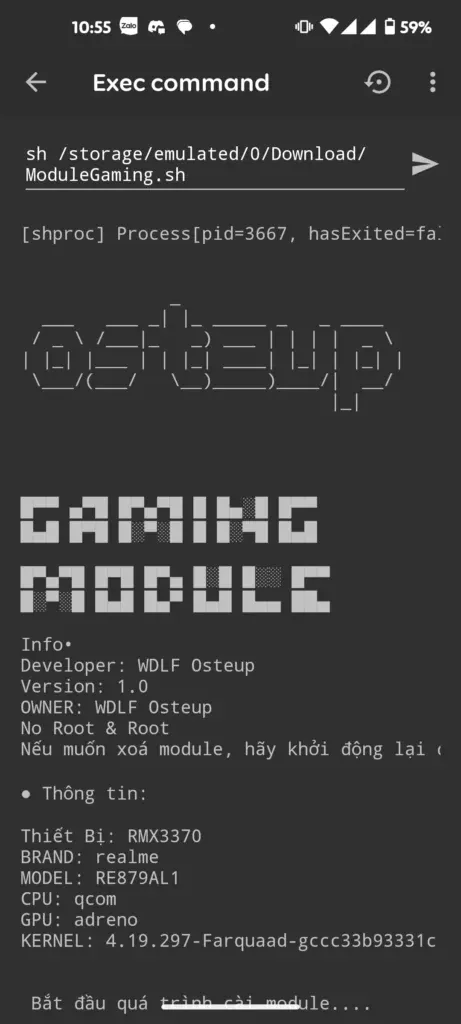
- Execute the Script Command: Paste the exact execution string into your terminal console and press Enter:
sh /storage/emulated/0/Download/ModuleGaming.sh- Verify Completion: Once the console confirms that all optimization directives have successfully finished, the tuning parameters are active. Launch your gaming title and evaluate frame pacing stability.

4. Download Package & File Specifications
Extraction password (if prompted): osteup
- "No such file or directory" Error: Encountering this prompt indicates that the terminal cannot locate the target file. Ensure the folder is named
Download(with a capital D) rather thandownload, and verify that the archive has been properly decompressed into a.shscript. - Thermal Behavior & Battery Consumption: Sustaining consistent hardware frequencies directly elevates heat generation and battery draw. This is an unavoidable physical consequence of preventing aggressive thermal throttling. Gaming in an adequately ventilated environment is recommended.
5. Frequently Asked Questions (FAQ)
How can I completely remove the script and revert all changes?
The configurations written by ModuleGaming.sh are non-persistent runtime flags stored in system volatile memory (RAM). The quickest and safest way to revert every parameter back to stock values is simply to restart your device (Reboot). Upon restart, the Android kernel automatically restores default scheduler rules and governor policies.
Does using this script carry any risk of an account ban in competitive online games?
No. The script operates entirely within standard Android operating system parameters (thread scheduling and display buffering). It makes zero modifications to game binaries (APK/OBB), injects no code into game processes, and leaves game networking and anti-cheat modules completely untouched.
Why does the module deliver noticeably better results on Android 11 compared to Android 10?
On Android 10 and earlier versions, local terminal applications run in heavily restricted user sandboxes unless root access is present. Starting in Android 11, Google introduced Wireless Debugging, which grants elevated Shell privileges directly on-device without tethering to a computer, allowing the script to apply 100% of its system properties.
Do I need to re-execute the script every time I open a game?
No. As long as your phone remains powered on, the adjusted scheduler priorities persist throughout your current uptime session. You only need to run the script once following a device restart or shutdown.
Related Articles

BrotX Optimizer v7: Rootless Android System Tuning via Shizuku ADB
Guide to rootless Android system tuning with BrotX Optimizer v7 via Shizuku ADB: enable ANGLE Vulkan GPU, 0ms floating window touch, 80% charge protection, and 58 flags.

iOS Debloat Script: Optimize Performance, Battery Life and Gaming FPS on Jailbroken iPhone
Complete guide to perf.sh iOS debloat script disabling 100+ telemetry and background daemons to reclaim RAM, eliminate thermal throttling, and boost gaming FPS.

OOptimize: Android 7-15 Gaming Tweaks (Root & No-Root)
Optimize SurfaceFlinger and GPU Vulkan pipeline on Android 7-15 with OOptimize: stabilize FPS, eliminate frame drops, and minimize touch input latency.

RAM Purger: Stop Background Processes & Boost Android Gaming Like iPhone
Complete guide to the rootless RAM Purger (frozen.sh) shell script terminating 400+ background app tasks to reclaim RAM and eliminate frame drops on Android.
Comments(2)
Sign in to join the conversation
Sign in with Google, Facebook or Email to leave a comment and get notified of replies.
Mình xài fix lag, xoá bằng cách reset máy r mà nó vẫn còn nhanh. Làm sao để xoá hoàn toàn?