
Bloxstrap FastFlags: How to Reduce Lag and Boost FPS in Roblox on PC

Roblox on Windows PC may feature block-based visuals, but popular experiences like Blox Fruits, Pet Simulator 99, The Strongest Battlegrounds, and Arsenal push heavy particle density, dynamic lighting, and complex physics calculations. On budget laptops and low-spec desktop PCs equipped with integrated graphics (such as Intel UHD or AMD Radeon Vega), players frequently suffer from sudden frame drops, camera stuttering, and severe input delay during chaotic multiplayer battles. Applying an optimized FastFlag configuration via the open-source Bloxstrap launcher directly fine-tunes the Roblox client rendering pipeline—disabling redundant graphic passes and uncapping framerates without altering game binaries.
- What FastFlags Are: Internal engine feature toggles maintained by Roblox engineers and loaded via
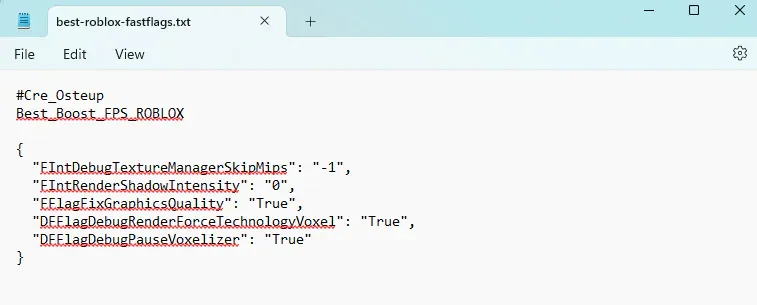
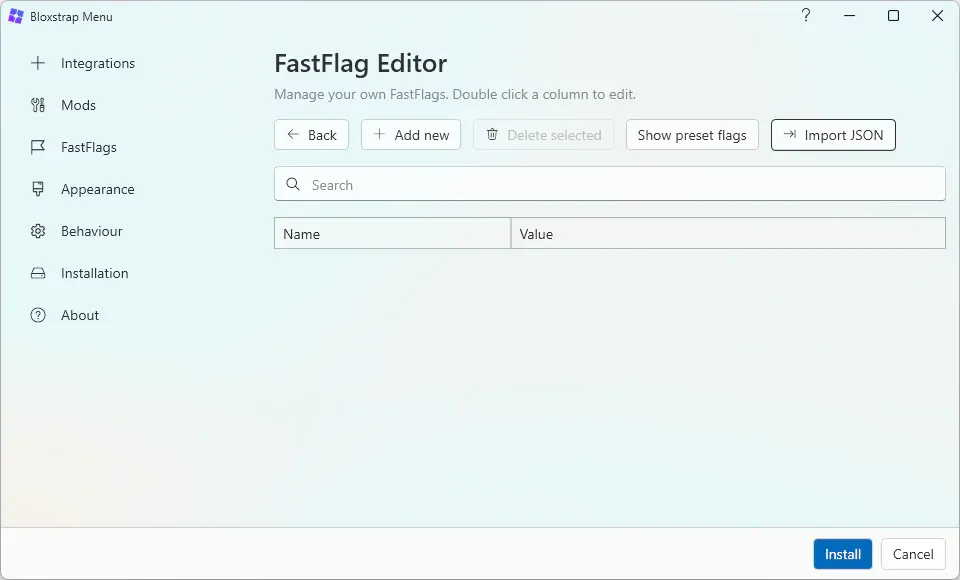
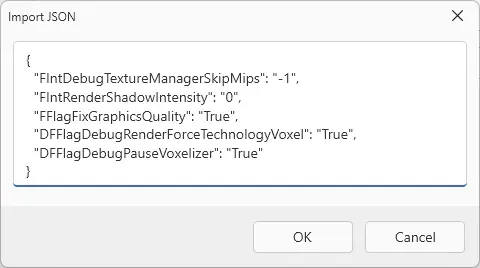
ClientAppSettings.jsonto control graphics features and scheduler thresholds. - Streamlined Setup: Launch Bloxstrap, navigate to Fast Flags > Fast Flag Editor > Import JSON, and paste the parameters from
best-roblox-fastflags.txt. - Measurable Gains: Lowers VRAM utilization, suppresses expensive real-time shadows, and reverts lighting calculations to efficient Voxel primitives for smoother gameplay on low-end hardware.
- Fully Reversible: Easily revert to default Roblox graphics at any time by deleting imported flags from the Bloxstrap Fast Flag Editor.
1. How FastFlags Work in Roblox on Windows PC
The Roblox game engine utilizes distributed feature flags (FastFlags) to dynamically activate, disable, or calibrate rendering and networking systems across servers without requiring client software reinstalls. When overridden locally in the client configuration file, the engine applies these directives before rendering the first frame:
- Voxel Lighting Fallback: Overrides intensive lighting pipelines (such as Future Lighting or ShadowMap) in favor of the lightweight Voxel lighting model, eliminating millions of ambient light ray computations per frame.
- Real-Time Shadow Suppression: Drastically dampens or completely disables dynamic character and structure shadows (
FIntRenderShadowIntensity = 0), freeing up vital GPU cycles. - Texture Mipmap Downsampling: Skips unnecessarily high-resolution texture mipmaps, preventing integrated GPUs from hitting severe memory bandwidth bottlenecks.
- Framerate Limiter Uncapping: Replaces the engine's built-in 60 FPS cap with a customizable target matching high-refresh-rate displays (75Hz, 120Hz, 144Hz, or higher).
2. Performance Comparison: Default vs. FastFlag Optimized
Here is how Roblox engine subsystems behave after importing the optimized FastFlag parameters on low-end and mid-range PC configurations:
| Subsystem | Default Engine Behavior | With FastFlag Applied | Practical Gameplay Impact |
|---|---|---|---|
| Lighting Technology | ShadowMap / Future Lighting (complex specular reflections). | Enforced classic Voxel lighting (flat, efficient). | Flatter visual style, delivers +15–30 FPS gain in crowded areas. |
| Dynamic Shadows | Full-resolution sun-projected dynamic shadows. | Zero shadow intensity or minimal static footprints. | Eliminates micro-stutter when multiple players cast spells simultaneously. |
| Texture Processing | Loads full-resolution texture mipmaps into memory. | Bypasses top-tier mipmaps; lowers texture load. | Saves 200–500 MB RAM/VRAM, preventing out-of-memory crashes. |
| Framerate Cap | Hard-locked at 60 FPS via default Task Scheduler. | Targeted to monitor refresh rate or completely unlocked. | Noticeably snappier mouse aiming and diminished input latency. |
3. Step-by-Step Installation & Configuration Guide
Make sure you have Bloxstrap installed on your Windows PC before proceeding. If you haven't set up Bloxstrap yet, install it first:
-
Download the configuration file: Grab
best-roblox-fastflags.txtfrom the download card below and open it using Notepad or any plain-text viewer. -
Copy the JSON code: Press
Ctrl + Ato select all text inside the file, followed byCtrl + Cto copy the configuration block. - Open Bloxstrap Menu: Launch Bloxstrap Menu from your Windows Start menu or desktop shortcut. In the left navigation sidebar, click on Fast Flags.
- Access the Fast Flag Editor: Click the Fast Flag Editor button, then click Import JSON located at the top toolbar of the editor window.
-
Paste and save changes: Paste the copied JSON string into the prompt (
Ctrl + V) and click OK. Click Save, return to the main Bloxstrap menu, and click Apply. -
Verify in-game performance: Launch any Roblox experience. Press
Shift + F5on your keyboard to reveal the real-time FPS counter and render latency overlay to compare your improvements.
4. File Details & Download Links
- Simplified Graphics: This FastFlag configuration is aggressively engineered for low-end hardware. If the graphics appear too simplistic or terrain surfaces lack clarity, open the Fast Flag Editor in Bloxstrap and delete entries matching
DebugTextureManagerSkipMipsorDebugPauseVoxelizerto recover visual sharpness. - Account Safety: Bloxstrap and FastFlags do not inject foreign code into the Roblox executable or inspect game memory. They simply manage official client settings files and are fully compliant with standard Roblox policies.
5. Frequently Asked Questions (FAQ)
Can using Bloxstrap and FastFlags lead to an account ban?
No. Bloxstrap is an open-source launcher that edits the standard ClientAppSettings.json configuration file natively supported by the Roblox client. It does not perform memory injection, exploit gameplay, or bypass anti-cheat mechanisms such as Hyperion/Byfron.
How can I revert Roblox to its original graphics settings?
Reverting is straightforward: Open Bloxstrap Menu > select Fast Flags > click Fast Flag Editor. Highlight the imported flags, click Delete, and then select Save and Apply. The Roblox client will immediately resume default rendering on its next launch.
Why is my framerate still locked at 60 FPS after applying the flags?
If your framerate remains locked, verify two settings: first, in the in-game Roblox settings menu (Esc key), switch Graphics Mode to Manual; second, inside the Bloxstrap Fast Flags tab, ensure the Framerate limit value is set to 0 (unlocked) or your monitor's native refresh rate (e.g., 144 or 240).
Will weekly Roblox client updates overwrite these FastFlag configurations?
No. Bloxstrap manages your ClientAppSettings.json independently from version folders. When Roblox updates automatically each week, Bloxstrap retains your configuration seamlessly without requiring re-entry.
Related Articles

BrotX Optimizer v7: Rootless Android System Tuning via Shizuku ADB
Guide to rootless Android system tuning with BrotX Optimizer v7 via Shizuku ADB: enable ANGLE Vulkan GPU, 0ms floating window touch, 80% charge protection, and 58 flags.

iOS Debloat Script: Optimize Performance, Battery Life and Gaming FPS on Jailbroken iPhone
Complete guide to perf.sh iOS debloat script disabling 100+ telemetry and background daemons to reclaim RAM, eliminate thermal throttling, and boost gaming FPS.

OOptimize: Android 7-15 Gaming Tweaks (Root & No-Root)
Optimize SurfaceFlinger and GPU Vulkan pipeline on Android 7-15 with OOptimize: stabilize FPS, eliminate frame drops, and minimize touch input latency.

RAM Purger: Stop Background Processes & Boost Android Gaming Like iPhone
Complete guide to the rootless RAM Purger (frozen.sh) shell script terminating 400+ background app tasks to reclaim RAM and eliminate frame drops on Android.
Comments(11)
Sign in to join the conversation
Sign in with Google, Facebook or Email to leave a comment and get notified of replies.
{ "FIntDebugTextureManagerSkipMips": "-1", "FIntRenderShadowIntensity": "0", "FFlagFixGraphicsQuality": "True", "DEFlagDebugRenderForceTechnologyVoxel": "True", "DEFlagDebugPauseVoxelizer": "True" }
qua ngon
is very ….
🙂
HAY
ko vào được link
is very good
hihihi
10/10 GETOUT
mượt nhắm