
Debloat Bloatware Windows 10/11: Remove Unnecessary Apps via Script

Key Takeaways
- Core Objective: Remove pre-installed UWP bloatware and background tracking daemons (Candy Crush, Xbox overlays, MSN Weather, Cortana, telemetry services), freeing up disk storage and system RAM.
- Open-Source Utility: Utilizes Sycnex's peer-reviewed Windows10Debloater script repository, complete with an interactive graphical user interface (GUI).
- Customizable Blocklist: Allows you to pick and retain specific apps before executing batch removal operations.
- Built-In System Protection: Automatically configures a Windows System Restore point and registry backup prior to making permanent changes.
Fresh installations of Windows 10 and Windows 11 ship with numerous pre-installed applications (bloatware) that average users never request, ranging from promotional games to telemetry collection services and background news feeds. These utilities consume background memory cycles, crowd the Start menu, and generate background disk activity. The Windows 10/11 Debloater utility simplifies cleanup by providing an intuitive graphical user interface for safe and selective package removal.
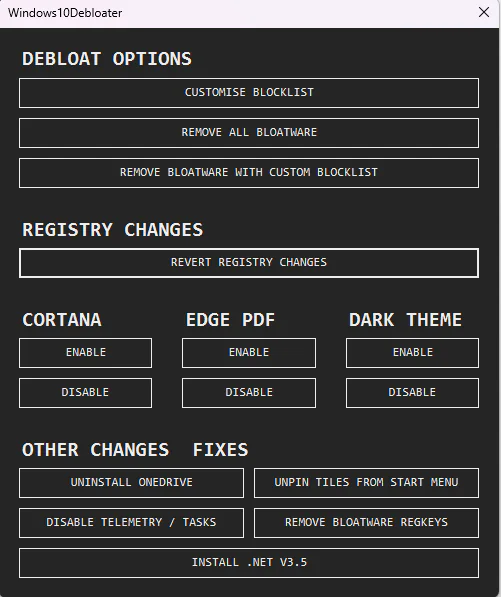
Understanding Windows Bloatware and Debloating
What Qualifies as Bloatware on Windows?
Bloatware refers to software components pre-packaged by the operating system vendor (Microsoft) or device manufacturer (OEM) without explicit user initiation. These typically encompass promotional trials (Asphalt 8, Candy Crush), redundant media hubs, and diagnostic telemetry agents running continuously in the background.
What Does Debloating Accomplish?
Debloating strips out non-essential packages and stops background data collection, redirecting CPU cycles, system RAM, and storage bandwidth back toward your active productivity and gaming tasks.
Download Windows 10/11 Debloater Script (GUI)
PowerShell script package for operating system streamlining and background telemetry removal
osteup
How to Download and Launch the Debloater
To safely run the debloater script locally on your machine, follow these instructions:
- Download the Windows10Debloater.zip archive using the download card above.
- Right-click the downloaded zip file and select Extract All... to unpack the files into a local folder (such as Downloads or Desktop).
- Open the extracted folder, right-click on Windows10DebloaterGUI.ps1, and choose Run with PowerShell.
- If Windows prompts for execution policy authorization, launch Terminal (Admin) or PowerShell (Admin), navigate to the extracted folder, and run:
Set-ExecutionPolicy Unrestricted -Scope Process.Windows10DebloaterGUI.ps1Once permissions are confirmed, the Windows10Debloater GUI console will launch on your screen, ready for customization.
Detailed Feature Breakdown and Operations
1. Customise Blocklist
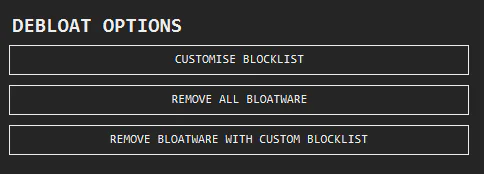
Before launching batch removals, click Customise Blocklist to audit the target list:
- Checked: The corresponding application will be purged during removal.
- Unchecked: The application will be left intact on the machine.
- Non-Removable items: Critical core system packages are locked to maintain system stability.
2. Executing Bloatware Removal
Once you are satisfied with the selection, pick from two removal triggers:
- Remove All Bloatware: Strips every package categorized as bloatware under default settings.
- Remove Bloatware With Custom Blocklist: Removes only the specific apps you checked in the Customise Blocklist window.
3. Restoring Registry Values
If you encounter unexpected software behavior later on, click Restore Default Registry to reload the default Windows registry configuration backed up by the tool.
4. Disabling Cortana
Cortana continuously operates background listening loops. Use Disable to deactivate the assistant completely, or Enable if your workflow relies on it.
5. Edge PDF and Dark Theme Toggles
| Option | Functionality | Recommendation |
|---|---|---|
| Edge PDF | Controls whether Microsoft Edge acts as the default PDF viewer | Set to Disable if you prefer dedicated readers like Adobe Acrobat or Foxit |
| Dark Theme | Toggles Windows system theme between Light and Dark mode | Choose based on your personal viewing preference |
6. Advanced Optimization Utilities
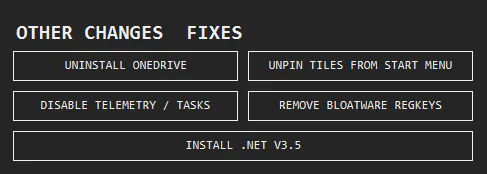
- Uninstall OneDrive: Completely removes the Microsoft OneDrive client if you rely on alternative local or cloud backup solutions.
- Disable Telemetry / Tasks: Disables background usage logging sent to Microsoft servers, enhancing privacy and saving network bandwidth.
- Unpin Tiles From Start Menu: Unpins all default promotional app tiles from the Start menu for a cleaner desktop aesthetic.
- Remove Bloatware Regkeys: Purges orphaned registry keys left behind by uninstalled bloatware packages.
- Install .NET v3.5: Quickly activates .NET Framework 3.5 support required by legacy PC games and enterprise utilities.
Safety and System Restore Points
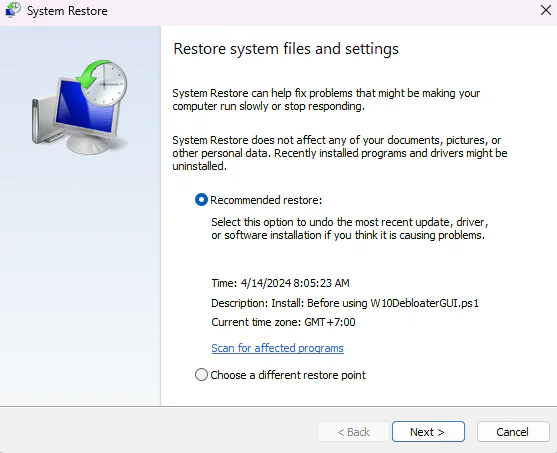
Before applying major script changes, the tool triggers a native Windows System Restore snapshot. If you ever need to roll back modifications, you can return to this saved state without altering your personal files.
Frequently Asked Questions (FAQ)
Do removed bloatware apps reinstall after Windows Update?
Major annual feature updates from Microsoft may occasionally reinstall default promotional tiles. If this happens, re-running the script takes less than two minutes to restore your clean environment.
Can this script be safely executed on Windows 11?
Yes. The underlying AppxPackage infrastructure for UWP bloatware remains largely identical across Windows 10 and Windows 11, making the script safe and effective on both versions.
Can I reinstall uninstalled apps later via Microsoft Store?
Yes. The script uninstalls packages for the current user profile without breaking the Microsoft Store. You can search and re-download any specific app whenever needed.
Restart your machine after debloating to verify the reduced memory footprint, faster boot times, and uncluttered desktop environment.
Related Articles

BrotX Optimizer v7: Rootless Android System Tuning via Shizuku ADB
Guide to rootless Android system tuning with BrotX Optimizer v7 via Shizuku ADB: enable ANGLE Vulkan GPU, 0ms floating window touch, 80% charge protection, and 58 flags.

iOS Debloat Script: Optimize Performance, Battery Life and Gaming FPS on Jailbroken iPhone
Complete guide to perf.sh iOS debloat script disabling 100+ telemetry and background daemons to reclaim RAM, eliminate thermal throttling, and boost gaming FPS.

OOptimize: Android 7-15 Gaming Tweaks (Root & No-Root)
Optimize SurfaceFlinger and GPU Vulkan pipeline on Android 7-15 with OOptimize: stabilize FPS, eliminate frame drops, and minimize touch input latency.

RAM Purger: Stop Background Processes & Boost Android Gaming Like iPhone
Complete guide to the rootless RAM Purger (frozen.sh) shell script terminating 400+ background app tasks to reclaim RAM and eliminate frame drops on Android.
Comments(0)
Sign in to join the conversation
Sign in with Google, Facebook or Email to leave a comment and get notified of replies.
No comments yet. Be the first to join the conversation!