
Essential CMD & PowerShell Commands to Boost Windows 10/11 Performance

Rather than relying on sketchy third-party cleanup utilities or registry cleaners that introduce bloatware risks, Windows 10 and Windows 11 already feature built-in administrative tools via Command Prompt (CMD) and PowerShell. Directly interacting with system-level commands grants you precise hardware control: lower input latency, disable CPU-heavy RAM compression, and reclaim gigabytes of storage space.
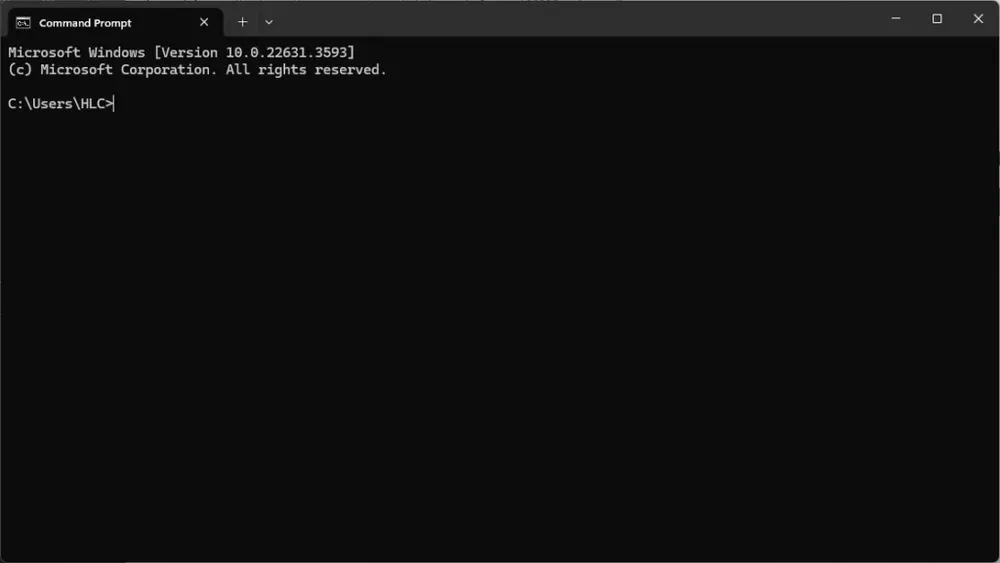
- Zero Third-Party Software: Utilizes 100% native Microsoft command-line utilities for uncompromising system stability.
- Control Memory Compression: Disabling RAM compression on rigs with 16GB+ RAM frees CPU cycles from constant background decompression.
- Unlock Ultimate Performance: Reveals Microsoft's hidden power plan designed for workstations and low-latency gaming.
- Drive Cleanup & Latency Reduction: Disabling hibernation instantly recovers 8–32 GB on Drive C, while TCP tuning smooths online packet flow.
1. Managing Windows Memory Compression (MMAgent)
By default in Windows 10 and 11, the memory management subsystem MMAgent enables Memory Compression. This feature trades CPU processing cycles to compress inactive RAM pages, delaying memory paging to your disk drive.
This introduces an important performance tradeoff:
- Systems with limited RAM (< 8 GB): Compression prevents memory overflow crashes.
- Gaming setups or multi-core PCs with 16GB+ RAM: The processor constantly spends clock cycles compressing and decompressing pages during runtime, frequently producing subtle micro-stutters in latency-sensitive competitive titles.
| PowerShell Command | Function & Performance Impact | Recommended Usage |
|---|---|---|
Get-MMAgent |
Displays current memory compression status (MemoryCompression: True/False). | Diagnostic check for all users. |
Disable-MMAgent -mc |
Disables background RAM compression; frees CPU cycles and reduces frametime variance. | Recommended for systems with 16GB+ RAM and dedicated gaming PCs. |
Enable-MMAgent -mc |
Restores memory compression to default Windows behavior. | Office laptops or low-RAM configurations (4GB–8GB). |
2. Essential Windows Performance CMD Commands
| Command (Admin Prompt) | Optimization Category | Practical Benefit |
|---|---|---|
powercfg -duplicatescheme e9a42b02-d5df-448d-aa00-03f14749eb61 |
Power Delivery | Unlocks the hidden Ultimate Performance plan, preventing CPU core downclocking during game loads. |
powercfg -h off |
Storage Optimization | Disables hibernation, deletes hiberfil.sys, and instantly frees 8GB to 32GB of SSD space. |
netsh int tcp set global autotuninglevel=normal |
Network Throughput | Enables dynamic TCP window tuning to optimize download stability and lower network packet jitter. |
netsh int tcp set global chimney=disabled |
Network Stability | Disables deprecated TCP Chimney Offload on modern network adapters to resolve sudden packet dropouts. |
fsutil behavior set DisableLastAccess 1 |
Storage I/O | Halts disk timestamp updates every time a file is accessed, eliminating thousands of unnecessary I/O writes. |
sfc /scannow |
System Maintenance | Scans and repairs corrupted or missing Windows operating system files automatically. |
3. Key Advantages & Operational Notes
| Verified Benefits | Important Considerations |
|---|---|
| No background bloatware or telemetry from third-party "booster" applications. | System-level commands must be executed within an elevated terminal (Run as administrator). |
| Noticeable reduction in mouse and keyboard input latency in first-person shooters (CS2, Valorant). | Disabling hibernation (powercfg -h off) also turns off Fast Startup, ensuring clean cold reboots. |
| Freeing large SSD capacity preserves maximum sustained NVMe read/write transfer rates. | If your rig only has 4GB–8GB of RAM, keep MemoryCompression active to avoid out-of-memory errors. |
4. Official Command Batch Script Download
Windows Performance Commands Pack
Windows_Performance_CMD_Osteup.batHigh-speed mirror download: MediaFire Mirror Link→
5. Step-by-Step Execution Guide
-
Open Command Prompt or PowerShell as Administrator:
Press
Windows + S, typecmd(orpowershell). Right-click the application icon and select Run as administrator. -
Inspect and Disable RAM Compression (via PowerShell):
Run the following command to turn off Memory Compression:
Disable-MMAgent -mc -
Apply Storage Cleanup & Performance Unlocks (via CMD):
Paste the following batch of commands into your Admin CMD:
powercfg -duplicatescheme e9a42b02-d5df-448d-aa00-03f14749eb61 powercfg -h off fsutil behavior set DisableLastAccess 1 -
Select the New Power Plan: Navigate to
Control Panel>Power Options, locate the newly added Ultimate Performance plan, and activate it. - Restart Your Computer: Perform a system restart to allow the Windows kernel and storage subsystems to finalize all changes.
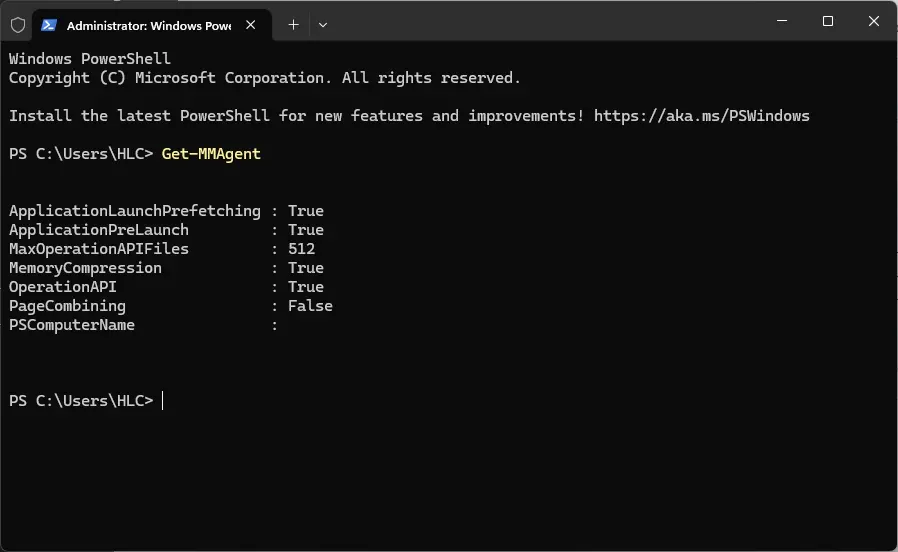
Enable-MMAgent -mc in PowerShell Admin and powercfg -h on in CMD Admin.
6. Frequently Asked Questions (FAQ)
Will executing these CMD tweaks cause blue screens (BSOD) or stability issues?
No. Every command listed uses native, fully documented Microsoft operating system utilities (powercfg, fsutil, MMAgent). No third-party drivers or binary modifications are introduced.
Does disabling hibernation negatively affect system shutdowns?
Not at all. Your computer will execute a standard Full Shutdown instead of saving partial memory states to disk. This clears operating system cache build-up and maintains fresh boot performance.
How can I verify that Ultimate Performance is active?
Open Task Manager, switch to the Performance > CPU tab. You will observe your processor consistently holding at or above its base clock speed without dipping during gaming transitions.
Related Articles

BrotX Optimizer v7: Rootless Android System Tuning via Shizuku ADB
Guide to rootless Android system tuning with BrotX Optimizer v7 via Shizuku ADB: enable ANGLE Vulkan GPU, 0ms floating window touch, 80% charge protection, and 58 flags.

iOS Debloat Script: Optimize Performance, Battery Life and Gaming FPS on Jailbroken iPhone
Complete guide to perf.sh iOS debloat script disabling 100+ telemetry and background daemons to reclaim RAM, eliminate thermal throttling, and boost gaming FPS.

OOptimize: Android 7-15 Gaming Tweaks (Root & No-Root)
Optimize SurfaceFlinger and GPU Vulkan pipeline on Android 7-15 with OOptimize: stabilize FPS, eliminate frame drops, and minimize touch input latency.

RAM Purger: Stop Background Processes & Boost Android Gaming Like iPhone
Complete guide to the rootless RAM Purger (frozen.sh) shell script terminating 400+ background app tasks to reclaim RAM and eliminate frame drops on Android.
Comments(2)
Sign in to join the conversation
Sign in with Google, Facebook or Email to leave a comment and get notified of replies.
ko dùng được