
Fix Roblox PC Lag: Optimization Guide with Bloxstrap and FastFlags

Unlike invasive third-party utilities that hook directly into game memory and risk account penalties, Bloxstrap is an open-source bootstrapper built specifically for the Windows Roblox Client. By making legitimate configuration changes to the startup file ClientAppSettings.json, Bloxstrap gives you granular control over framerate caps, unlocks 21-level graphics fidelity, and allows safe FastFlags to strip away redundant visual overhead. This delivers a significantly smoother and more responsive experience in demanding experiences like Blade Ball, BedWars, and Blox Fruits.
- Anti-Cheat Compliant: Operates completely as an external launcher without DLL injection or binary patching, maintaining full compliance with Roblox's Byfron (Hyperion) security system.
- Precise Framerate Matching: Locks your target FPS directly to your monitor's native refresh rate (60Hz, 120Hz, 144Hz, 180Hz), eliminating screen tearing and erratic frame pacing.
- 21-Step Graphics Selector: Expands Roblox's standard 10-step slider into 21 granular increments, allowing low-spec PCs to dial in the exact Level of Detail (LOD) needed.
- Skybox Optimization via FastFlag: Disables demanding volumetric cloud rendering and dynamic atmospheric lighting, reducing fragment shader load on integrated and entry-level GPUs.
FastFlags are internal engine toggles created by Roblox engineers to test features during development. You should only apply community-vetted flags designed strictly for performance (such as skybox simplification and framerate limits). Avoid unverified JSON blobs found on social media that claim to offer gameplay advantages, as these can destabilize your game client or corrupt network synchronization.
1. Technical Breakdown of Bloxstrap Performance Modules
Here is how Bloxstrap's core configuration options interact with the Roblox client engine:
| Optimization Setting | Engine Mechanism | Real-World Impact & Recommendations |
|---|---|---|
| Framerate Limit | Overrides the default 60 FPS cap with a user-defined target framerate. | Match your monitor's exact refresh rate (e.g., 144 for 144Hz, 180 for 180Hz). Uncapping FPS indefinitely causes 100% GPU utilization, thermal throttling, and micro-stutters. |
| Alternate Graphics Selector | Replaces the coarse 10-level slider with 21 granular render quality stages. | Allows budget hardware to achieve optimal draw distance without crossing into heavy shader and shadow rendering tiers. |
| FFlagDebugSkyGray | Disables volumetric clouds and atmosphere shader passes, replacing the sky with a solid neutral gray. | Cuts GPU fragment shader workload by 15%–30%, particularly beneficial for Intel HD Graphics and AMD Radeon Vega APUs. |
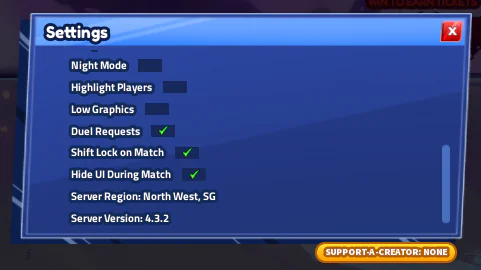
| In-Game Low Graphics | Toggles experience-specific visual effects, light rays, and particle emitters. | Ensures instant input responsiveness during fast-paced competitive combat in games like Blade Ball and BedWars. |
2. Step-by-Step Installation and Lag-Fix Configuration
Follow this 5-step process to set up Bloxstrap for optimal gaming performance:
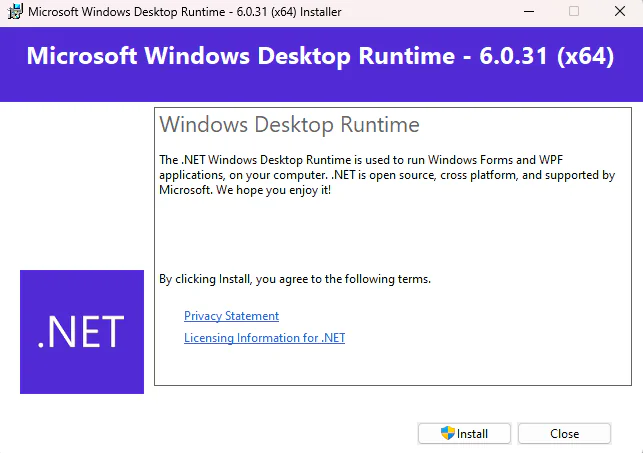
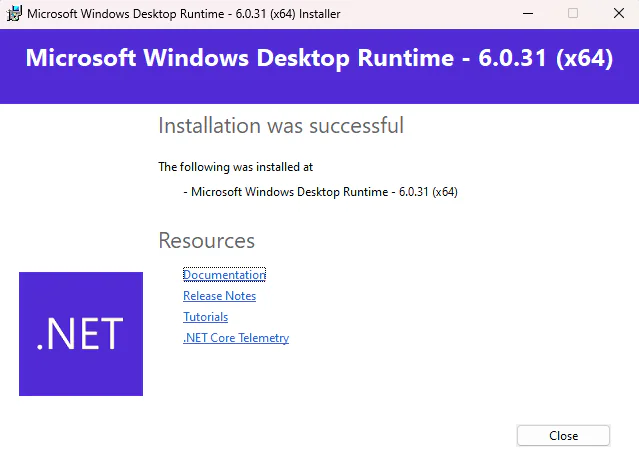
Step 1: Install Microsoft .NET 6.0 Desktop Runtime
Bloxstrap uses a modern WPF interface on Windows. The .NET 6.0 Desktop Runtime is required for the application to initialize properly.
Step 2: Open the Bloxstrap Configuration Dashboard
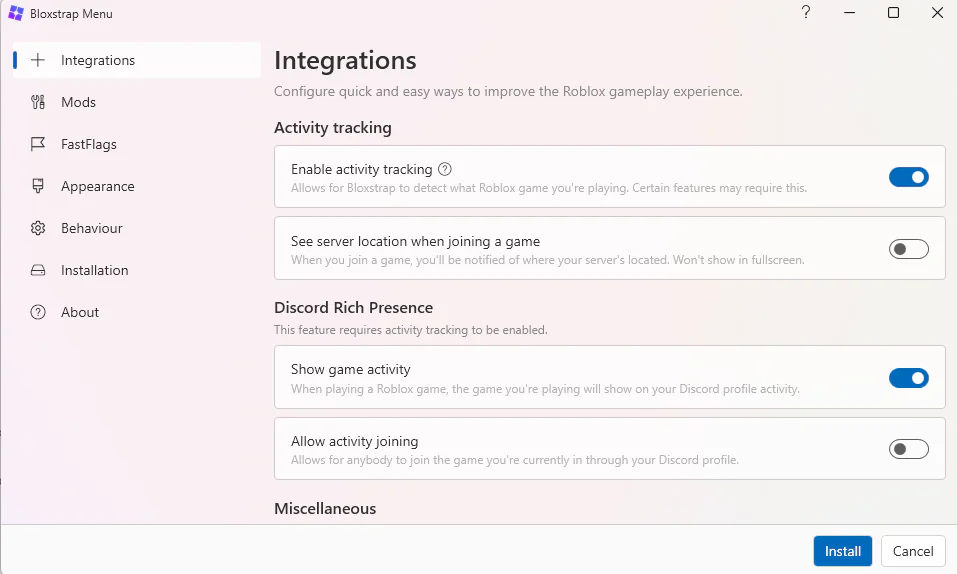
Launch the Bloxstrap Menu application from your Start Menu or installation folder.
Step 3: Configure the FastFlags Tab and Lock Target Framerate
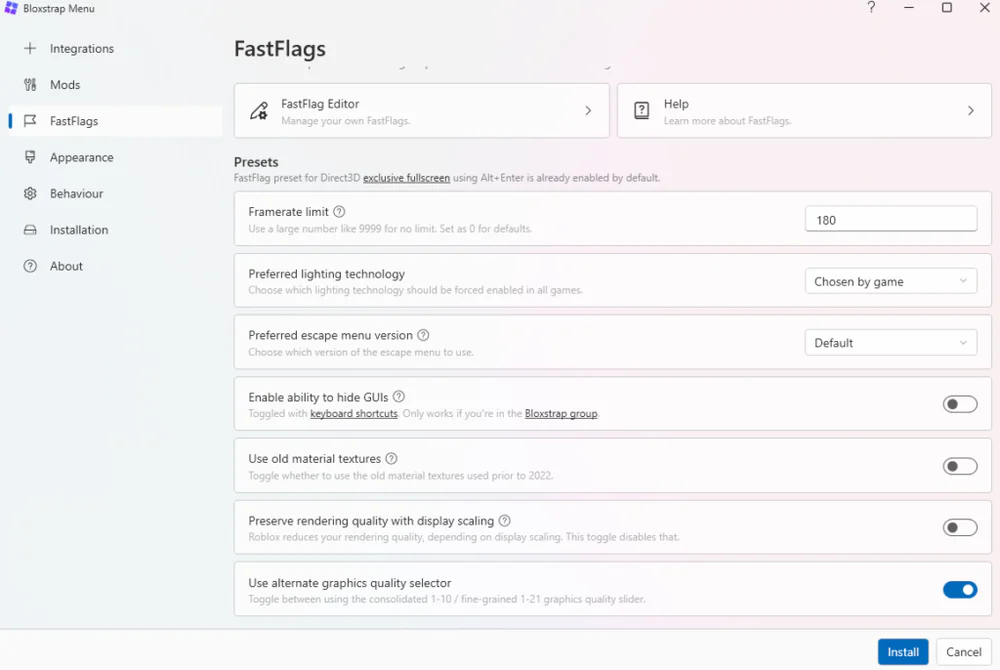
Navigate to the FastFlags section on the left sidebar. Under Framerate limit, enter your display's native refresh rate (e.g., enter 180 for a 180Hz panel). Check the box for Use alternate graphics quality selector to enable 21-tier graphics control.
Step 4: Open FastFlag Editor and Add the Skybox Bypass Flag
Click the FastFlag Editor button at the bottom of the window, then click Add New.

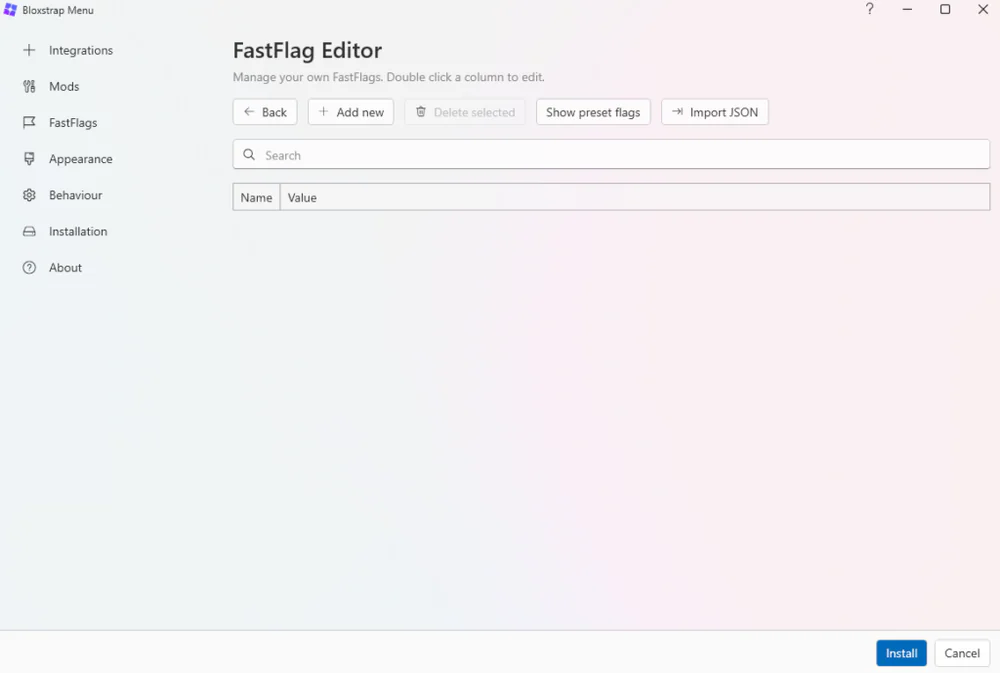
In the entry dialog, input the following parameter and click Save:
Name: FFlagDebugSkyGrayValue: true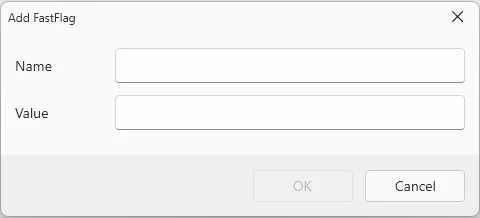
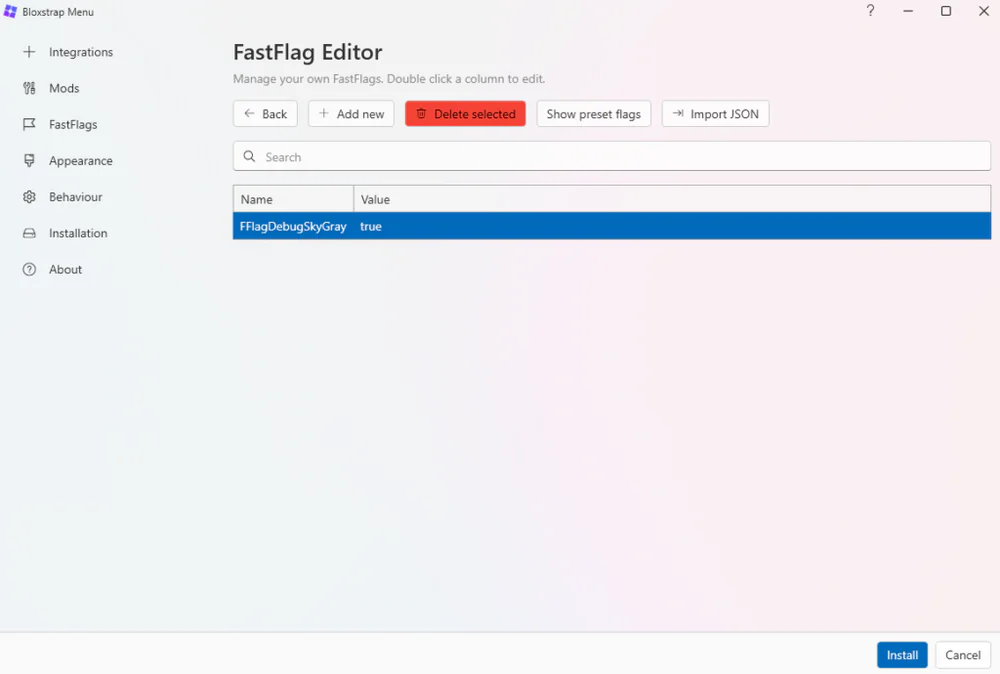
Step 5: Apply Settings and Enable In-Game Low Graphics
Click Install or Save to write the configuration. Launch your favorite Roblox title (such as Blade Ball), open the in-game settings menu, and enable Low Graphics mode to disable client particle effects.
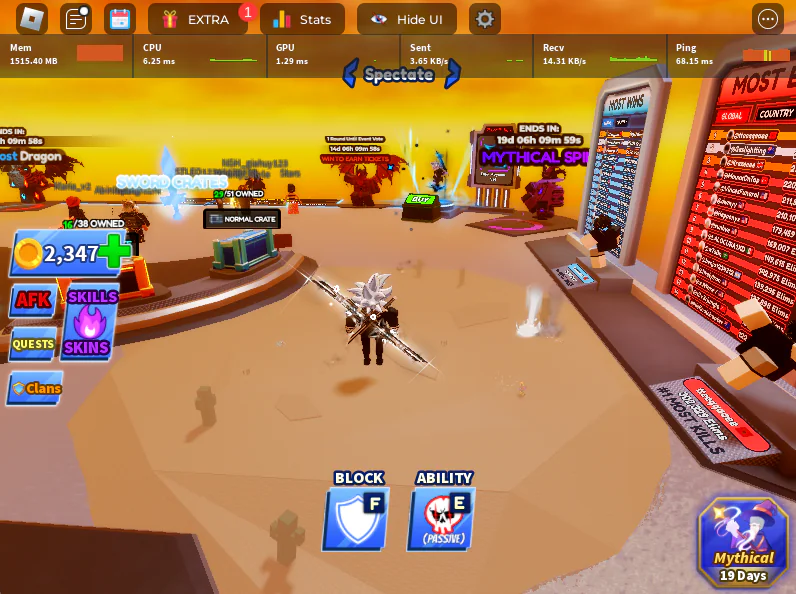
- Play in a Scaled Window: On underpowered GPUs, reducing the window size reduces the total pixel fill rate, delivering immediate FPS gains.
- Enable Windows Game Mode: Built-in Game Mode on Windows 10 and 11 prioritizes CPU and GPU scheduling for the Roblox process while suppressing background tasks.
- Keep Native Resolution Grounded: Avoid forcing 1440p or 4K rendering on hardware without dedicated graphics.
3. Download Bloxstrap and Required Runtime Packages
Download verified release builds from official distribution channels:
4. Frequently Asked Questions (FAQ)
Can using Bloxstrap get your Roblox account banned?
No. Bloxstrap is an open-source launcher that operates completely external to the game client process. It writes configuration settings into the official ClientAppSettings.json file, an architecture natively recognized by Roblox. It does not patch RobloxPlayerBeta.exe binaries or inject code into active RAM, making it fully compliant with Byfron (Hyperion) anti-cheat policies.
Why is Microsoft .NET 6.0 Desktop Runtime required?
Bloxstrap's user interface is built using C# and Windows Presentation Foundation (WPF) targeting the modern .NET platform. The Desktop Runtime provides the necessary UI rendering subsystems and class libraries. Without this runtime, Windows cannot start the configuration dashboard.
How does the FFlagDebugSkyGray flag improve performance?
The standard Roblox skybox engine renders multi-layer volumetric clouds, sun glare, atmospheric fog, and directional light transitions. Toggling FFlagDebugSkyGray instructs the renderer to bypass these calculations and display a uniform gray backdrop, substantially reducing GPU shader load.
How do I revert to standard Roblox settings if needed?
Open the Bloxstrap Menu, go into the FastFlag Editor, select FFlagDebugSkyGray, and click Delete. For the framerate cap, reset the value to 0 or 60. To remove Bloxstrap completely, uninstall it through Windows Settings > Installed Apps; Roblox will immediately launch through its default official bootstrapper without modifying your account or game data.
Related Articles

BrotX Optimizer v7: Rootless Android System Tuning via Shizuku ADB
Guide to rootless Android system tuning with BrotX Optimizer v7 via Shizuku ADB: enable ANGLE Vulkan GPU, 0ms floating window touch, 80% charge protection, and 58 flags.

iOS Debloat Script: Optimize Performance, Battery Life and Gaming FPS on Jailbroken iPhone
Complete guide to perf.sh iOS debloat script disabling 100+ telemetry and background daemons to reclaim RAM, eliminate thermal throttling, and boost gaming FPS.

OOptimize: Android 7-15 Gaming Tweaks (Root & No-Root)
Optimize SurfaceFlinger and GPU Vulkan pipeline on Android 7-15 with OOptimize: stabilize FPS, eliminate frame drops, and minimize touch input latency.

RAM Purger: Stop Background Processes & Boost Android Gaming Like iPhone
Complete guide to the rootless RAM Purger (frozen.sh) shell script terminating 400+ background app tasks to reclaim RAM and eliminate frame drops on Android.
Comments(3)
Sign in to join the conversation
Sign in with Google, Facebook or Email to leave a comment and get notified of replies.
That flag code is really good!
dsfedfwds
.