
Helix Engine: Per-App CPU Performance & Battery Optimizer for Android

Android's default energy management system (Energy Aware Scheduling - EAS) often reacts sluggishly to sudden load spikes, causing dropped frames during high-intensity gaming while paradoxically wasting power on trivial background processes. Helix Engine is a flexible open-source performance tuning tool engineered for both Rooted and Non-Rooted Android devices (utilizing ADB or Shizuku). The application allows you to configure dedicated CPU frequency scaling and governor profiles on an app-by-app basis: delivering full processor power during demanding gaming sessions while enforcing energy-efficient throttling for lightweight browsing and video streaming.
- Broad Device Compatibility: Operates smoothly on both Non-Root devices (via ADB / Shizuku / Wireless Debugging) and Rooted hardware (Magisk / KernelSU).
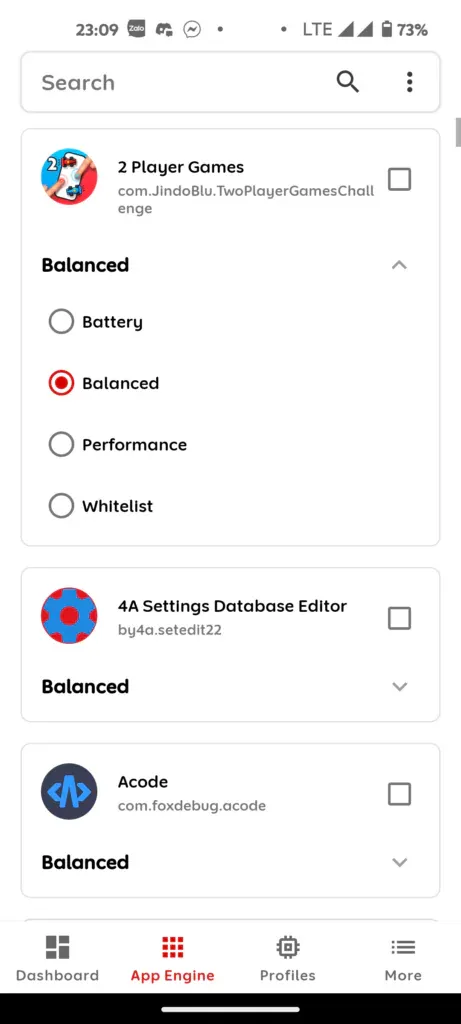
- Four Distinct Profiles: Assign each app to run under Battery (maximum energy savings), Balanced (daily stability), Performance (gaming/heavy rendering), or Whitelist (stock scheduler).
- Dynamic Context Switching: Helix Engine automatically engages the assigned profile upon application launch and cleanly returns processor clocks to idle when returning home.
- Realistic Trade-Offs: The Performance profile locks high frequencies to eliminate frame drops at the expense of higher battery consumption and device warmth; the Battery profile saves power but will cause stutter if forced on heavy 3D titles.
1. How Helix Engine Controls Android CPU Scheduling
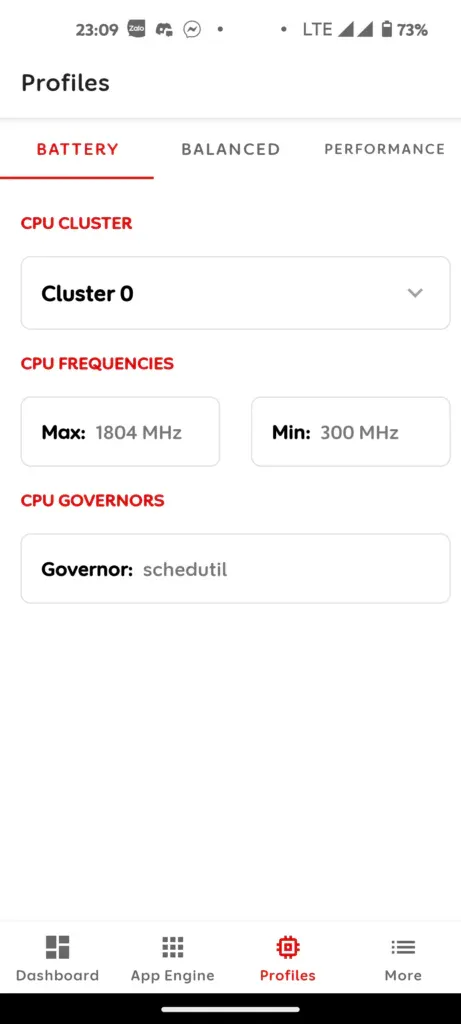
Rather than relying on generic OEM thermal governors that fluctuate arbitrarily, Helix Engine establishes granular control over Linux kernel governor thresholds:
- Battery Profile: Caps maximum clock frequencies at lower thresholds and leverages the
powersavegovernor. Ideal for reading, web browsing, music streaming, and social messaging (WhatsApp, Telegram) to maximize screen-on time. - Balanced Profile: Maintains moderate frequency bands using the modern
schedutilgovernor, striking an ideal equilibrium between thermal control and snappy UI navigation. - Performance Profile: Elevates minimum clock floors, forces aggressive scaling, and locks CPU cores via the
performancegovernor. This completely suppresses micro-stutters during intense team fights in demanding titles (Genshin Impact, Arena of Valor, Free Fire) and accelerates video rendering in CapCut. - Whitelist: Relinquishes scheduling authority entirely back to standard OEM system defaults.
2. Profile Comparison Matrix: Battery vs. Balanced vs. Performance
Assign each application according to your expected usage and performance requirements:
| Profile Mode | CPU Frequency Range | Recommended Governor | Recommended Applications |
|---|---|---|---|
| Battery | Lowest Min, capped Low/Mid Max. | powersave |
YouTube, Facebook, Chrome, E-readers, Messaging apps. |
| Balanced | Standard moderate operating frequencies. | schedutil |
Casual 2D games, Netflix Full HD streaming, office productivity apps. |
| Performance | Elevated Min, locked Maximum frequencies. | performance |
Demanding 3D titles, CapCut video rendering, console emulators. |
| Whitelist | Unmodified OEM scheduling algorithms. | Operating System Default | System UI, Phone dialer, Camera applications. |
3. Step-by-Step Installation & Setup Guide
Helix Engine offers flexible deployment methods for both rooted and unrooted Android smartphones:
-
Download and Install the Application: Download
Helix Engine (NO ROOT).zipfrom the download card below, extract the archive, and install the APK. - Grant System Execution Permissions: For Rooted Devices: Launch the app and grant Superuser access when prompted (Magisk / KernelSU). For Non-Rooted Devices: Enable USB Debugging / Wireless Debugging inside Developer Options, connect to a computer or launch Shizuku, and execute the permission command displayed on the setup screen.
- Open the App Engine Dashboard: Inside Helix Engine, tap on the App Engine tab to display a list of all installed user and system applications.
- Assign Specific Profiles: Tap on individual apps to assign your preferred profile (e.g., set Performance for heavy games and Battery for daily social media).
- Enable the Engine Service: Toggle the master activation switch at the top of the interface to start real-time governor monitoring.
4. File Details & Download Links
- Elevated Device Temperatures: Sustaining high CPU clock rates under the Performance profile will cause the phone to run noticeably warmer and deplete battery faster. This is an unavoidable physical reality of silicon operating at peak frequencies.
- Avoid Restricting Heavy Games: Accidentally assigning the Battery profile to high-demand 3D titles will result in severe lag, as processor clocks will be artificially restricted below the minimum threshold required for graphic rendering.
5. Frequently Asked Questions (FAQ)
Can Non-Root users access all core features of Helix Engine?
Yes. By leveraging elevated Android system permissions via ADB or Shizuku, Helix Engine can adjust runtime governor parameters and switch application profiles dynamically without requiring an unlocked bootloader or root partitions.
Do permissions need to be reapplied after rebooting the phone?
On rooted devices or configurations running through automated Shizuku services, permissions persist seamlessly. For unrooted devices configured via PC ADB commands, you may need to re-enable wireless debugging once following a full device restart.
Can Helix Engine harm the processor or accelerate battery wear?
No. Helix Engine only scales frequencies within the factory-safe clock brackets predefined by chip manufacturers (Qualcomm, MediaTek, Samsung). It does not overvolt the hardware, and native thermal safeguard cutoffs remain fully operational.
How can I restore the device back to original factory behavior?
Simply toggle off the master switch inside Helix Engine or uninstall the app and restart your phone. The Android operating system will immediately resume standard OEM Energy Aware Scheduling.
Related Articles

BrotX Optimizer v7: Rootless Android System Tuning via Shizuku ADB
Guide to rootless Android system tuning with BrotX Optimizer v7 via Shizuku ADB: enable ANGLE Vulkan GPU, 0ms floating window touch, 80% charge protection, and 58 flags.

iOS Debloat Script: Optimize Performance, Battery Life and Gaming FPS on Jailbroken iPhone
Complete guide to perf.sh iOS debloat script disabling 100+ telemetry and background daemons to reclaim RAM, eliminate thermal throttling, and boost gaming FPS.

OOptimize: Android 7-15 Gaming Tweaks (Root & No-Root)
Optimize SurfaceFlinger and GPU Vulkan pipeline on Android 7-15 with OOptimize: stabilize FPS, eliminate frame drops, and minimize touch input latency.

RAM Purger: Stop Background Processes & Boost Android Gaming Like iPhone
Complete guide to the rootless RAM Purger (frozen.sh) shell script terminating 400+ background app tasks to reclaim RAM and eliminate frame drops on Android.
Comments(1)
Sign in to join the conversation
Sign in with Google, Facebook or Email to leave a comment and get notified of replies.
link yeulink lỗi r bác ơi:vv