
How to Enable Arena of Valor Gaming Mode on Android via OsteBox

Arena of Valor (Liên Quân Mobile / RoV) is one of the most competitive 5v5 mobile MOBAs, where match outcomes are often determined in fractions of a second during chaotic team fights around the Abyssal Dragon or Dark Slayer. When all ten heroes unleash abilities simultaneously, mid-range and legacy Android devices frequently suffer from CPU bottlenecks and background thread contention, resulting in severe frame drops (from 60 FPS down to 35–45 FPS) and missed skill combos. The specialized Gaming Mode within OsteBox fine-tunes operating system scheduler priorities to allocate maximum system resources toward Arena of Valor without requiring root access.
- Targeted MOBA Prioritization: Identifies package signatures for Arena of Valor (
com.garena.game.kgvn) to elevate CPU and GPU thread scheduling priority during team fights. - One-Tap Activation: Toggle effortlessly via the Gaming Mode dashboard within OsteBox (version 1.6.5 or newer).
- Permission Scaling: Delivers maximum stability when paired with Wireless Debugging (ADB) on Android 11+ or rooted devices.
- Practical Trade-offs: The phone will operate slightly warmer and consume battery faster while playing due to sustained clock speeds. Restarting the device automatically restores system defaults.
1. How Gaming Mode Optimizes Arena of Valor in OsteBox
The Android operating system routinely balances processor cycles across foreground applications and background services. In the middle of an intense 5v5 team fight, background synchronization from social messaging or vendor skins (MIUI, One UI, ColorOS) can momentarily interrupt the CPU, causing micro-stutter:
- Process Scheduling Elevation (Renice): Prioritizes the main execution threads of
com.garena.game.kgvnover background tasks, ensuring hero positions and visual effects render without queue delays. - Touch Response Latency Reduction: Streamlines the display driver touch input queue, making directional skill aiming, flicker combos, and map panning respond with instantaneous tactile feedback.
- Background Service Suppression: Temporarily suspends non-essential background service wakeups throughout the active gaming session.
2. Performance Differences Across Permission Levels
The degree of system optimization directly corresponds to the permission tier granted to OsteBox:
| Permission Tier | Configuration Method | Technical Intervention Scope | Real-World Stability |
|---|---|---|---|
| Standard User (No-ADB) | Regular app installation without elevated privileges. | Accesses basic Android OS Game Mode APIs; cannot manage background services deeply. | Light optimization, best suited for phones with capable baseline hardware. |
| Wireless Debugging (ADB) | Pair once via Wireless Debugging on Android 11+ or Shizuku. | Executes elevated Shell commands to adjust CPU scheduler and graphics priorities without root. | High (Recommended; provides noticeable frame pacing stability on mid-range devices). |
| Rooted Hardware | Grant Superuser permission via Magisk, KernelSU, or APatch. | Unrestricted control over kernel CPU/GPU governors and clock thresholds. | Maximum (Recommended for advanced power users). |
3. Step-by-Step Activation Guide
- Install OsteBox: Download and install the OsteBox utility from the official link below (version 1.6.5 or newer recommended).
- Authorize Elevated ADB Privileges (Recommended for Android 11+): Navigate to Developer Options in your phone settings, enable Wireless Debugging, and pair with OsteBox to unlock full command-line capability.
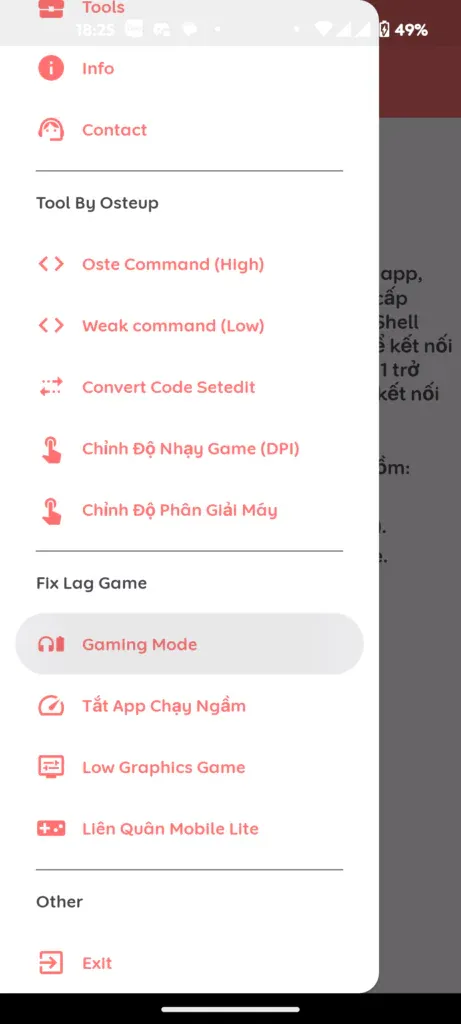
- Access Gaming Mode: From the primary OsteBox menu, select Fix Lag Game, then tap Gaming Mode.
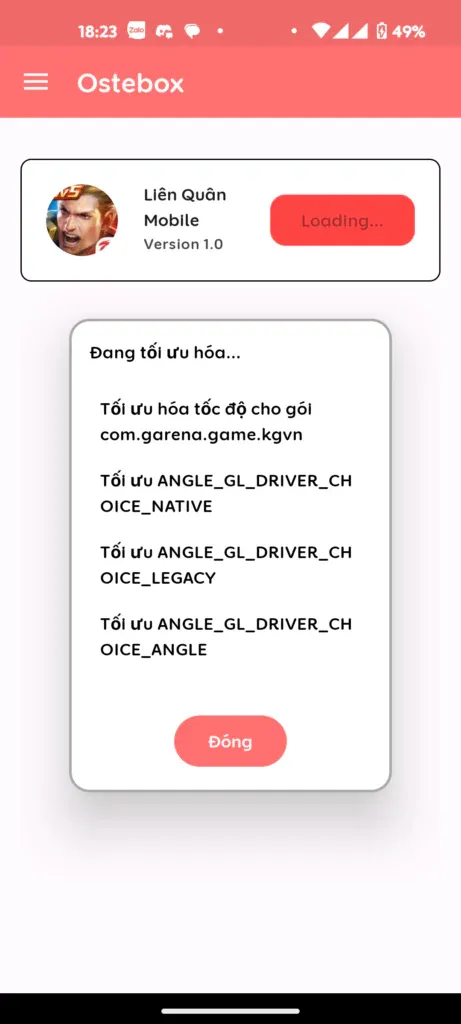
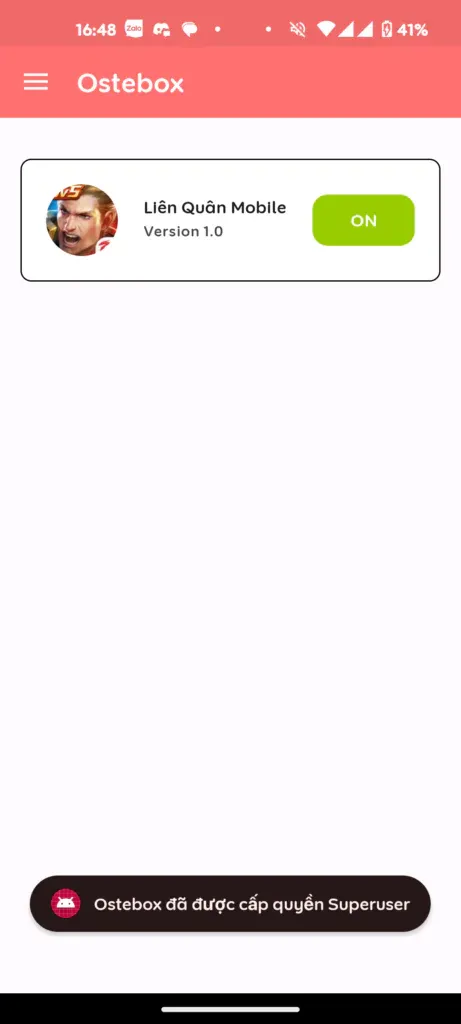
- Enable for Arena of Valor: Locate Arena of Valor / Liên Quân Mobile in the installed game directory. Tap the OFF button beside the game title to switch it to ON.
- Launch the Game: Once the app confirms that optimization parameters are applied, return to your home screen, launch the game, and enter your match.

4. Application Package & Download Links
- Game Missing from List: If Arena of Valor does not appear in the Gaming Mode list, verify that the application has been fully installed from the Google Play Store or a verified source. Pull down to refresh the package cache inside OsteBox.
- Thermal & Battery Behavior: Maintaining steady processor clock speeds to prevent FPS drops naturally raises phone temperature and consumes battery faster. This is standard hardware behavior under sustained workload.
5. Frequently Asked Questions (FAQ)
Does using this feature risk getting banned by Garena?
No. Gaming Mode in OsteBox operates exclusively within native Android operating system parameters (scheduler priorities, RAM allocations, and display input buffers). It makes zero modifications to game files (APK/OBB), injects no code into memory, and contains no cheat mechanics, map hacks, or skin modifications. Garena anti-cheat systems identify this as a standard, compliant OS runtime environment.
Do I need to re-enable Gaming Mode after restarting my phone?
Yes. When your device restarts or powers down, Android clears volatile RAM runtime configurations and restores stock manufacturer scheduler defaults. You only need to reopen OsteBox and toggle Gaming Mode for Arena of Valor once per system uptime session.
Does this feature unlock the High Frame Rate (60 FPS) toggle if greyed out in game settings?
Gaming Mode maximizes stability and minimizes stutter for your device's currently supported frame rates. If your hardware model is restricted by Garena's device whitelist (limiting in-game settings to 30 FPS), you must combine this with device model spoofing before enabling Gaming Mode.
What should I do if 5v5 team fights still experience frame drops after enabling Gaming Mode?
Gaming Mode resolves software scheduling bottlenecks, but cannot exceed physical hardware limitations. On entry-level devices (older chipsets or 2GB–3GB RAM), combine this optimization with lower in-game graphics settings (set HD Resolution to Standard, reduce Particle and Detail Quality to Medium or Low, while keeping High FPS enabled) for the smoothest competitive experience.
Related Articles

BrotX Optimizer v7: Rootless Android System Tuning via Shizuku ADB
Guide to rootless Android system tuning with BrotX Optimizer v7 via Shizuku ADB: enable ANGLE Vulkan GPU, 0ms floating window touch, 80% charge protection, and 58 flags.

iOS Debloat Script: Optimize Performance, Battery Life and Gaming FPS on Jailbroken iPhone
Complete guide to perf.sh iOS debloat script disabling 100+ telemetry and background daemons to reclaim RAM, eliminate thermal throttling, and boost gaming FPS.

OOptimize: Android 7-15 Gaming Tweaks (Root & No-Root)
Optimize SurfaceFlinger and GPU Vulkan pipeline on Android 7-15 with OOptimize: stabilize FPS, eliminate frame drops, and minimize touch input latency.

RAM Purger: Stop Background Processes & Boost Android Gaming Like iPhone
Complete guide to the rootless RAM Purger (frozen.sh) shell script terminating 400+ background app tasks to reclaim RAM and eliminate frame drops on Android.
Comments(0)
Sign in to join the conversation
Sign in with Google, Facebook or Email to leave a comment and get notified of replies.
No comments yet. Be the first to join the conversation!