
How to Enable Roblox Gaming Mode on Android via OsteBox

Roblox Mobile is an expansive user-generated sandbox platform featuring millions of community experiences, meaning graphical optimization varies wildly from map to map. On mid-range or aging Android devices, sudden framerate drops (FPS dips) and thermal spikes frequently occur in densely populated servers or resource-heavy custom games. The integrated Gaming Mode inside the OsteBox utility helps resolve this by adjusting system-level process prioritization directly for Roblox.
- Process Prioritization: Targets package
com.roblox.clientdirectly to elevate CPU/GPU thread scheduling and minimize sudden frame drops. - One-Tap Activation: Built seamlessly into the Gaming Mode section of OsteBox starting from version v1.6.5 and newer.
- Permission Requirements: Operates with maximum effectiveness when paired via Wireless Debugging (ADB) or on rooted devices.
- Practical Trade-Off: Devices may run noticeably warmer and consume battery slightly faster during gameplay as the hardware maintains consistent clock speeds.
1. How Gaming Mode in OsteBox Optimizes Roblox
Android allocates hardware resources using a time-sharing scheduler shared across background services and foreground applications. When playing Roblox, social media background sync routines, manufacturer bloatware, and cloud sync services continually interrupt CPU cores to exchange data.
Enabling Gaming Mode for Roblox within OsteBox introduces several targeted modifications:
- Elevates the execution priority (
renice) of the core Roblox rendering process. - Restricts or temporarily suspends CPU cycles for non-essential background applications to prevent thread contention.
- Optimizes surface flinger frame buffering parameters to reduce presentation latency between consecutive rendering frames.
2. Comparing Optimization Efficiency Across Permission Levels
The technical depth of Gaming Mode depends directly on the access privileges granted to OsteBox:
| Permission Tier | Connection Method | Technical Capability | Practical Game Impact |
|---|---|---|---|
| Standard (No-ADB) | Regular APK installation without debugging. | Triggers basic Android Game Mode APIs; cannot pause heavy background apps. | Modest stabilization; best suited for devices that already have capable hardware. |
| Wireless Debugging (ADB) | Paired via Wireless Debugging or Shizuku. | Adjusts CPU priority flags and executes system-level process freezing. | Substantial improvement; strongly recommended for non-rooted handsets. |
| Root Access (Superuser) | Granted via Magisk, KernelSU, or APatch. | Full control over CPU/GPU governors and retains persistent configurations across reboots. | Maximum performance ceiling; superior framerate consistency during extended play. |
3. Step-by-Step: Enabling Gaming Mode for Roblox
Follow these instructions to configure and activate the dedicated profile for Roblox Mobile:
- Launch the OsteBox app on your Android smartphone (ensure version v1.6.5 or later).
- From the primary dashboard, tap Fix Lag Game, then select Gaming Mode.
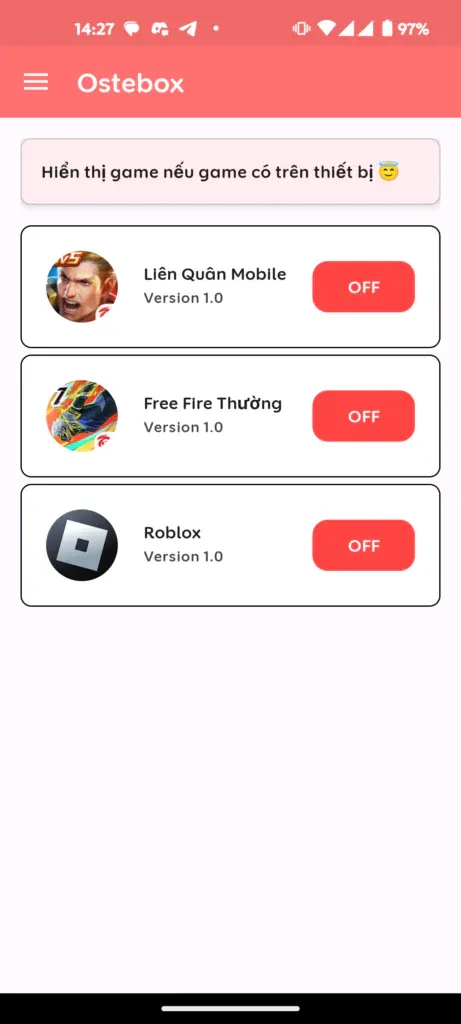
- Browse the recognized application list and locate Roblox.
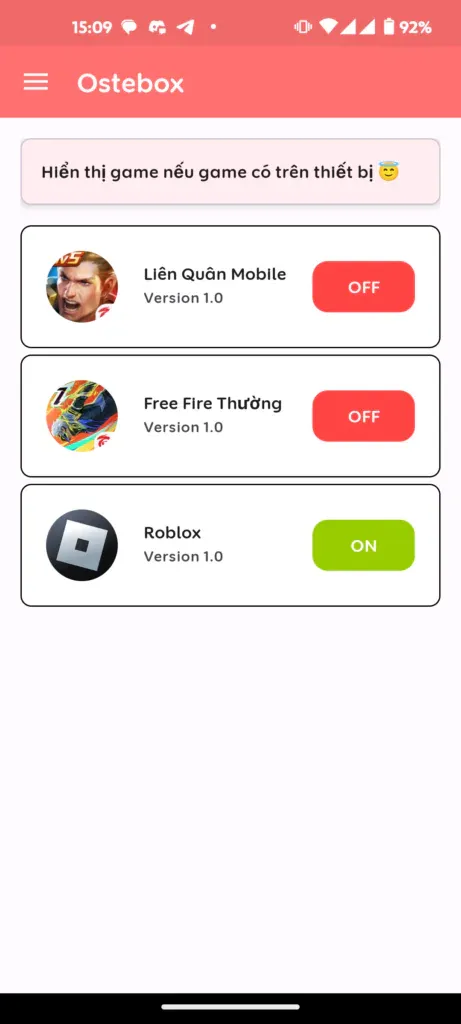
- Toggle the switch from OFF to ON.
- Allow the application several seconds to execute the optimization sequence. Once the toggle turns green and displays ON, exit to the home screen and launch Roblox.
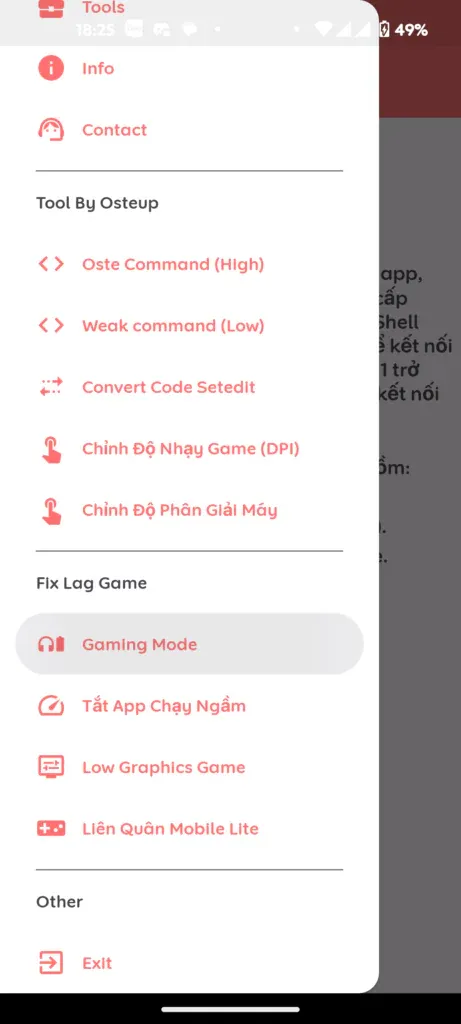
4. Download OsteBox Android Utility
Package specifications for the official OsteBox utility:
OsteBox Android (System Optimizer & Gaming Tool)
OsteBox_Release.apk5. Frequently Asked Questions
Why is Roblox missing from the Gaming Mode app list?
OsteBox detects installed games using official package identifiers (specifically com.roblox.client). If you recently installed or updated the game, open Roblox once so Android registers the active process, then return to OsteBox and pull down to refresh the list.
Why is Wireless Debugging (ADB) or Root recommended for best results?
Android security sandbox policies prevent normal third-party apps from managing processes outside their private container. Granting ADB privileges via Wireless Debugging or Superuser status allows OsteBox to reprioritize CPU execution threads and freeze resource-hogging background tasks.
Does rebooting my phone cancel the Gaming Mode optimization?
On non-rooted devices connected via Wireless Debugging, Android automatically terminates developer debugging sessions upon a full system reboot. Simply open OsteBox after restarting and toggle the switch back on before launching Roblox.
Is there any risk of an account ban in Roblox for using Gaming Mode?
No. OsteBox operates strictly at the Android operating system level to balance hardware resource delivery. It does not tamper with Roblox game binaries, inject memory hooks, or provide in-game advantages, making it completely compliant with game integrity guidelines.
Related Articles

BrotX Optimizer v7: Rootless Android System Tuning via Shizuku ADB
Guide to rootless Android system tuning with BrotX Optimizer v7 via Shizuku ADB: enable ANGLE Vulkan GPU, 0ms floating window touch, 80% charge protection, and 58 flags.

iOS Debloat Script: Optimize Performance, Battery Life and Gaming FPS on Jailbroken iPhone
Complete guide to perf.sh iOS debloat script disabling 100+ telemetry and background daemons to reclaim RAM, eliminate thermal throttling, and boost gaming FPS.

OOptimize: Android 7-15 Gaming Tweaks (Root & No-Root)
Optimize SurfaceFlinger and GPU Vulkan pipeline on Android 7-15 with OOptimize: stabilize FPS, eliminate frame drops, and minimize touch input latency.

RAM Purger: Stop Background Processes & Boost Android Gaming Like iPhone
Complete guide to the rootless RAM Purger (frozen.sh) shell script terminating 400+ background app tasks to reclaim RAM and eliminate frame drops on Android.
Comments(4)
Sign in to join the conversation
Sign in with Google, Facebook or Email to leave a comment and get notified of replies.
Bạn có thể giải thích cho mình hiểu hơn về cái này dc ko "Lưu ý: Để chạy fix lag tốt nhất và đạt trạng thái hoàn hảo nhất, hãy kết nối app qua gỡ lỗi wifi hoặc máy đã root nhé, nếu không đạt 2 điều kiện này thì fix lag sẽ chạy ở mức yếu. Hướng dẫn kết nối app nằm trong link tải ostebox."
Tại sao mình ko thấy game xuất hiện trong khi mình đã tải game rồi
Mình cấp quyền thông báo rồi , nhưng mà đến gỡ lỗi wifi nó lại không hiện dịch vụ để nhập số. Mình xài realme 9 4G