
How to Fix Cannot Access Android Data & OBB Folders (Android 11 - 14)

Starting with Android 11 and extending through Android 12, 13, and 14, Google enforced strict privacy protections through the Scoped Storage framework (Storage Access Framework - SAF). This policy completely locks out direct third-party access to the primary internal system directories: Android/data and Android/obb. When attempting to paste game assets, apply performance fix files, install offline game OBB caches, or rename package directories, standard explorers like ZArchiver or default system file managers prompt "Can't use this folder: To protect your privacy, choose another folder" or render the contents entirely blank. This guide provides two tested, working workarounds to bypass Scoped Storage and access Data/OBB directories without requiring root permissions.
- Root Cause: The system DocumentsUI component (package
com.google.android.documentsuior OEM-bundled Files app) updated with Google's latest security restrictions, disallowing SAF root authorization on Data and OBB paths. - Method 1 (Uninstall Files Updates): Revert the built-in system Files app back to its factory factory ROM version, purge cached data, and restore legacy SAF folder authorization dialogs.
- Method 2 (Files 6.0.1 AOSP Shortcut): Install a lightweight utility package (~42 KB) that directly invokes the native AOSP DocumentsUI explorer, bypassing restrictive OEM launcher overlays.
- Completely Rootless: All actions execute locally on the phone without unlocking the bootloader, flashing custom recoveries, or compromising personal data.
1. Comparison of Data/OBB Access Workarounds
Depending on your device manufacturer and Android skin (Samsung OneUI, Xiaomi MIUI/HyperOS, Oppo/Realme ColorOS), choose the method best suited for your setup:
| Approach | Key Advantages | Limitations & Considerations | Compatibility |
|---|---|---|---|
| Uninstall Files App Updates | Instantly restores folder picking permissions in ZArchiver and X-plore without external tools. | Some newer OEM security patches (such as modern ColorOS) may re-download updates in the background. | High (Android 11, 12, 13) |
| Files 6.0.1 AOSP Utility | Ultra-lightweight (42 KB); grants direct file operations including rename, copy, paste, and overwrite. | Requires toggling "Install unknown apps" permission once during installation. | Best for Android 12, 13, 14 |
| MT Manager / Dual-Pane SAF | Provides side-by-side file navigation and built-in archive extraction tailored for game asset modding. | Advanced technical UI; heavily restricted devices may require pairing with Shizuku shell. | Universal across all versions |
2. Download Files 6.0.1 Unlock Utility
Download the clean, ad-free AOSP DocumentsUI shortcut APK via the verified high-speed storage mirrors below:
Download Files 6.0.1 APK (Data & OBB Unlocker)
Direct shortcut launcher invoking native AOSP DocumentsUI to bypass Scoped Storage folder restrictions
osteup
3. Step-by-Step Implementation Guide
Method 1: Uninstall System Files Updates
This is the standard approach to re-enable folder selection prompts in utilities like ZArchiver, X-plore, or MT Manager:
- Navigate to Settings > open Apps > tap Manage apps (or App list).
- Tap the three vertical dots in the upper right corner > select Show all apps (Show system apps).
- Search for Files, DocumentsUI, or your device's native system file manager.
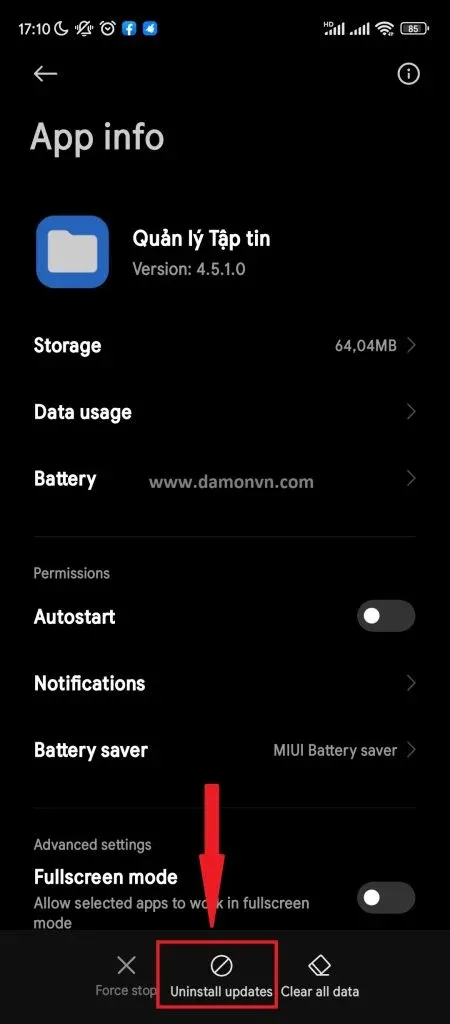
- On the App Info screen: Tap the three dots at the top right > select Uninstall updates. Tap Storage > select Clear data > choose Clear all data. Tap Force stop to kill any active background file processes.
- Reopen ZArchiver or X-plore, navigate to
/storage/emulated/0/Android/data, and when prompted by the system file picker, tap USE THIS FOLDER and confirm ALLOW.
| System Files App Info: Uninstall Updates & Clear Data Workflow |
|---|
|
Method 2: Use Files 6.0.1 APK to Copy & Rename Folders
For smartphones running tightly locked skins (such as recent Oppo/Realme ColorOS or Samsung One UI 6) where uninstalling Files updates is disallowed by the ROM, the Files 6.0.1 standalone utility provides a seamless workaround:
- Download
Files_v6.0.1.apkfrom Section 2 and install it onto your Android device. - Open the newly installed Files application. This provides direct, unfiltered access to the underlying AOSP DocumentsUI component.
- Tap the navigation drawer (three horizontal lines) in the top-left corner > select your device's internal storage root.
- Open the Android directory > enter data or obb. All installed package subdirectories will now be visible.
- From this interface, you can paste configuration files, rename directories prior to installing modded APKs, or move large OBB caches without authorization errors.
4. Frequently Asked Questions & Troubleshooting
Why does tapping "Use this folder" trigger an error message?
Google's newer system updates disable root-level selection at the /Android/data directory tier. To resolve this, either uninstall updates on the system Files app as shown in Method 1, or drill directly into the target application's specific folder (e.g., /Android/data/com.dts.freefireth) before granting folder authorization.
What if my device does not show the "Uninstall updates" button?
Certain carrier-branded and heavily customized ROMs bake security patches directly into the read-only system image. On these models, proceed directly with Method 2 (Files 6.0.1 utility) or utilize Shizuku wireless ADB pairing linked with modern file managers like FV File Explorer.
Will pasted data and OBB files survive device reboots?
Yes. All file writes, folder renames, and deletions made through Scoped Storage workarounds are stored directly on permanent flash storage and persist indefinitely across device reboots.
Related Articles

BrotX Optimizer v7: Rootless Android System Tuning via Shizuku ADB
Guide to rootless Android system tuning with BrotX Optimizer v7 via Shizuku ADB: enable ANGLE Vulkan GPU, 0ms floating window touch, 80% charge protection, and 58 flags.

iOS Debloat Script: Optimize Performance, Battery Life and Gaming FPS on Jailbroken iPhone
Complete guide to perf.sh iOS debloat script disabling 100+ telemetry and background daemons to reclaim RAM, eliminate thermal throttling, and boost gaming FPS.

OOptimize: Android 7-15 Gaming Tweaks (Root & No-Root)
Optimize SurfaceFlinger and GPU Vulkan pipeline on Android 7-15 with OOptimize: stabilize FPS, eliminate frame drops, and minimize touch input latency.

RAM Purger: Stop Background Processes & Boost Android Gaming Like iPhone
Complete guide to the rootless RAM Purger (frozen.sh) shell script terminating 400+ background app tasks to reclaim RAM and eliminate frame drops on Android.
Comments(0)
Sign in to join the conversation
Sign in with Google, Facebook or Email to leave a comment and get notified of replies.
No comments yet. Be the first to join the conversation!