
How to Lower Screen Resolution on Android for Maximum Gaming FPS

Severe frame drops, thermal throttling, and battery drain after just 15 to 20 minutes of gaming are major bottlenecks for mobile gamers on mid-range or older Android devices. While many smartphones boast dense Full HD+, 2K (WQHD+), or even 4K display panels, their integrated graphics processors (GPUs) often struggle to compute millions of pixels while maintaining a steady 60 or 90 FPS in demanding titles like PUBG Mobile, Free Fire, Wild Rift, or Genshin Impact.
Downgrading screen resolution directly reduces rendering load on your mobile GPU, cutting computing overhead by 30% to 50% instantly. Combining rootless ADB permissions through Shizuku with the OsteBoss utility enables safe, dynamic resolution scaling and DPI calibration for optimal gaming responsiveness.
- Substantially relieves GPU rendering strain, stabilizing frame rates and preventing sudden FPS drops in team fights.
- Reduces internal thermal buildup by 3°C to 5°C, eliminating aggressive CPU/GPU thermal throttling.
- Greatly optimizes screen recorder performance and decreases gameplay video file sizes.
- 100% rootless execution via Shizuku with an automated 15-second fallback timer to prevent display lockouts.
1. Technical Mechanism: Why Lowering Resolution Boosts Gaming FPS
Every frame rendered on a smartphone screen consists of millions of calculated pixels. For instance:
- A native Full HD+ panel (1080 x 2400) demands GPU pixel shaders to calculate approximately 2.59 million pixels each refresh cycle.
- Lowering resolution down to HD+ (720 x 1600) reduces this workload to 1.15 million pixels—a drastic 55% reduction in total rendering demand.
With superfluous rendering cycles eliminated, your device's GPU can dedicate its maximum clock frequencies and memory bandwidth to game logic, physics computations, and sustaining maximum target framerates.
2. Technical Benchmark: Resolution Scaling Ratios
| Scaling Ratio | Effective Resolution (From FHD+) | GPU Load Reduction | In-Game Performance Impact |
|---|---|---|---|
85% Scale |
~ 918 x 2040 | 25 - 30% lower | Imperceptible quality loss, gains +5 to +10 FPS, mildly cooler operating temps |
75% Scale (Recommended) |
~ 810 x 1800 | 40 - 45% lower | Ideal sweet spot: sharp text readability, zero stutter in complex combat |
60% Scale |
~ 648 x 1440 | 60 - 65% lower | Low-end survival tier: ultra-smooth FPS, ice-cold temps, slight softness on text edges |
3. Pros & Cons Assessment
| Key Advantages | Trade-offs & Considerations |
|---|---|
| Consistent Framerates: Eliminates volatile frame spikes and micro-stutters during heavy graphical scenes. | Slight Image Softening: Distant textures and fine UI outlines show subtle anti-aliasing artifacts. |
| Sustained Thermals: Prevents aggressive device thermal throttling and automatic screen dimming. | DPI Misalignment: Custom navigation bars or keyboard layouts may require quick DPI scaling adjustments. |
| Resource-Light Screen Recording: Video capture uses less GPU power and consumes minimal storage. | Negligible Idle Battery Savings: Physical OLED pixels remain lit during basic web browsing tasks. |
4. Download Display Optimizer Utility
OsteBoss Display Optimizer
OsteBoss-Release.apkYou also need the official Shizuku ADB privilege manager: Get Shizuku on Google Play→
5. Step-by-Step Configuration Guide
- Step 1 - Initialize Shizuku: Enable Developer Options and Wireless Debugging on your device. Launch Shizuku and start the service to grant system-level command access.
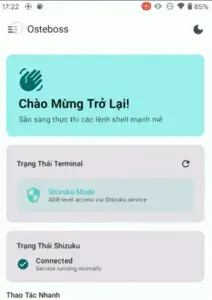
- Step 2 - Grant Permissions in OsteBoss: Open OsteBoss and accept the Shizuku permission request. Verify that the terminal indicator switches from
Normal ModetoShizuku Mode(orRoot Modeon rooted devices). - Step 3 - Select Display Scale: Navigate to the Display Tuning panel and adjust the scaling slider (we recommend 75% - 80% for the best visual-to-performance balance).
- Step 4 - Apply & Confirm Safety Timer: Tap Apply Changes. A prompt with a 15-second safety timer will display. If the interface renders comfortably, confirm; if touch offsets occur, simply wait 15 seconds for an automatic rollback.
- Step 5 - Fix Navigation Bar / System UI: Tap the Fix Nav Bar / System UI option in OsteBoss to recalibrate navigation bar buttons and keyboard DPI scaling automatically.


6. Frequently Asked Questions (FAQ)
Does lowering screen resolution physically damage my smartphone display?
Absolutely not. Physical pixel hardware is unchanged. The GPU simply outputs a lower-density image buffer to the display controller, which reduces heat output and preserves silicon longevity.
Will my custom resolution persist after a device reboot?
Android standard wm size properties are saved globally in system settings. On most OEM firmware, custom resolutions persist after reboots; on others, a quick tap in OsteBoss re-applies your preferred profile.
How can I revert everything back to stock factory resolution?
Simply tap the Reset to Default button in OsteBoss, or run the standard ADB command: wm size reset && wm density reset.
Related Articles

BrotX Optimizer v7: Rootless Android System Tuning via Shizuku ADB
Guide to rootless Android system tuning with BrotX Optimizer v7 via Shizuku ADB: enable ANGLE Vulkan GPU, 0ms floating window touch, 80% charge protection, and 58 flags.

iOS Debloat Script: Optimize Performance, Battery Life and Gaming FPS on Jailbroken iPhone
Complete guide to perf.sh iOS debloat script disabling 100+ telemetry and background daemons to reclaim RAM, eliminate thermal throttling, and boost gaming FPS.

OOptimize: Android 7-15 Gaming Tweaks (Root & No-Root)
Optimize SurfaceFlinger and GPU Vulkan pipeline on Android 7-15 with OOptimize: stabilize FPS, eliminate frame drops, and minimize touch input latency.

RAM Purger: Stop Background Processes & Boost Android Gaming Like iPhone
Complete guide to the rootless RAM Purger (frozen.sh) shell script terminating 400+ background app tasks to reclaim RAM and eliminate frame drops on Android.
Comments(7)
Sign in to join the conversation
Sign in with Google, Facebook or Email to leave a comment and get notified of replies.
ใช้ครับโทรศัพท์กาก
fgghjhh
app ngon
khánh
tốt rất tốt
tốt