
How to Use Windows MSRT (Malicious Software Removal Tool)

When a Windows computer suddenly stutters, fans spin up aggressively, or Task Manager displays 100% disk usage without any heavy foreground application running, an unwanted background process may be consuming system resources. Before turning to third-party cleaners or intrusive utilities, you can utilize the built-in Malicious Software Removal Tool (MSRT) provided directly by Microsoft.
- Built-in Utility: Accessible instantly by running the
mrtcommand via the Run dialog (Windows + R), with no prior installation required. - On-Demand Scanner: Executes only when triggered manually or during monthly updates, consuming zero standby memory or CPU during everyday computing.
- Targeted Scope: Focuses specifically on detecting and eliminating prevalent, high-impact malware families, worms, and trojans identified by Microsoft.
- Standalone Installer Available: For customized Windows builds that have Windows Update disabled, Microsoft offers a direct offline installer package.
1. What Is MSRT and How Does It Operate?
MSRT stands for Microsoft Windows Malicious Software Removal Tool. Introduced in 2005, it serves as a lightweight security utility designed to help Windows users purge specific, widespread malicious software infections from their machines.
Microsoft routinely distributes updated versions of this tool once a month on "Patch Tuesday" (the second Tuesday of each month) via Windows Update under the package identifier KB890830. Once delivered, Windows executes a brief background scan under low process priority to check core system areas.
It is important to recognize the distinction: MSRT is not a full-fledged antivirus replacement. It lacks real-time interception capabilities and only acts as an on-demand disinfectant for targeted malware strains when launched.
2. Comparing MSRT and Microsoft Defender Antivirus
Users often confuse MSRT with the built-in Microsoft Defender Antivirus. The table below outlines how these two native utilities differ:
| Feature | MSRT (Command mrt) |
Microsoft Defender Antivirus |
|---|---|---|
| Scanning Mechanism | On-demand scanning triggered by the user or monthly maintenance. | Continuous real-time background protection. |
| System Resource Overhead | Zero overhead when idle; consumes resources strictly during active scans. | Runs continuously in the background (Antimalware Service Executable), taking modest CPU and RAM. |
| Detection Coverage | Focused on specific high-prevalence malware families updated monthly. | Broad heuristic analysis, cloud-delivered signatures, and daily definition updates. |
| Execution Method | Press Windows + R, enter mrt, and hit Enter. |
Managed within the Windows Security control panel. |
| Recommended Use Case | Emergency malware verification, low-spec systems, or when Defender is toggled off. | Daily defense against online threats, downloads, and web exploits. |
3. Common Symptoms of Malware Resource Hogging
When unwanted malicious software or aggressive adware takes hold of an operating system, typical hardware and software symptoms include:
- Disk or CPU utilization pinned at 100% in Task Manager despite no active heavy workloads.
- System responsiveness degradation accompanied by persistent high fan speeds during idle states.
- Unexpected file extension modifications or unfamiliar executables populating the Startup apps tab.
- Unsolicited browser tab redirections or invasive desktop pop-up notifications.
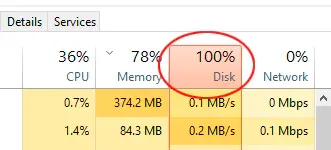
Running an on-demand scan with MSRT offers a straightforward check to verify whether recognized malicious processes are behind these slowdowns.
4. Step-by-Step: How to Run the MRT Command on Windows
You can launch the scanner directly without downloading any external files:
- Press the
Windows + Rkeyboard shortcut to launch the Run dialog. - In the open field, type
mrtand press Enter (or click OK). - When prompted by the User Account Control (UAC) dialog, click Yes to grant administrative privileges.
- The Microsoft Windows Malicious Software Removal Tool welcome screen will appear. Click Next to proceed to the scan mode selection.
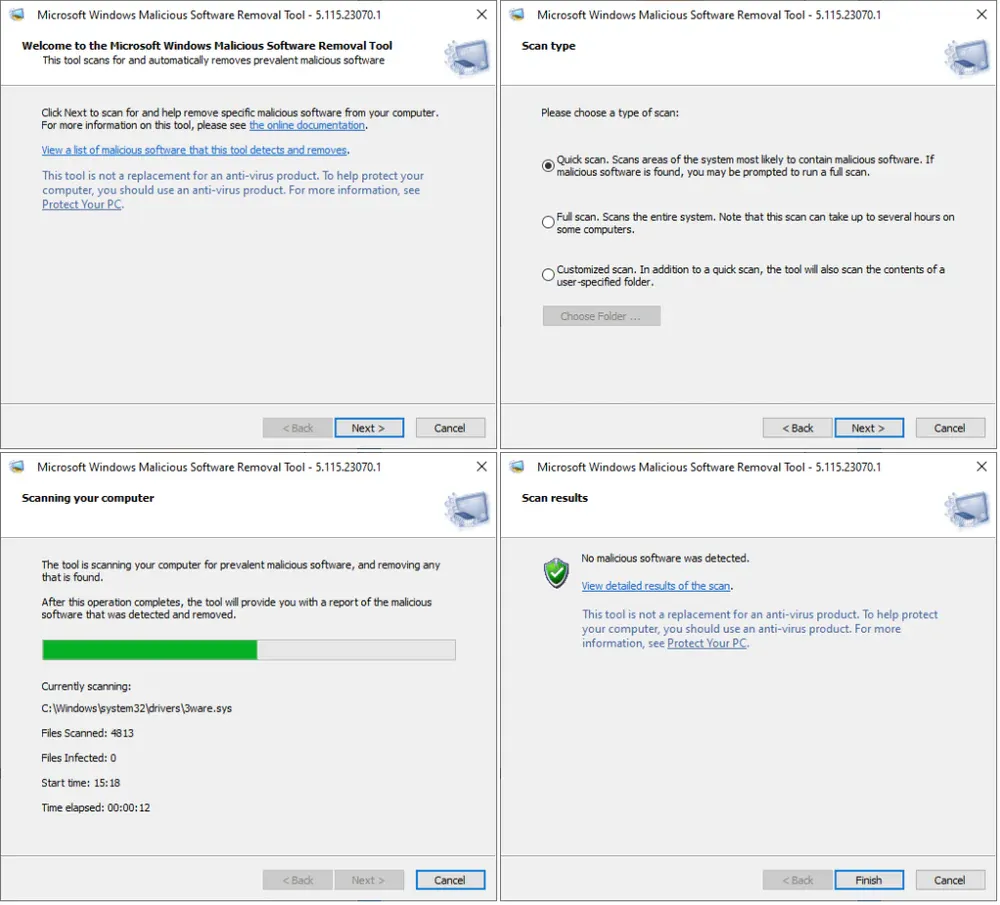
On the subsequent screen, select from three available scanning modes depending on your objective:
- Quick scan: Scans essential system directories where malware most commonly hides (Windows directory, System32, Registry). Typical duration is between 2 to 5 minutes.
- Full scan: Thoroughly analyzes all files across every connected drive. Because it inspects complete storage volumes, this scan can take anywhere from thirty minutes to several hours depending on drive capacity and speed.
- Customized scan: Allows you to target an individual folder or external storage drive for focused inspection.
Select your desired scan mode, click Next, and allow the tool to complete its inspection. Once finished, MSRT will summarize its findings, confirming whether malicious software was identified and removed.
C:\Windows\Debug\mrt.log. You can inspect this file with Notepad at any time.
5. Standalone MSRT Offline Package Download
If you run a debloated Windows edition or have permanently disabled Windows Update, MSRT may not receive the newest monthly threat definitions automatically. In such scenarios, download the official standalone executable directly from the Microsoft Download Center:
Microsoft Malicious Software Removal Tool (KB890830)
Windows-KB890830-x64.exe6. Frequently Asked Questions
Can MSRT completely replace third-party antivirus software?
No. MSRT acts strictly as a post-infection cleaning tool executed on demand. It lacks real-time web protection, heuristic interception, and behavioral shields required to block incoming zero-day threats during active browsing.
Does running an MRT scan risk deleting personal documents?
MSRT only removes or quarantines confirmed malicious files that strictly match Microsoft threat signatures. Standard user files, documents, pictures, and software projects remain untouched.
Why does Windows show an error saying mrt command cannot be found?
If typing mrt returns an error, the file mrt.exe may have been stripped out by a third-party custom Windows ISO, or the system has never executed Windows Update. Downloading and running the official standalone package linked above resolves this immediately.
Related Articles

BrotX Optimizer v7: Rootless Android System Tuning via Shizuku ADB
Guide to rootless Android system tuning with BrotX Optimizer v7 via Shizuku ADB: enable ANGLE Vulkan GPU, 0ms floating window touch, 80% charge protection, and 58 flags.

iOS Debloat Script: Optimize Performance, Battery Life and Gaming FPS on Jailbroken iPhone
Complete guide to perf.sh iOS debloat script disabling 100+ telemetry and background daemons to reclaim RAM, eliminate thermal throttling, and boost gaming FPS.

OOptimize: Android 7-15 Gaming Tweaks (Root & No-Root)
Optimize SurfaceFlinger and GPU Vulkan pipeline on Android 7-15 with OOptimize: stabilize FPS, eliminate frame drops, and minimize touch input latency.

RAM Purger: Stop Background Processes & Boost Android Gaming Like iPhone
Complete guide to the rootless RAM Purger (frozen.sh) shell script terminating 400+ background app tasks to reclaim RAM and eliminate frame drops on Android.
Comments(0)
Sign in to join the conversation
Sign in with Google, Facebook or Email to leave a comment and get notified of replies.
No comments yet. Be the first to join the conversation!