
oCam Screen Recorder: Lightweight Setup Guide for Low-End PCs

Recording screen captures for gameplay archiving, software walkthroughs, or online lectures has become an everyday requirement. However, broadcast-grade suites like OBS Studio require substantial hardware overhead to render scenes and compositing layers. For entry-level laptops and older desktop computers, oCam (version 550.0) developed by Ohsoft stands out as one of the leanest screen recording tools available, boasting a minimal footprint and direct hardware acceleration support.
- Minimal Footprint: Compact 9 MB installer using less than 50 MB of resident RAM during background recording — significantly lighter than OBS Studio or Bandicam.
- Flexible Codec Support: Direct integration with NVIDIA NVENC, Intel QuickSync (integrated iGPU), and Open H.264 (CPU) encoders to offload rendering pressure.
- Custom Capture Region: Flexible bounding boxes allow you to frame exact application windows or set fixed lower resolutions to preserve system bandwidth.
- Practical Trade-offs: The free edition presents developer promotional dialogue boxes upon closing, and does not provide multi-track discrete audio mixing.
1. Why oCam Outperforms Heavier Tools on Budget Hardware
The core architectural difference between oCam and complex software like OBS lies in frame processing workflows:
- Zero Canvas Rendering Overhead: OBS maintains a continuous rendering pipeline to composite multiple webcams, images, audio filters, and canvas layers in real time. This consumes steady GPU/CPU cycles even when capturing a simple screen area.
- Direct Framebuffer Capture: oCam directly grabs the display buffer and passes frames immediately into the selected hardware encoder, bypassing multiple intermediate memory buffers.
- Integrated iGPU Offloading: Older Intel Core processors include Intel QuickSync silicon. oCam allows you to route video encoding directly through this dedicated hardware block, freeing the primary CPU cores for your foreground applications or games.
2. Hardware Configuration Profiles & Recommended Settings
To ensure steady video output without dropping frames or bogging down foreground gaming performance, match your recording parameters to your physical hardware:
| Hardware Tier | Sample Specifications | Recommended Codec | Target Frame Rate | Quality Level |
|---|---|---|---|---|
| Legacy / Low-End PC | Dual-Core CPU, 4GB RAM, Integrated Graphics | Open H.264 (CPU) |
30 FPS | Very Low to Low |
| Mainstream Office Laptop | Intel Core i3/i5, Intel HD / UHD Graphics | Intel QuickSync H.264 |
30 – 60 FPS | Medium |
| Dedicated GPU System | NVIDIA GeForce GT / GTX Series | NVIDIA NVENC H.264 |
60 FPS | Medium to High |
3. Step-by-Step Optimization Walkthrough
-
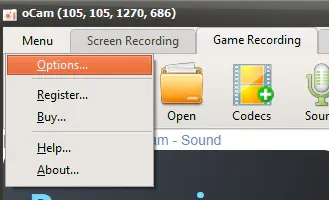
Access Preferences: On the primary oCam toolbar, click the Menu button located in the top-left corner and choose Options (or press
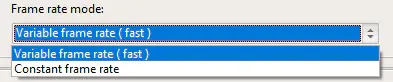
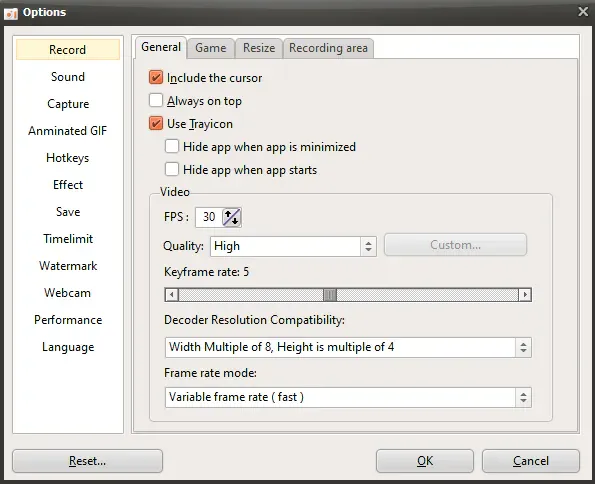
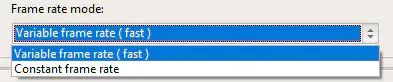
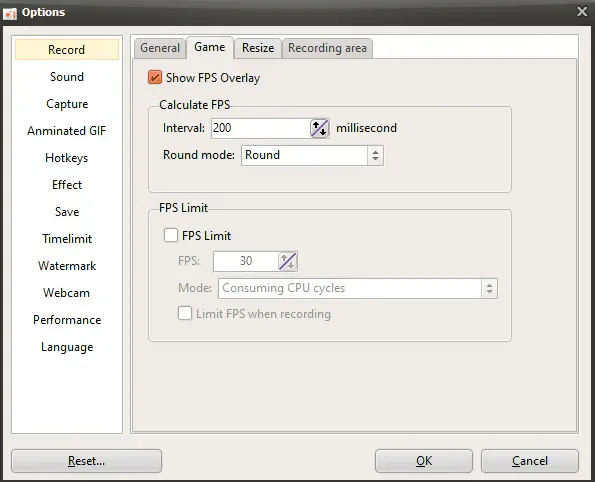
F7). - Configure Frame Rates (FPS): Under the Record tab, adjust the target frame rate: Set to 30 FPS for desktop work, software guides, or browser navigation. This keeps file sizes modest and prevents storage write bottlenecks. Set to 60 FPS when recording high-speed gaming action if your processor maintains stable frame pacing. Under Frame rate mode, select Fast to ensure the smoothest capture output without erratic frame pauses.
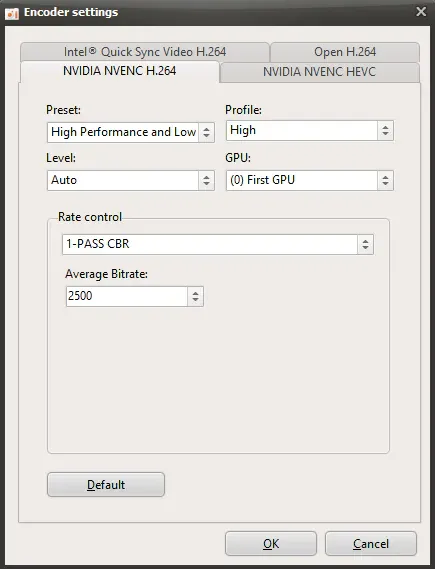
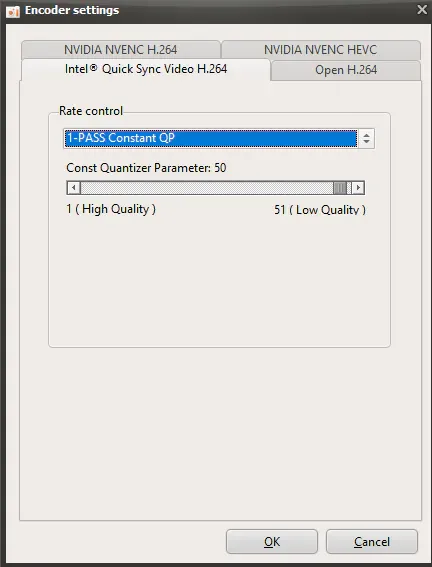
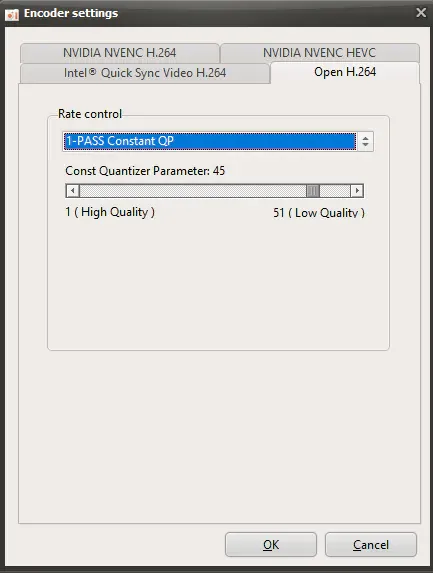
- Select the Hardware Codec: Click the Codecs icon on the main toolbar ribbon: If using an Intel CPU with integrated graphics, prioritize Intel QuickSync H.264 within the MP4 container. If your machine features a dedicated NVIDIA graphics card, select NVIDIA NVENC H.264 to assign video encoding exclusively to the NVENC ASIC. If neither hardware encoder is present, fall back to Open H.264 or generic MP4 (H.264).
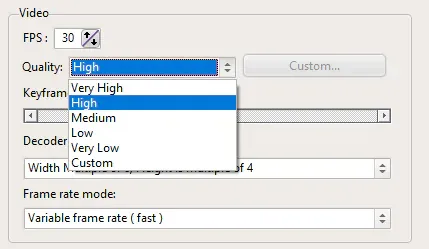
- Set Output Quality: Navigate to Record > Quality and select Low or Medium. Avoid Very High on mechanical hard drives, as high write bitrates can cause write queue stalls and dropped frames.
-
Operate via Global Hotkeys: Avoid switching back and forth between active game windows by utilizing standard hotkeys:
F2: Start Recording / Stop Recording.F3: Pause Recording / Resume Recording.F4: Capture Instant Screenshot.
4. Package Specifications & Download Links
Archive extraction password (if prompted): osteup
- Exit Advertisements: oCam is freeware for personal evaluation. Whenever you shut down the application, the developer displays a brief promotional banner or browser tab. This is expected freeware behavior; simply dismiss the window without engaging with external third-party links.
- Exclusive Fullscreen Capture: Running games in exclusive fullscreen modes may occasionally result in black screen recordings. Switch the in-game display setting to Borderless Windowed mode or use oCam's specialized Game Recording mode to correctly hook DirectX/OpenGL graphics APIs.
5. Frequently Asked Questions (FAQ)
Why does OBS Studio sometimes feel visually smoother than oCam?
OBS Studio utilizes an advanced rendering compositor and precise frame pacing queue, which renders video frames very consistently even at modest frame rates. However, this fidelity comes at the cost of consuming 3 to 5 times more CPU, GPU, and RAM than oCam.
On constrained hardware, running OBS alongside a game often leads to system thermal throttling and severe in-game frame stutter. oCam prioritizes minimal overhead to keep the active game fluid. Once properly configured with hardware encoding (Intel QuickSync or NVENC) and set to 30 FPS in Fast mode, oCam provides dependable capture fidelity with zero gameplay degradation.
Can oCam record desktop audio and an external microphone simultaneously?
Yes. Click the Sound icon on the main interface bar and check both Record System Audio and your external Microphone device. oCam automatically multiplexes both audio feeds into a clean stereo audio stream.
Does oCam place watermarks on recorded clips, and where are files stored?
oCam does not superimpose watermarks or runtime branding on your recordings, even when using the free edition. Captured files are saved by default in C:\\Users\\YourUsername\\Documents\\oCam, which can be instantly opened using the Open button on the primary ribbon.
Which output container format provides the best social platform compatibility?
The MP4 container paired with H.264 video encoding and AAC audio provides universal compatibility across modern desktop editing suites (Premiere, DaVinci, CapCut) and video platforms (YouTube, Facebook, Discord) without requiring secondary re-encoding passes.
Related Articles

BrotX Optimizer v7: Rootless Android System Tuning via Shizuku ADB
Guide to rootless Android system tuning with BrotX Optimizer v7 via Shizuku ADB: enable ANGLE Vulkan GPU, 0ms floating window touch, 80% charge protection, and 58 flags.

iOS Debloat Script: Optimize Performance, Battery Life and Gaming FPS on Jailbroken iPhone
Complete guide to perf.sh iOS debloat script disabling 100+ telemetry and background daemons to reclaim RAM, eliminate thermal throttling, and boost gaming FPS.

OOptimize: Android 7-15 Gaming Tweaks (Root & No-Root)
Optimize SurfaceFlinger and GPU Vulkan pipeline on Android 7-15 with OOptimize: stabilize FPS, eliminate frame drops, and minimize touch input latency.

RAM Purger: Stop Background Processes & Boost Android Gaming Like iPhone
Complete guide to the rootless RAM Purger (frozen.sh) shell script terminating 400+ background app tasks to reclaim RAM and eliminate frame drops on Android.
Comments(2)
Sign in to join the conversation
Sign in with Google, Facebook or Email to leave a comment and get notified of replies.
tôi thấy quay ko mượt bằng OBS, obs của tôi setting các kiểu quay fps thấp hơn nhưng mượt và dễ nhìn hơn