
Reduce Windows Processes: Disable Unnecessary Services & Scheduled Tasks in Windows

Fresh installations of Windows 10 and Windows 11 run dozens of background services and scheduled tasks straight out of the box. Most of these background routines manage diagnostic telemetry, legacy hardware interfaces (such as print spoolers or fax engines), or remote desktop handlers. On budget office PCs and gaming laptops, these non-essential processes consume between 1.5 GB and 2.5 GB of RAM while idling. Reduce Windows Processes is a lightweight, interactive batch script designed to selectively disable bloatware services and scheduled tasks to reclaim CPU and memory headroom.
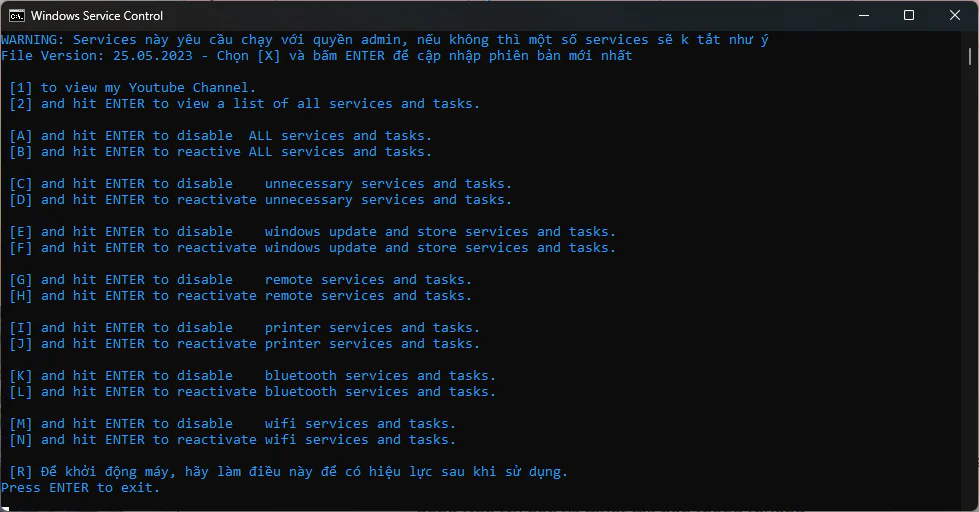
Originally engineered by RiPEX, this version was translated, refined, and bundled with one-click restoration scripts by WDLF Osteup to provide safe, reversible system optimizations.
1. File Specifications & Download
| Property | Release Details |
|---|---|
| File Name | Reduce_Windows_Processes.zip |
| Version | 25.05.2023 (Modded & Enhanced Recovery) |
| File Size | Approximately 10 KB |
| Operating System Compatibility | Windows 7, Windows 8/8.1, Windows 10, and Windows 11 (32-bit & 64-bit) |
| Execution Privilege | Run as Administrator (Required) |
2. Interactive Menu Key Reference
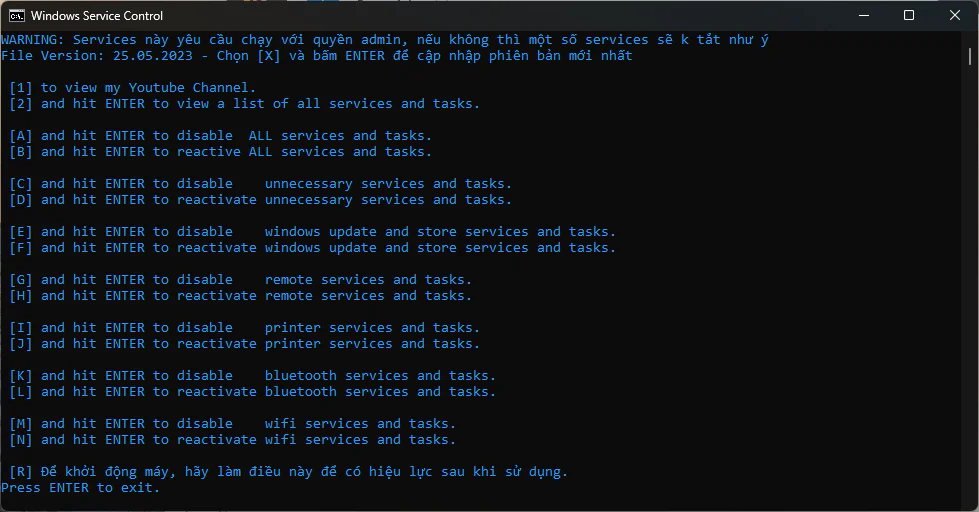
Launching the script with administrative privileges presents a menu indexed by keyboard letters:
| Key | Function | Recommended Use Case |
|---|---|---|
| [2] | Inspect full list of configurable services & scheduled tasks | Audit which services will be adjusted prior to applying |
| [A] | Disable all non-essential services & tasks (Maximum Gaming Performance) | Ideal for dedicated gaming rigs and low-spec machines |
| [B] | Restore all services & tasks back to system defaults | Rollback mechanism to reset system state |
| [C] | Disable telemetry, diagnostic collectors, and usage tracking | Safe, privacy-focused profile for everyday office/study use |
| [D] | Restore diagnostic tracking and error reporting features | Use when troubleshooting software with technical support |
| [E] | Disable Windows Update, Microsoft Store, and update broker tasks | Prevents background update downloads causing game stutter |
| [F] | Restore Windows Update and Microsoft Store services | Re-enable when installing apps from Store or installing security patches |
| [G] / [H] | Disable / Restore Remote Desktop services | Hardens local desktop security by closing remote endpoints |
| [I] / [J] | Disable / Restore Print Spooler service | Recommended to disable if no physical printer is connected |
| [K] / [L] | Disable / Restore Bluetooth support service | Disable if your desktop setup lacks Bluetooth hardware |
| [M] / [N] | Disable / Restore Wi-Fi (WLAN AutoConfig) service | Disable if your PC strictly relies on wired Ethernet connections |
| [R] | Reboot computer immediately | Applies all service state transitions cleanly into the Windows kernel |
Selecting option [A] to disable all services also pauses the Screen Clipping Service, which may temporarily disable the standard Windows + Shift + S snipping tool shortcut. If you frequently rely on this shortcut, we recommend applying selective tweaks via keys [C], [E], and [I] instead of applying option [A].
3. Post-Optimization Verification
After executing your desired option and restarting your PC, open Task Manager (Ctrl + Shift + Esc) and examine the Performance tab:
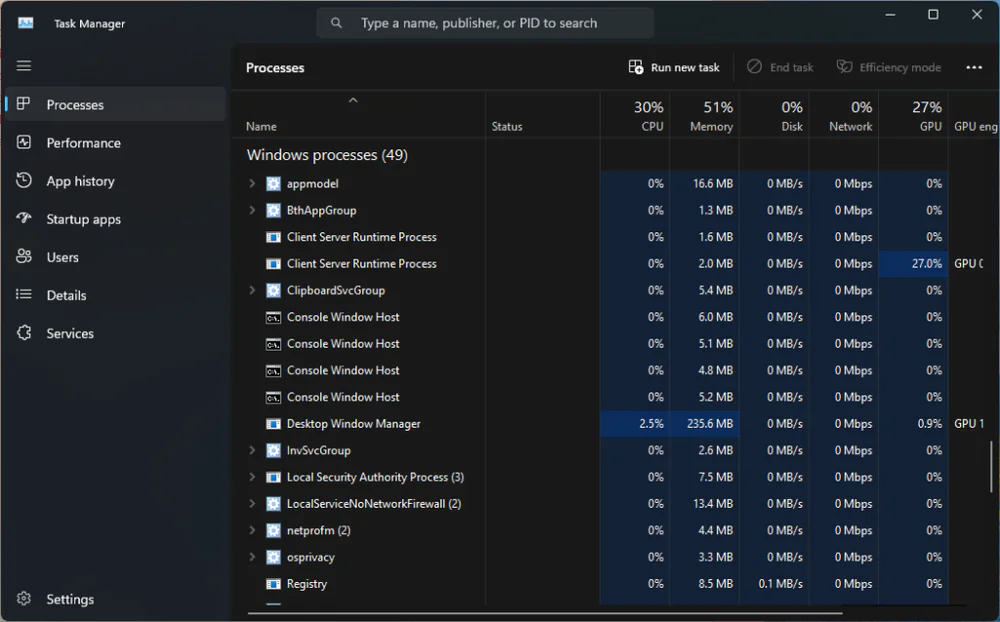
Boot RAM footprint drops measurably, while recurring 100% disk usage spikes caused by scheduled maintenance scans are entirely eliminated.
4. Frequently Asked Questions (FAQ)
Will this script corrupt Windows system files?
No. The script relies purely on built-in native Windows management commands (sc config and schtasks /change) to toggle service startup states between Disabled and Manual. Every change is completely reversible via key [B].
Should I keep Windows Update disabled permanently?
Disabling Windows Update prevents unexpected reboot cycles and unprompted background downloading during gaming sessions. When you wish to patch your system, simply re-enable it via key [F].
Do I need to re-run the utility after each reboot?
No. Service startup states are persistently saved in the Windows Registry. You only need to run the tool once.
Related Articles

BrotX Optimizer v7: Rootless Android System Tuning via Shizuku ADB
Guide to rootless Android system tuning with BrotX Optimizer v7 via Shizuku ADB: enable ANGLE Vulkan GPU, 0ms floating window touch, 80% charge protection, and 58 flags.

iOS Debloat Script: Optimize Performance, Battery Life and Gaming FPS on Jailbroken iPhone
Complete guide to perf.sh iOS debloat script disabling 100+ telemetry and background daemons to reclaim RAM, eliminate thermal throttling, and boost gaming FPS.

OOptimize: Android 7-15 Gaming Tweaks (Root & No-Root)
Optimize SurfaceFlinger and GPU Vulkan pipeline on Android 7-15 with OOptimize: stabilize FPS, eliminate frame drops, and minimize touch input latency.

RAM Purger: Stop Background Processes & Boost Android Gaming Like iPhone
Complete guide to the rootless RAM Purger (frozen.sh) shell script terminating 400+ background app tasks to reclaim RAM and eliminate frame drops on Android.
Comments(5)
Sign in to join the conversation
Sign in with Google, Facebook or Email to leave a comment and get notified of replies.
cx dc
cài cái này rồi mà nó tắt luôn snipping tool bật lại kiểu gì
nice