
#7 SetEdit Codes: Overclock Android CPU & GPU for Gaming FPS

Tuning hardware execution parameters through SetEdit offers a non-root solution for optimizing Android system scheduling. By configuring minimum and maximum frequency boundaries for both CPU and GPU subsystems, devices sustain predictable operating clocks during demanding workloads, preventing aggressive throttling and frame drops during intense gaming sessions.
- Optimization Goals: Maintain sustained CPU/GPU operating frequencies, streamline SurfaceFlinger frame buffer queues, and reduce touch latency.
- Compatibility: Tested across Android 7.0 through Android 14. Devices running Android 11+ require elevated table write privileges granted via ADB, Brevent, or Shizuku.
- Safety & Rollback: Non-destructive to system partitions. Resetting is straightforward: simply revert values to
autoor delete added keys directly in SetEdit.
1. What Is SetEdit & How Frequency Scheduling Works

SetEdit (Settings Database Editor) is an Android utility allowing users to read and modify low-level operating system tables, including System, Secure, and Global registries. Under stock firmware conditions, the Android kernel dynamically modulates CPU and GPU clock speeds using reactive thermal algorithms managed by the CPU Governor. When chip junction temperatures rise, the system throttles clocks downward, causing noticeable frame pacing stutters in games.
The SetEdit CPU/GPU Overclock (#7) parameter collection curated by Osteup tunes key hardware rendering directives. It enforces GPU-prioritized UI composition, sustains core readiness thresholds, and reduces buffer synchronization overhead.
2. Comprehensive Analysis of the 7 Optimization Directives
The following reference table outlines the exact database tables, keys, recommended values, and underlying runtime mechanisms:
| Database Table | Configuration Key | Value | Technical Impact |
|---|---|---|---|
| System Table | ro.boost.core.maxfreq |
800 |
Establishes a responsive base frequency floor for high-priority task scheduling |
| System Table | ro.sys.core.turbo_enabled |
true |
Enables fast turbo clock ramp-up when intensive application load is detected |
| System Table | debug.hwui.use_buffer_age |
false |
Bypasses HWUI buffer age validation, forcing immediate active surface re-rendering |
| System Table | hwui.use9pu_pixellbuffers |
true |
Maximizes graphics hardware pixel buffer allocation for rendering passes |
| System Table | debug.performance.tuning |
1 |
Enables global rendering optimization flags across the Android graphics framework |
| System Table | debug.composition.type |
gpu |
Directs all SurfaceFlinger display composition tasks to the GPU instead of CPU |
| System Table | ro.max.fling_velocity |
15000 |
Increases upper touch velocity ceiling to eliminate input drag during rapid swipes |
| System Table | ro.min.fling_velocity |
8000 |
Raises initial touch detection sensitivity for instant game control response |
| System Table | ro.bq.gpu_to_cpu_unsupported |
true |
Disables redundant GPU-to-CPU buffer round-trips, freeing system memory bandwidth |
| Global Table | ro.sys.cpu.defaultfreq |
auto |
Maintains dynamic CPU baseline scaling (supports explicit SoC MHz target values) |
| Global Table | ro.sys.gpu.defaultfreq |
auto |
Maintains dynamic GPU baseline scaling (supports compatible GPU MHz targets) |
3. Full Configuration Source Code
The complete configuration script is provided in structured format below. You can copy it directly to enter values manually or inject properties in batch via OsteBox:
# Code Setedit Boost CPU & GPU By Osteup# Source: @LycanTweaks ro.boost.core.maxfreq = 800ro.sys.core.turbo_enabled = true [System table]debug.hwui.use_buffer_age = falsehwui.use9pu_pixellbuffers = truedebug.performance.tuning = 1debug.composition.type = gpuro.max.fling_velocity = 15000ro.min.fling_velocity = 8000ro.bq.gpu_to_cpu_unsupported = true [Global Table]ro.sys.cpu.minfreq = ro.sys.cpu.maxfreq = ro.sys.cpu.defaultfreq = auto ro.sys.gpu.minfreq = ro.sys.gpu.maxfreq = ro.sys.gpu.defaultfreq = auto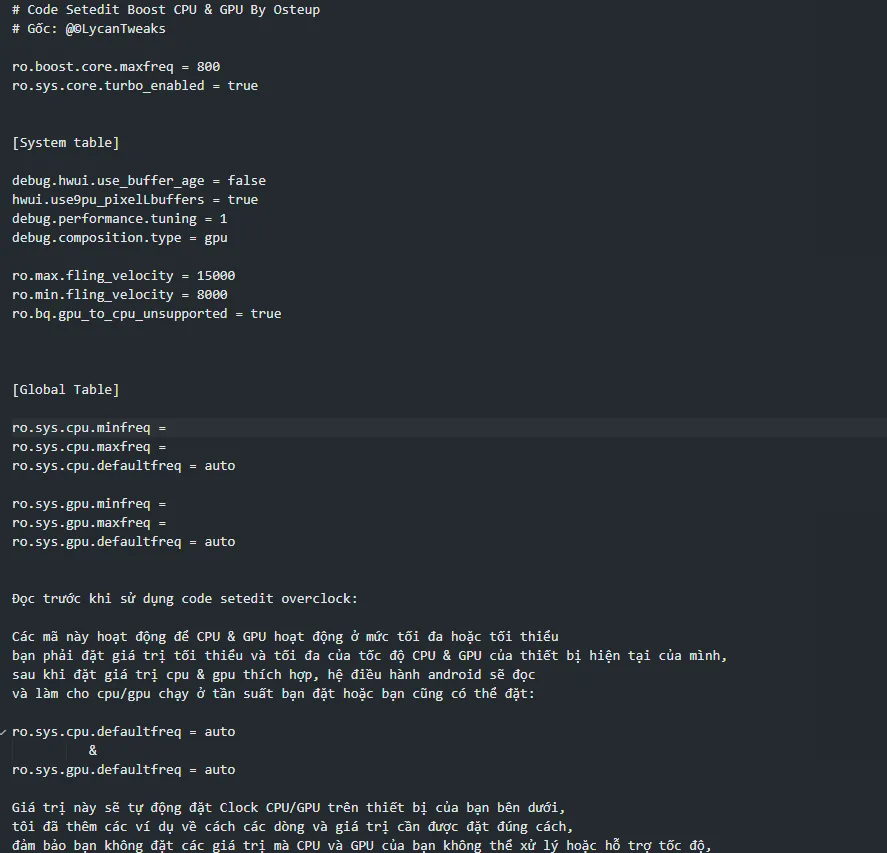
4. Step-by-Step Installation Instructions
Method 1: Manual Input via the SetEdit Application
- Step 1 - Open SetEdit: Launch the Settings Database Editor app on your device.
- Step 2 - Select Appropriate Tables: Tap the table dropdown at the top:
Add
debug.*,hwui.*,ro.boost.*,ro.max.*,ro.min.*to System Table. Addro.sys.cpu.*andro.sys.gpu.*to Global Table. - Step 3 - Add New Settings: Tap Add new setting, type the parameter key, tap Save changes, enter the corresponding value, and confirm again.
- Step 4 - Reboot Device: Restart your smartphone so the Android framework reloads the modified database tables cleanly.
Method 2: Batch Injection via OsteBox (Recommended)
For devices running Android 11 or higher, granting direct table write permissions to SetEdit can be restricted by system policies. Using the Convert Code SetEdit feature within the OsteBox utility along with Shizuku or Wireless Debugging completes the entire injection in seconds.
5. Official Configuration Download Card
- Operating Temperatures: Sustaining elevated CPU and GPU clocks naturally produces slightly higher device warmth (roughly 2–3°C higher during extended gaming). This is normal under sustained processing load.
- Battery Utilization: Active power draw during gaming may increase by 5–10% relative to aggressive battery saving modes.
- Reversion Process: To remove configurations, re-open SetEdit, locate the added keys in System Table or Global Table, and tap Delete. Alternatively, reset frequency values back to
auto.
6. Related SetEdit Optimization Articles
To optimize different subsystems across your Android smartphone, explore the complete Osteup SetEdit series:
- #1: Comprehensive Android SetEdit lag reduction collection
- #2: RAM management and multitasking optimization codes
- #3: Gaming performance and FPS stabilization tuning
- #4: Frametime consistency and micro-stutter reduction
- #5: Touch latency reduction and display responsiveness
- #6: Updated smartphone gaming FPS enhancement codes
- #7: Current Article: SetEdit CPU/GPU Overclock & Gaming Boost
7. Frequently Asked Questions (FAQ)
Does applying SetEdit codes void device warranty?
No. SetEdit only interacts with the user-accessible Settings Provider database. It does not unlock your bootloader, alter Knox/TEE security states, or void your hardware warranty.
Why does SetEdit refuse to edit Global Table on Android 13 or 14?
Beginning with Android 11, Google enforced strict permission sandboxing on Secure and Global tables. You must grant the WRITE_SECURE_SETTINGS permission via an ADB command or use Shizuku with a compatible SetEdit build.
Should I set specific MHz values instead of "auto"?
Unless you have inspected your SoC's exact frequency scaling steps using utilities like AIDA64 or DevCheck, leaving the property set to auto is strongly recommended to avoid assigning unsupported clock profiles.
How can I restore my smartphone completely back to factory defaults?
Simply open SetEdit, navigate to the relevant System or Global tables, tap each customized entry, and select Delete. After rebooting your smartphone, all subsystem parameters will revert to 100% factory defaults.
Related Articles

BrotX Optimizer v7: Rootless Android System Tuning via Shizuku ADB
Guide to rootless Android system tuning with BrotX Optimizer v7 via Shizuku ADB: enable ANGLE Vulkan GPU, 0ms floating window touch, 80% charge protection, and 58 flags.

iOS Debloat Script: Optimize Performance, Battery Life and Gaming FPS on Jailbroken iPhone
Complete guide to perf.sh iOS debloat script disabling 100+ telemetry and background daemons to reclaim RAM, eliminate thermal throttling, and boost gaming FPS.

OOptimize: Android 7-15 Gaming Tweaks (Root & No-Root)
Optimize SurfaceFlinger and GPU Vulkan pipeline on Android 7-15 with OOptimize: stabilize FPS, eliminate frame drops, and minimize touch input latency.

RAM Purger: Stop Background Processes & Boost Android Gaming Like iPhone
Complete guide to the rootless RAM Purger (frozen.sh) shell script terminating 400+ background app tasks to reclaim RAM and eliminate frame drops on Android.
Comments(1)
Sign in to join the conversation
Sign in with Google, Facebook or Email to leave a comment and get notified of replies.
hi