
Tool Fix Lag Roblox v3 on Android: Game Driver Optimization & FPS Boost Guide

Roblox hosts millions of immersive user-generated experiences, but graphically intensive titles like Blox Fruits, King Legacy, and Doors often push budget and midrange Android smartphones to their thermal and memory limits. Frame drops, input latency, and thermal throttling are frequent issues during crowded multiplayer battles. Tool Fix Lag Roblox v3 is an Android system-level optimization script engineered to streamline graphic driver prioritization, optimize buffer queues, and stabilize FPS without touching game files.
The Shell Script (.sh) operates purely on the operating system level via standard Android developer properties. It directs CPU/GPU render pipelines without modifying any Roblox game assets, scripts, or APK files. It is completely compliant with Roblox fair-play standards and carries zero account risk.
1. What's New in Roblox Fix Lag v3
Version 3 brings focused refinements specifically for modern Android architectures (Android 11 through Android 14+):
- Dedicated Game Driver Routing: Allocates high-performance graphic drivers directly to the
com.roblox.clientpackage, minimizing draw call latency. - OpenGL & Vulkan Queue Optimization: Tunes graphic rendering pipelines to eliminate micro-stutters when streaming complex terrain and player avatars.
- Universal Version Compatibility: Operates at the Android system framework level, ensuring continuous effectiveness across all future Roblox platform updates.
2. File Information & Download
| File Property | Release Details |
|---|---|
| File Name | ToolFixLagRoblox_v3.zip |
| Version | v3.0 (Compatible with Android 7.0 to Android 14+) |
| File Size | Approximately 8 KB |
| Execution Method | Shell execution via Brevent, LADB, Shizuku, Qute, or Terminal |
| Root Requirement | No Root Required (Supports Wireless Debugging on Android 11+) |
3. Step-by-Step Installation & Execution Guide
Follow these instructions carefully to ensure the script finds the correct path and executes reliably:
Step 1: Extract the downloaded archive
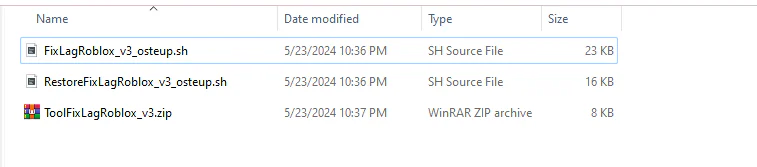
Once ToolFixLagRoblox_v3.zip is downloaded, extract its contents directly into your internal storage's Download folder using any file manager (such as ZArchiver, MT Manager, or the default file manager).
Step 2: Prepare your Shell execution environment
Select your execution path depending on your device setup:
- Non-Root Devices (Recommended): Install Brevent or LADB. Enable Wireless Debugging inside Android Developer Options (Android 11+) to pair and authorize local ADB commands.
- Rooted Devices: Open any terminal app (such as Termux or Qute) and grant Superuser permissions (
su).
Step 3: Run the optimization command
Open the command prompt tab inside Brevent, LADB, or Terminal, enter the following command precisely, and press Enter:
sh /storage/emulated/0/Download/FixLagRoblox_v3_osteup.shThe optimization runs within a few seconds and confirms completion with a success output. You can then close the terminal and launch Roblox to enjoy smoother gameplay.
If you ever want to revert all system tweaks back to factory defaults, simply execute the restoration script below:
sh /storage/emulated/0/Download/RestoreFixLagRoblox_v3_osteup.sh4. Troubleshooting: "No such file or directory" Error
If your terminal returns a No such file or directory error, verify the following two factors:
- File Placement: Verify that
FixLagRoblox_v3_osteup.shsits directly inside/storage/emulated/0/Download/, not inside a nested subfolder. - Folder Capitalization: Some Android ROMs label internal storage paths with lowercase
downloadinstead of capitalizedDownload. Verify your exact path casing before running the command.
5. Frequently Asked Questions (FAQ)
Do I need to re-run the script after rebooting the phone?
Yes. Non-root system properties reset naturally upon device reboot. Simply reopen Brevent or LADB and run the script once after restarting.
Does this enhance performance in heavy experiences like Blox Fruits?
Yes. By assigning high-priority Game Driver rendering and reducing frame buffer bottlenecks, it visibly stabilizes frame pacing during combat, boss fights, and particle-heavy scenes.
Can this be used on older Android versions?
Yes. Android 7 through 10 devices can execute the script using Brevent paired over USB cable debugging via PC or another mobile device.
Related Articles

BrotX Optimizer v7: Rootless Android System Tuning via Shizuku ADB
Guide to rootless Android system tuning with BrotX Optimizer v7 via Shizuku ADB: enable ANGLE Vulkan GPU, 0ms floating window touch, 80% charge protection, and 58 flags.

iOS Debloat Script: Optimize Performance, Battery Life and Gaming FPS on Jailbroken iPhone
Complete guide to perf.sh iOS debloat script disabling 100+ telemetry and background daemons to reclaim RAM, eliminate thermal throttling, and boost gaming FPS.

OOptimize: Android 7-15 Gaming Tweaks (Root & No-Root)
Optimize SurfaceFlinger and GPU Vulkan pipeline on Android 7-15 with OOptimize: stabilize FPS, eliminate frame drops, and minimize touch input latency.

RAM Purger: Stop Background Processes & Boost Android Gaming Like iPhone
Complete guide to the rootless RAM Purger (frozen.sh) shell script terminating 400+ background app tasks to reclaim RAM and eliminate frame drops on Android.
Comments(2)
Sign in to join the conversation
Sign in with Google, Facebook or Email to leave a comment and get notified of replies.
T cài vô nó lag thêm ấy ôg:( hay là ôg ra v4 đi