
Windows 10/11 Optimization with Pegasun System Utilities

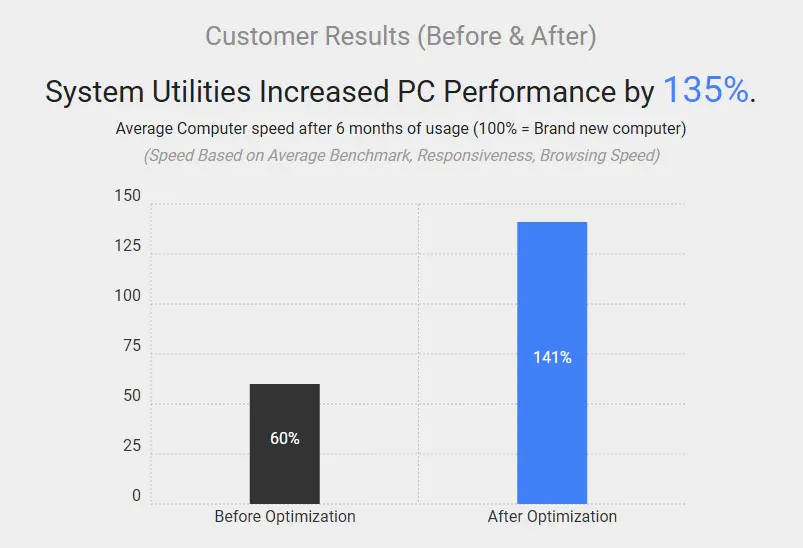
Over time, Windows 10 and 11 accumulate significant volumes of temporary files, residual installer logs, unneeded startup applications, and background telemetry services that degrade overall desktop responsiveness. Pegasun System Utilities (v8) is an all-in-one system maintenance suite designed to help everyday users clean, declutter, and optimize their Windows installation through a unified, accessible dashboard. While vendor marketing frequently overstates dramatic speedups, realistic benchmarks across budget and mid-tier systems show modest, practical responsiveness improvements—serving as a convenient periodic maintenance utility rather than a magic bullet for aging hardware.
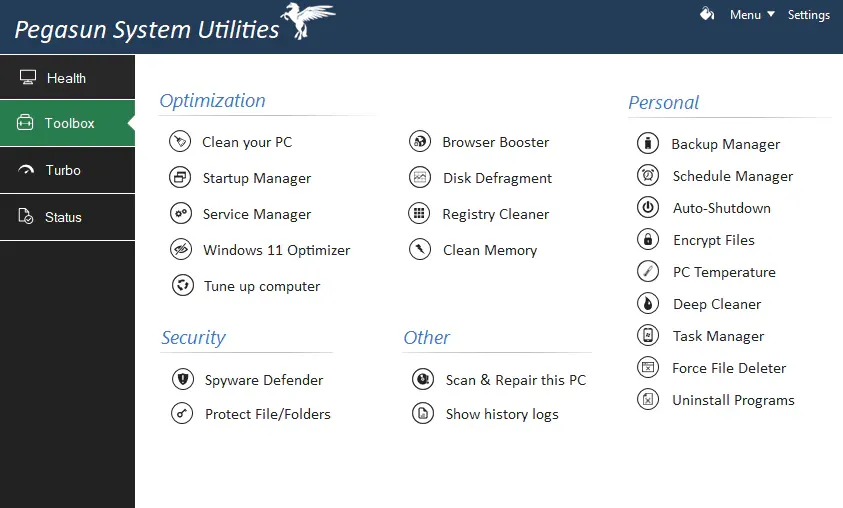
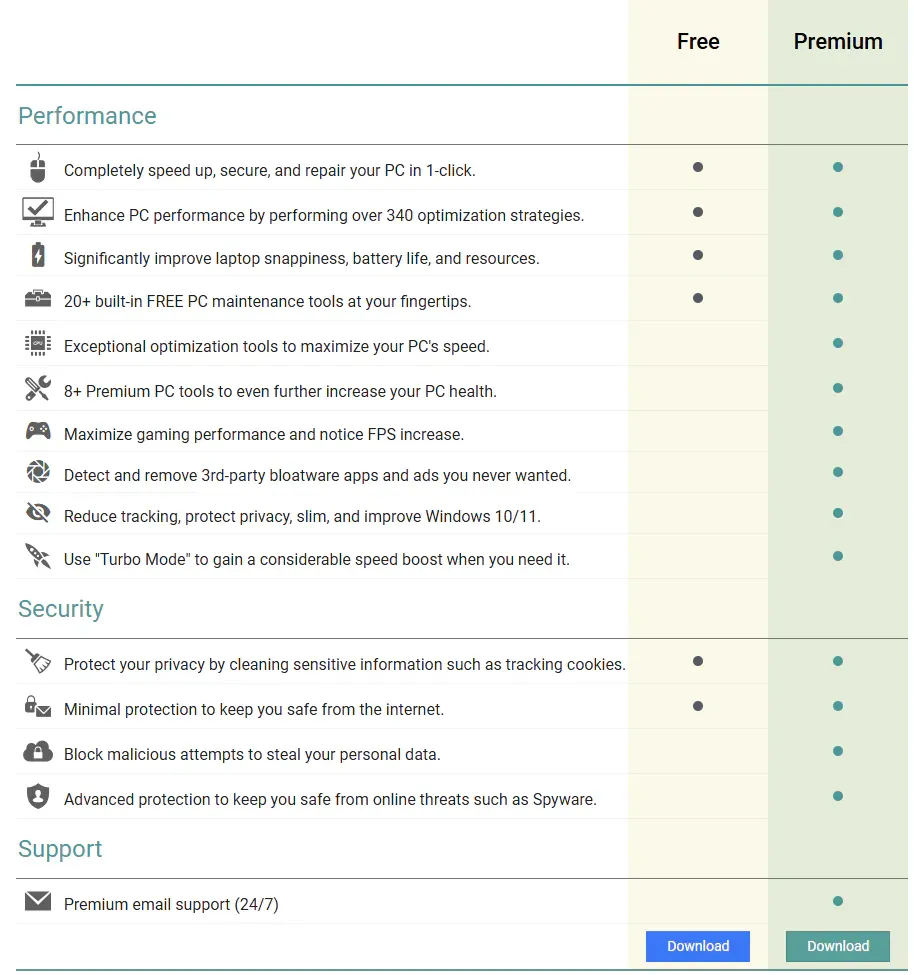
- Free Tier Usability: The free edition provides approximately 60% of the program's core utilities (1-Click Maintenance, Clean PC, Startup Manager, and Services Manager), requiring no paid upgrade for regular upkeep.
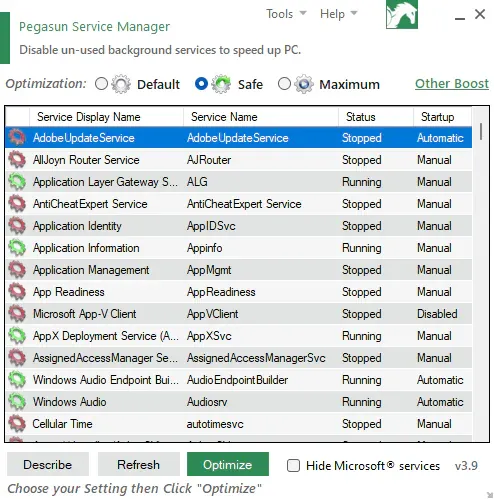
- Three-Tier Service Profiles: The integrated Services Manager lets you easily toggle background Windows services between Default, Safe, and Maximum optimization states.
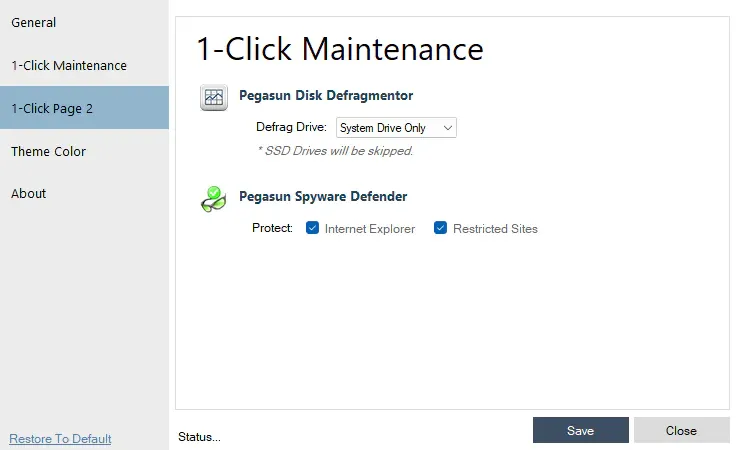
- Storage Safety Guardrails: Disk defragmentation is strictly reserved for mechanical hard drives (HDDs). The software automatically detects and skips solid-state drives (SSDs) to prevent NAND flash wear.
- Realistic Expectations: Software cleanup keeps Windows running lean and reduces boot times, but true performance leaps still require physical hardware upgrades (such as adding an SSD or expanding RAM).
1. Objective Review: What Pegasun System Utilities Actually Delivers
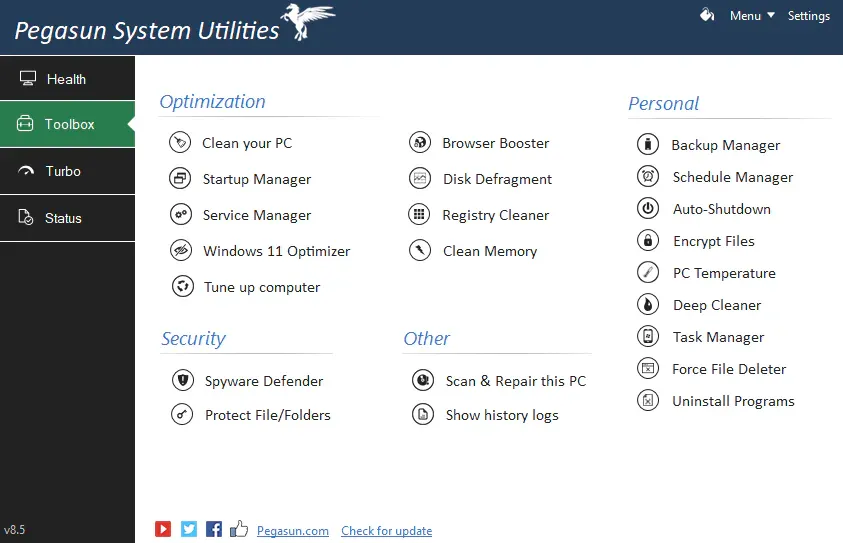
Instead of navigating separate Windows management dialogs such as Task Manager, Services.msc, and Disk Cleanup, Pegasun gathers essential tools into an accessible dashboard:
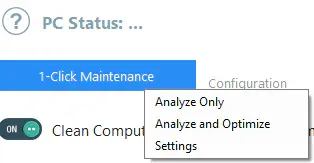
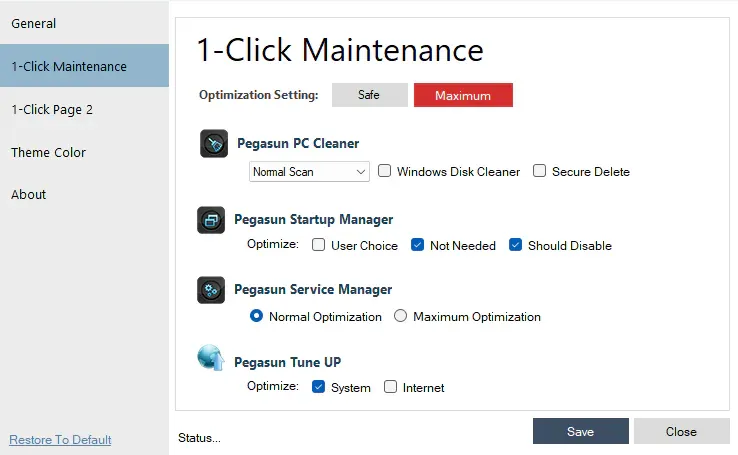
- 1-Click Maintenance: Scans and purges system temp folders, browser caches, thumbnail databases, and redundant registry paths with a single click.
- Startup Manager: Displays all applications configured to launch at boot alongside impact ratings, providing a more granular overview than the native Windows Task Manager.
- Services Manager: Safely disables non-essential Windows services (such as print spoolers on systems without printers or telemetry error logging) to recover system memory.
- Windows 11 Optimizer: Streamlines newly added Windows 11 visual animations and telemetry toggles back to a lean, resource-conscious baseline.
2. Module Breakdown: Free vs. Premium & Safety Guidance
The table below breaks down the primary tools included in Pegasun System Utilities v8 alongside usage recommendations:
| Utility Module | Tier Status | Core Mechanism | Recommended Usage |
|---|---|---|---|
| Clean your PC | Free | Deletes temporary files (.tmp, .log), update caches, and recycle bin contents. | Run every 1–2 weeks to reclaim system drive capacity. |
| Startup Manager | Free | Toggles auto-start state for third-party programs. | Highly safe; disable chat clients and game launchers to boost boot times. |
| Services Manager | Free | Configures background Windows services into Default, Safe, or Maximum tiers. | Stick to Safe mode; the Maximum tier may disable services you require. |
| Disk Defragment | Free | Consolidates fragmented file blocks on magnetic platters. | For HDDs only. Strictly prohibited on solid-state drives (SSDs). |
| Registry Cleaner | Free | Scans and removes orphan registry entries left behind by uninstalled software. | Exercise caution; always create a System Restore point prior to cleaning. |
| Turbo / Browser Booster | Premium | Restricts browser memory caps and prioritizes foreground processes. | Largely redundant; replaceable with free dedicated system configurations. |
3. Step-by-Step Safe Optimization Workflow
-
Download and install: Download
SystemUtilities.zipfrom the download card below, extract the archive, and proceed with standard program installation. - Create a System Restore Point: Before altering Windows services or cleaning registry keys, type Create a restore point in the Windows search bar and create a baseline snapshot.
- Run 1-Click Maintenance: Open Pegasun and click the 1-Click button on the dashboard. Review the scan summary of recoverable disk space and click Clean.
- Optimize background services: Navigate to Toolbox > Services Manager. Select the Safe profile to suppress telemetry without interfering with network or audio drivers, then click Optimize.
- Prune unnecessary startup tasks: Inside the Toolbox tab, select Startup Manager and disable non-critical applications (such as Discord, Steam, or Spotify) from auto-launching on boot.
4. File Details & Download Links
- Never Defragment an SSD: Solid-state drives rely on electronic NAND flash cells where seek time is negligible. Running defragmentation on an SSD accomplishes nothing and unnecessarily wears out write endurance cycles. Pegasun automatically skips SSDs—do not manually override this safeguard.
- Do Not Overuse Registry Cleaners: Erroneously deleting active registry entries can cause file associations to break. Only clean the registry if you are troubleshooting stubborn leftover uninstaller errors.
5. Frequently Asked Questions (FAQ)
Does the Free Edition expire after a trial period?
No. The Free Edition of Pegasun System Utilities v8 does not feature an evaluation time limit. You can continue utilizing roughly 60% of its core maintenance features indefinitely without purchasing a Premium subscription.
Why didn't my in-game framerate increase significantly after optimizing?
Pegasun System Utilities is designed for general operating system maintenance and resource cleanup. While it prevents background applications from interrupting games, 90% of gaming framerates are governed by your physical GPU and CPU compute limits. Cleaning Windows prevents stuttering, but it cannot expand raw hardware capability.
What should I do if optimizing services disabled my internet or sound?
Open Services Manager within Pegasun, switch the profile back to Default (factory default settings), click Optimize, and restart your computer. All Windows core services will immediately restore to their original configuration.
Can this utility replace upgrading an old HDD to an SSD?
No. On older computers running Windows off mechanical hard drives (HDDs), slow sequential read/write speeds and high random seek times form an unavoidable hardware bottleneck. Upgrading to even an affordable SATA III solid-state drive delivers a tangible 5x to 10x performance boost that no software optimizer can ever replicate.
Related Articles

BrotX Optimizer v7: Rootless Android System Tuning via Shizuku ADB
Guide to rootless Android system tuning with BrotX Optimizer v7 via Shizuku ADB: enable ANGLE Vulkan GPU, 0ms floating window touch, 80% charge protection, and 58 flags.

iOS Debloat Script: Optimize Performance, Battery Life and Gaming FPS on Jailbroken iPhone
Complete guide to perf.sh iOS debloat script disabling 100+ telemetry and background daemons to reclaim RAM, eliminate thermal throttling, and boost gaming FPS.

OOptimize: Android 7-15 Gaming Tweaks (Root & No-Root)
Optimize SurfaceFlinger and GPU Vulkan pipeline on Android 7-15 with OOptimize: stabilize FPS, eliminate frame drops, and minimize touch input latency.

RAM Purger: Stop Background Processes & Boost Android Gaming Like iPhone
Complete guide to the rootless RAM Purger (frozen.sh) shell script terminating 400+ background app tasks to reclaim RAM and eliminate frame drops on Android.
Comments(5)
Sign in to join the conversation
Sign in with Google, Facebook or Email to leave a comment and get notified of replies.
Theo tôi cảm nhận thì cái phầm mềm này lỗi kha khá nhiều về phần Regedit, vấn đề phần cứng Tốc độ nhanh của máy tuỳ thuộc vào tình trạng hiện tại của máy tính Khuyến Cáo :)) Bảo bọn nó lắp ssd vào cho nhanh :)))))))))
xem 1 lúc thấy hơi phức tạp nên chắc mình sẽ ko dùng ae tham khảo ý kiến của tôi nhé! Nói thật phức tạp vaio
rồi sao ko nói từ đầu để tôi dùng ogmode mất công tôi tải về qué :))))
Comment lỗi bạn gặp phải ở đây nhoa