
Windows BCDEdit Optimization: Tweaks for Latency and FPS Stability

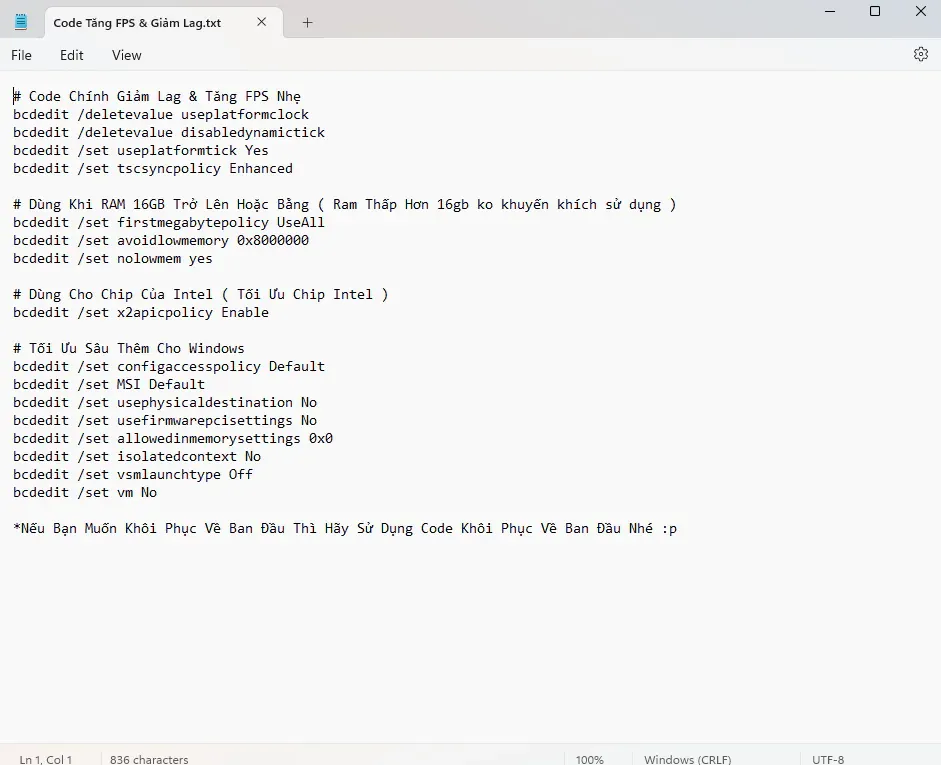
BCDEdit (Boot Configuration Data Editor) is a native Windows command-line utility designed to configure and manage the operating system's boot environment parameters. By modifying specific configuration entries in the BCD store via elevated Command Prompt (CMD), advanced users can fine-tune system timer resolution, curb DPC latency spikes, and optimize early memory mapping for demanding workloads and competitive gaming.
- Kernel-Level Configuration: Adjusts boot loader parameters directly inside the Windows kernel without installing third-party software.
- Realistic Impact: Focuses primarily on latency stabilization and frame-time consistency (reducing micro-stutter), not on inflating peak GPU compute capability.
- Categorized Tweaks: Commands are organized by technical intent (system timer alignment, high-capacity RAM mapping for 16GB+, and Intel x2APIC interrupts).
- Safe Reversibility: A full restoration block using
/deletevalueis provided to reset every modified entry back to factory defaults at any time.
1. How Does BCDEdit Influence Windows Performance?
Starting with Windows Vista, Microsoft transitioned legacy boot.ini configuration into the hardware-independent Boot Configuration Data (BCD) architecture. BCDEdit provides administrative access to read, alter, and delete parameters within this store.
Default Windows settings are universally configured to guarantee baseline stability across hundreds of thousands of hardware configurations, often prioritizing energy saving and wide device compatibility. Modifying timing metrics like useplatformtick and adjusting the Time Stamp Counter synchronization policy (tscsyncpolicy) forces the OS kernel to standardize hardware timer sampling, helping minimize input latency variance and frame pacing irregularities in latency-sensitive competitive titles.
2. Core BCDEdit Optimization Commands Overview
The table below details the most common BCDEdit tuning commands, their technical behavior, and hardware considerations:
| Category | Command Syntax | Technical Function & Guidance |
|---|---|---|
| Timer Alignment | bcdedit /set useplatformtick Yes |
Forces the operating system clock to draw exclusively from platform-level timers, stabilizing clock tick cadence. |
| TSC Sync (FPS Cadence) | bcdedit /set tscsyncpolicy Enhanced |
Applies an enhanced synchronization scheme for the Time Stamp Counter across multi-core processors. |
| TSC Sync (Latency Mode) | bcdedit /set tscsyncpolicy Legacy |
Employs traditional TSC synchronization, which can lower timer polling overhead on certain legacy architectures. |
| Memory (≥16GB RAM) | bcdedit /set firstmegabytepolicy UseAll |
Directs Windows to utilize the entirety of the first megabyte of physical memory. Avoid on systems with under 16GB. |
| Memory (≥16GB RAM) | bcdedit /set avoidlowmemory 0x8000000 |
Prevents driver allocation in lower address space limits, preserving stability during continuous heavy loads. |
| Intel Processor APIC | bcdedit /set x2apicpolicy Enable |
Enables the x2APIC advanced interrupt controller on supported Intel processors to streamline interrupt routing. |
3. Step-by-Step: Applying BCDEdit Commands via CMD
Because modifying BCD entries directly affects operating system startup logic, you must execute these instructions with full administrative authority:
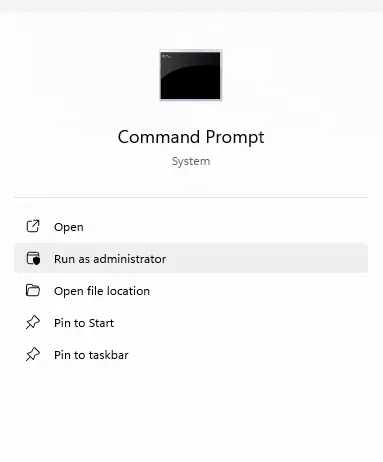
- Press the Windows key on your keyboard, type
cmdin the search bar. - Right-click on the Command Prompt search result and select Run as administrator.
- Copy the commands suitable for your hardware specifications, paste them into the command line, and press Enter.
- Verify that the prompt returns
The operation completed successfullyafter each entered line. - Restart your computer to allow the Windows kernel to initialize with the updated boot configuration values.
avoidlowmemory and firstmegabytepolicy are strictly intended for rigs equipped with 16GB of RAM or higher. Applying them on machines with 4GB or 8GB of memory is not recommended, as it may interfere with default paging and memory allocation.
4. How to Restore All Default Settings
If testing yields no perceptible improvement or if your system experiences compatibility conflicts with specific software, open an elevated Command Prompt and execute the following complete restoration script to erase custom BCD values:
bcdedit /deletevalue useplatformclockbcdedit /deletevalue disabledynamictickbcdedit /deletevalue useplatformtickbcdedit /deletevalue tscsyncpolicybcdedit /deletevalue firstmegabytepolicybcdedit /deletevalue avoidlowmemorybcdedit /deletevalue nolowmembcdedit /deletevalue x2apicpolicybcdedit /deletevalue configaccesspolicybcdedit /deletevalue MSIbcdedit /deletevalue usephysicaldestinationbcdedit /deletevalue usefirmwarepcisettingsbcdedit /deletevalue allowedinmemorysettingsbcdedit /deletevalue isolatedcontextbcdedit /deletevalue vsmlaunchtypebcdedit /deletevalue vm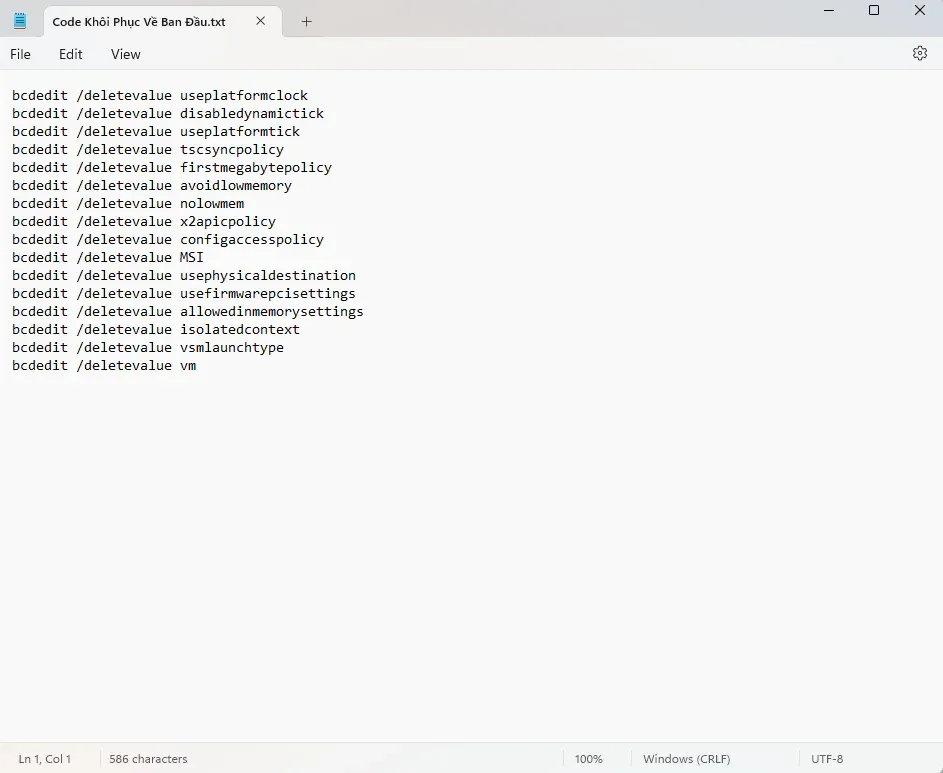
Reboot your machine following the execution of this restoration block. Windows will automatically revert to its default hardware abstraction layer and standard boot policies.
5. Download Pre-Compiled BCDEdit Script Package
For convenient offline storage and automated batch execution, you can download the consolidated package containing both optimization scripts and the full restore file:
Windows BCDEdit Optimization & Restore Package
Code BCDEDIT Windows-Osteup.rar6. Frequently Asked Questions
Will changing tscsyncpolicy dramatically boost my in-game framerate?
No. The tscsyncpolicy parameter only alters the method by which Windows harmonizes Time Stamp Counters across distinct processor cores to prevent timer drift. While it can help alleviate micro-stutter and stabilize frame pacing, it will not enhance baseline GPU hardware rendering performance.
How can I revert only the tscsyncpolicy adjustment without touching other settings?
To revert just the TSC synchronization setting while preserving all other configurations, run a single command in an elevated CMD: bcdedit /deletevalue tscsyncpolicy and then restart your machine.
Can improper BCDEdit usage trigger Blue Screen of Death (BSOD) crashes?
Entering verified tuning commands correctly will not damage your system. However, mistyping partition identifiers or removing critical boot path records can cause boot failures. Stick strictly to the listed tuning entries and retain the restoration commands for safety.
Related Articles

BrotX Optimizer v7: Rootless Android System Tuning via Shizuku ADB
Guide to rootless Android system tuning with BrotX Optimizer v7 via Shizuku ADB: enable ANGLE Vulkan GPU, 0ms floating window touch, 80% charge protection, and 58 flags.

iOS Debloat Script: Optimize Performance, Battery Life and Gaming FPS on Jailbroken iPhone
Complete guide to perf.sh iOS debloat script disabling 100+ telemetry and background daemons to reclaim RAM, eliminate thermal throttling, and boost gaming FPS.

OOptimize: Android 7-15 Gaming Tweaks (Root & No-Root)
Optimize SurfaceFlinger and GPU Vulkan pipeline on Android 7-15 with OOptimize: stabilize FPS, eliminate frame drops, and minimize touch input latency.

RAM Purger: Stop Background Processes & Boost Android Gaming Like iPhone
Complete guide to the rootless RAM Purger (frozen.sh) shell script terminating 400+ background app tasks to reclaim RAM and eliminate frame drops on Android.
Comments(3)
Sign in to join the conversation
Sign in with Google, Facebook or Email to leave a comment and get notified of replies.
Cái code này chỉ dùng khi lỗi phần mềm hoặc phần cứng – Hệ thống ảo hóa Chứ chả tăng fps đâu Tuỳ thuộc cấu hình Hầu hết các hệ thống hiện đại không cần thay đổi cài đặt này, vì hệ điều hành tự động xử lý việc đồng bộ hóa TSC tốt hơn với các thiết lập mặc định. Bạn hiểu chứ
hay quá bạn
có cách tắt 2 cái code bonus thêm ko vậy ạ