
Windows Power Plan Optimization Guide: Reduce Latency & Unlock Ultimate Performance

On Windows 10 and 11, the Power Plan subsystem establishes the governing policies for how hardware components allocate and conserve electrical power. Under the default Balanced plan, the Windows kernel frequently scales down CPU core frequencies (P-states / C-states) and turns off peripheral controllers when idle to reduce power consumption. However, the subsequent clock ramp-up time often introduces micro-stutter and input latency when launching games or handling computational workloads. Manually tailoring a performance-focused power plan eliminates frequency throttling delays and keeps core components primed for immediate responsiveness.
- Kernel-Level Configuration: Intervenes directly with native Windows power management policies without requiring third-party tuning utilities.
- Latency Reduction: Eliminates CPU frequency stepping latency by locking minimum clock states, while preventing Wi-Fi adapters and USB controllers from entering low-power sleep states.
- Ultimate Performance Unlocking: Access the hidden Ultimate Performance power scheme using native
powercfgcommand-line tools. - Operational Trade-offs: Power consumption increases and laptop battery runtime decreases significantly if activated while unplugged from AC power.
1. Why Customizing Power Plans Reduces System Latency
Windows power management balances multiple hardware subsystems through discrete parameter groups:
- Processor Power Management (Clock States): Setting the Minimum processor state to its default 5% forces the CPU to continuously modulate frequencies up and down. When demanding graphics workloads spike during gameplay, the millisecond delays required for the CPU to ramp back up to peak frequency can manifest as frame drops. Locking the minimum state at 100% keeps all cores operating at their full non-throttled base frequency.
- Wireless Adapter Power Saving: Network adapters set to power-saving profiles intermittently enter low-power sleep states, creating brief packet latency spikes (ping spikes) in online competitive games.
- USB Selective Suspend: This feature suspends power to inactive USB root hubs, occasionally producing input lag or micro-freezes on high-polling-rate gaming mice and mechanical keyboards.
2. Advanced Power Configuration Parameters Breakdown
The table below specifies the vital settings within Advanced Power Settings that yield measurable latency improvements:
| Setting Category | Target Parameter | Recommended Value | Technical Impact |
|---|---|---|---|
| Processor power management | Minimum processor state |
100% (Battery & Plugged In) | Prevents clock down-stepping; eliminates frequency ramp-up latency. |
Maximum processor state |
100% (Battery & Plugged In) | Ensures the CPU operates up to its maximum rated non-throttled frequency. | |
| Wireless Adapter Settings | Power Saving Mode |
Maximum Performance | Maintains constant wireless transceiver power, minimizing ping spikes. |
| USB settings | USB selective suspend setting |
Disabled | Prevents the OS from suspending power delivery to external USB peripherals. |
| Hard disk | Turn off hard disk after |
0 Minutes (Never) | Prevents spindle or flash controller spin-down delays during background read/writes. |
| Sleep & Hibernate | Sleep after / Hibernate after |
Never (0 Minutes) | Prevents unexpected system sleep cycles during long downloads or rendering tasks. |
3. Step-by-Step Manual Plan Creation & Tuning
-
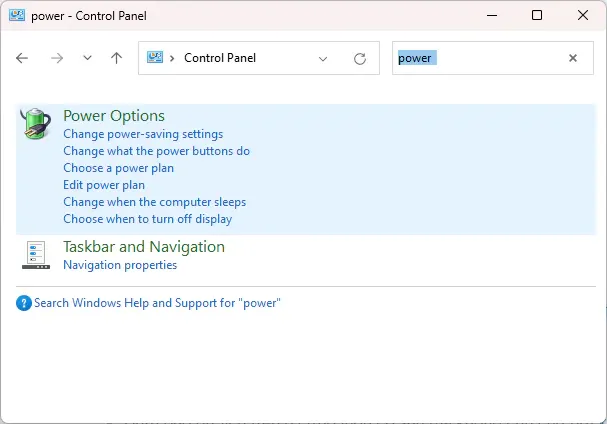
Open Power Options: Press
Windows + R, entercontrol powercfg.cpl, and press Enter to launch the legacy Power Options control panel directly. -
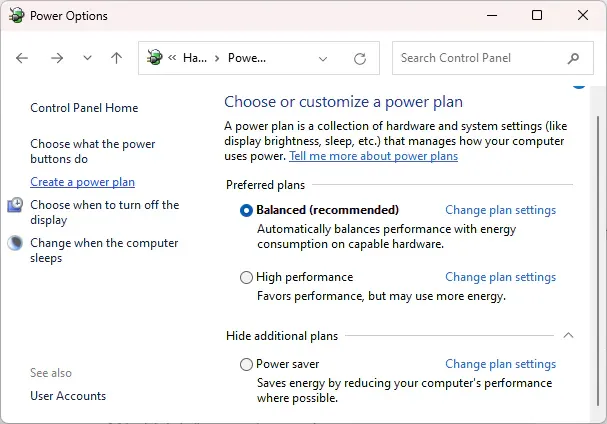
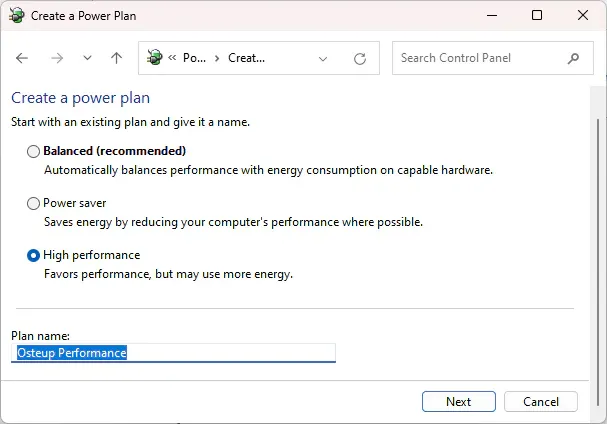
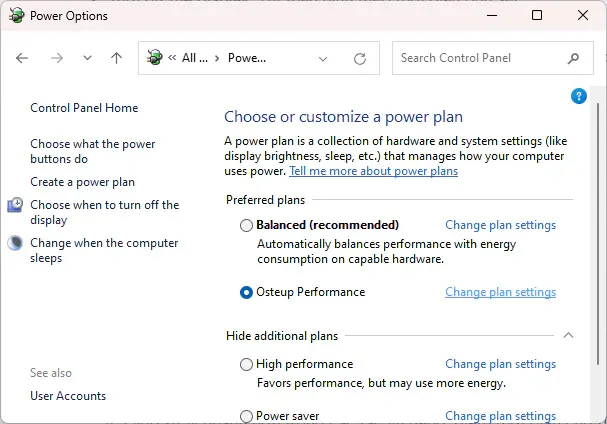
Create a New Plan: On the left navigation pane, select Create a power plan. Choose the High performance radio button, provide a descriptive name (e.g.,
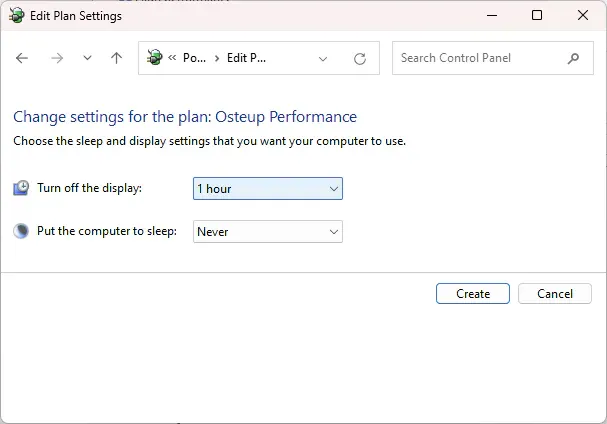
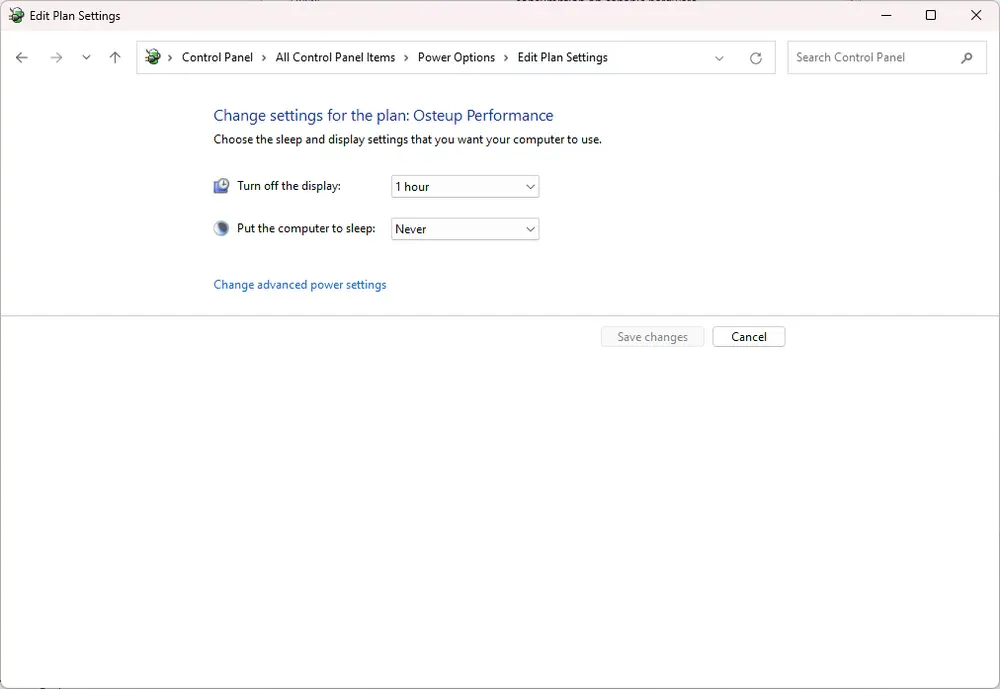
Osteup Performance), and click Next. - Configure Display Timers: Adjust the display shutoff and sleep timers to your preference (or set to Never for uninterrupted operation) and click Create.
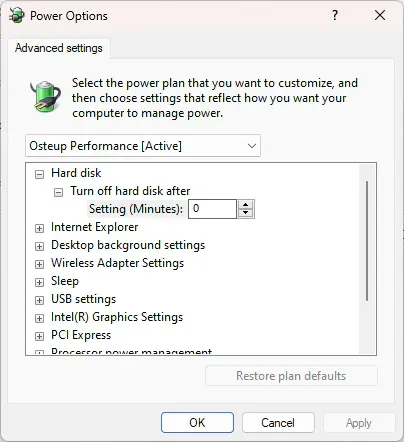
- Access Advanced Parameters: Next to your newly created plan, click Change plan settings, then select Change advanced power settings.
- Apply Optimized Values: Expand Processor power management: Set both Minimum processor state and Maximum processor state to 100%. Expand Wireless Adapter Settings > Power Saving Mode: Select Maximum Performance. Expand USB settings > USB selective suspend setting: Change to Disabled. Expand Hard disk > Turn off hard disk after: Input 0 (displays as Never).
- Save Changes: Click Apply followed by OK to commit the configuration immediately.
4. Unlocking the Hidden Ultimate Performance Plan via CMD
Beyond the standard High Performance profile, Microsoft includes a specialized Ultimate Performance scheme originally designed for Windows Server and workstations. You can unlock and activate this profile on any Windows 10 or 11 edition via an elevated command prompt:
- Press the
Windowskey, typecmd, right-click Command Prompt, and choose Run as administrator. - Paste the following command and press Enter:
powercfg -duplicatescheme e9a42b02-d5df-448d-aa00-03f14749eb61 - Return to the Power Options window (
control powercfg.cpl), and select the newly revealed Ultimate Performance plan.
5. Command-Line Management & Reversion Commands
To inspect GUIDs, switch active schemes, or delete custom configurations via Command Prompt:
# List all installed power schemes and unique GUIDspowercfg /list # Activate a specific scheme by GUIDpowercfg -setactive {POWERPLAN_GUID} # Delete a custom scheme (cannot delete active scheme)powercfg -delete {POWERPLAN_GUID} # Restore all Windows power plans to clean factory defaultspowercfg -restoredefaultschemes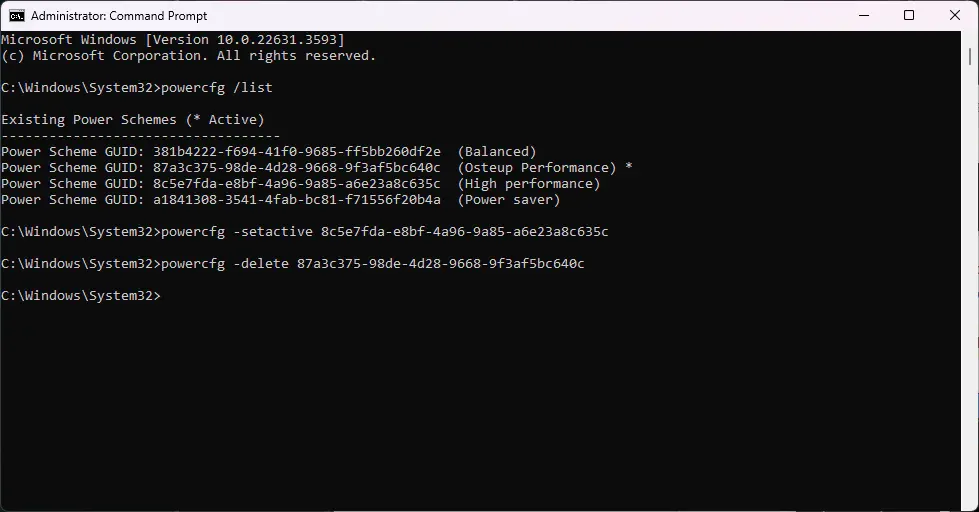
- Laptop Battery Consumption: Forcing the processor to maintain a 100% minimum clock state prevents energy-efficient down-throttling when on battery power. This profile should strictly be used while connected to AC power.
- Idle Temperatures: Because CPU cores do not enter deep sleep states (C-states), idle temperatures may register 3–5°C higher than under the Balanced profile. Ensure that cooling fans and heatsinks are clean and functioning normally.
6. Frequently Asked Questions (FAQ)
What makes Ultimate Performance different from High Performance?
While High Performance disables general power throttling policies, Ultimate Performance goes a step further by eliminating microscopic software polling delays (micro-latencies) between the operating system and underlying hardware controllers, delivering instantaneous hardware response.
Does keeping the CPU at constant high frequencies degrade hardware lifespan?
No. Modern processors from Intel and AMD incorporate internal thermal protection safeguards. Locking the minimum clock state prevents frequency down-clocking, but it does not overvolt or exceed factory clock limits. As long as load temperatures stay safely below 85–90°C, CPU longevity is unaffected.
How can I reset all power settings back to Windows factory defaults?
Open an elevated Command Prompt and execute powercfg -restoredefaultschemes. This command removes custom schemes and restores stock Windows power definitions instantaneously.
Related Articles

BrotX Optimizer v7: Rootless Android System Tuning via Shizuku ADB
Guide to rootless Android system tuning with BrotX Optimizer v7 via Shizuku ADB: enable ANGLE Vulkan GPU, 0ms floating window touch, 80% charge protection, and 58 flags.

iOS Debloat Script: Optimize Performance, Battery Life and Gaming FPS on Jailbroken iPhone
Complete guide to perf.sh iOS debloat script disabling 100+ telemetry and background daemons to reclaim RAM, eliminate thermal throttling, and boost gaming FPS.

OOptimize: Android 7-15 Gaming Tweaks (Root & No-Root)
Optimize SurfaceFlinger and GPU Vulkan pipeline on Android 7-15 with OOptimize: stabilize FPS, eliminate frame drops, and minimize touch input latency.

RAM Purger: Stop Background Processes & Boost Android Gaming Like iPhone
Complete guide to the rootless RAM Purger (frozen.sh) shell script terminating 400+ background app tasks to reclaim RAM and eliminate frame drops on Android.
Comments(0)
Sign in to join the conversation
Sign in with Google, Facebook or Email to leave a comment and get notified of replies.
No comments yet. Be the first to join the conversation!