
How to Force & Lock 90Hz/120Hz Refresh Rate on Android (No Root Required)

High refresh rate displays (90Hz, 120Hz, and beyond) are now standard across most modern Android smartphones. However, many OEM skins (including Xiaomi HyperOS/MIUI, Samsung OneUI, Realme UI, and ColorOS) aggressively throttle display panels back to 60Hz whenever you launch media apps like YouTube, TikTok, Facebook, Google Maps, or select mobile games to conserve battery life. This jarring fluctuation between fluid animations and sluggish scrolling creates an unpleasant visual experience. This tutorial provides a verified, step-by-step guide to force and lock 90Hz or 120Hz globally across every installed application without requiring root access.
- Hardware Boundary: Your smartphone display must physically support 90Hz or 120Hz panel refresh rates. No software tweak can overclock a native 60Hz hardware panel to 120Hz.
- Two Non-Root Approaches: Directly via the SetEdit database editor (on Android 11 and older) or through on-device Wireless Debugging ADB commands (for Android 11, 12, 13, and Android 14+).
- Battery Impact: Forcing a fixed 120Hz refresh rate universally will consume approximately 10% to 15% more battery compared to standard dynamic/LTPO throttling.
- Reboot Behavior: Certain custom ROMs automatically reset these system properties upon rebooting; re-executing the terminal command or running it via an automation app immediately restores your settings.
1. Refresh Rate Dynamics: 60Hz vs. 90Hz vs. 120Hz
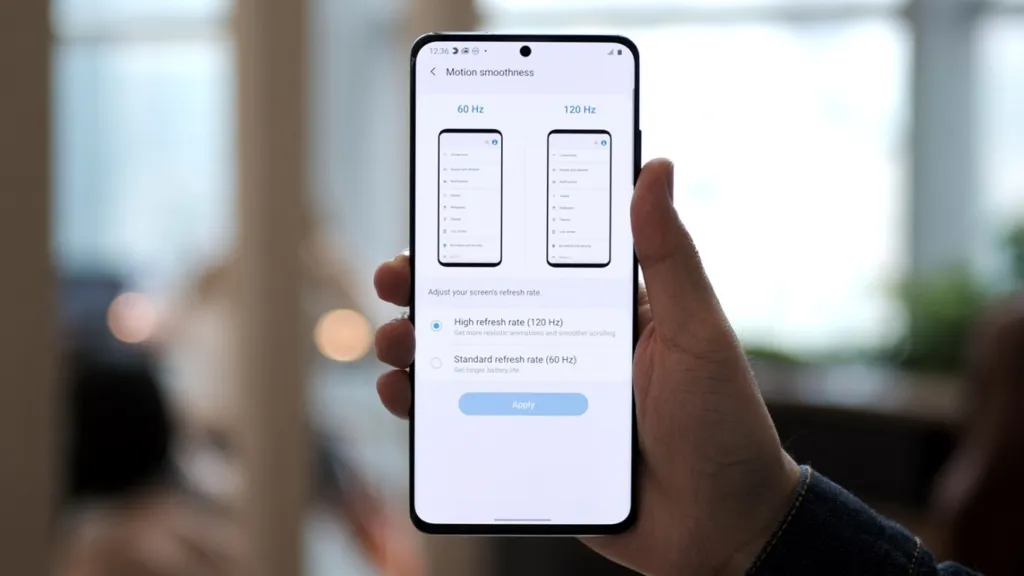
Refresh rate represents how many individual frames a screen can draw per second. The differences in responsiveness and battery draw are clearly measurable:
| Refresh Rate | Frame Render Time | Visual Perception | Battery Consumption |
|---|---|---|---|
| 60Hz (Standard) | 16.6 ms per frame | Baseline fluid motion; noticeable motion blur during rapid scrolling. | Lowest power consumption |
| 90Hz (Smooth Balance) | 11.1 ms per frame | 50% faster frame delivery; noticeably snappier touch response. | ~5% to 8% additional draw |
| 120Hz (Ultra Fluid) | 8.3 ms per frame | Silky-smooth animations; virtually eliminates perceived touch input latency. | ~10% to 15% additional draw |
2. Download SetEdit & Device Configuration Tools
You can acquire the verified SetEdit system database editor directly through the official repository below:
Download SetEdit (Settings Database Editor)
System database editor utility for tweaking display refresh rates on Android
Only modify documented refresh rate keys; do not tamper with unfamiliar entries
3. Method 1: Tweak via SetEdit (Android 11 & Older)
This straightforward approach functions on devices where custom system table permissions remain accessible without specialized ADB elevation:
- Launch the SetEdit app on your device.
- Ensure the top-right table selector is configured to System Table.
- Tap + Add new setting located at the top of the parameter list.
- Create the following three entries sequentially, specifying your preferred refresh rate (e.g.,
120or90) for each:
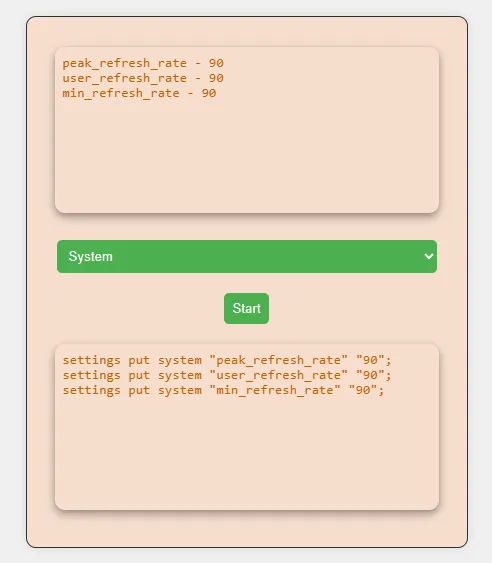
peak_refresh_rate -> 120 (or 90)user_refresh_rate -> 120 (or 90)min_refresh_rate -> 120 (or 90)Realme / OPPO Note: On select ColorOS and Realme UI iterations, assigning a value of 1 to peak_refresh_rate permanently forces the panel into maximum refresh mode across all third-party software.
4. Method 2: Wireless Debugging ADB Commands (Android 11 to Android 14+)
Modern Android versions enforce tighter security models that prevent unprivileged apps from editing the system table directly. You can quickly bypass this restriction using native Wireless Debugging via tools like LADB, Brevent, or Shizuku:
- Navigate to Settings > Developer Options > enable Wireless Debugging.
- Use split-screen multitasking: open the Wireless Debugging pairing dialog on one half, and your on-device ADB shell (e.g., LADB) on the other to pair via port and 6-digit code.
- Once paired, execute the following shell commands sequentially:
settings put system peak_refresh_rate 120.0settings put system user_refresh_rate 120.0settings put system min_refresh_rate 120.0For Xiaomi and Redmi smartphones running HyperOS or MIUI, execute this single targeted command instead:
settings put system user_refresh_rate 1205. Visual Architecture & Workflow Demonstration
| Refresh Rate Rendering Diagram | SetEdit Command Converter Tool |
|---|---|
|
|
6. Reverting Changes & Troubleshooting
- How to Restore Stock Defaults: Open Settings > Display > Refresh Rate and toggle the selection back to Adaptive or standard 60Hz. This resets all modified system table values back to OEM factory profiles.
- Handling Reboots on Strict ROMs: If your vendor skin restores 60Hz after a reboot, use automation utilities such as MacroDroid or Tasker to automatically dispatch the wireless ADB command upon device boot.
Related Articles

BrotX Optimizer v7: Rootless Android System Tuning via Shizuku ADB
Guide to rootless Android system tuning with BrotX Optimizer v7 via Shizuku ADB: enable ANGLE Vulkan GPU, 0ms floating window touch, 80% charge protection, and 58 flags.

OOptimize: Android 7-15 Gaming Tweaks (Root & No-Root)
Optimize SurfaceFlinger and GPU Vulkan pipeline on Android 7-15 with OOptimize: stabilize FPS, eliminate frame drops, and minimize touch input latency.

RAM Purger: Stop Background Processes & Boost Android Gaming Like iPhone
Complete guide to the rootless RAM Purger (frozen.sh) shell script terminating 400+ background app tasks to reclaim RAM and eliminate frame drops on Android.

How to Lower Screen Resolution on Android for Maximum Gaming FPS
Step-by-step guide to downscale Android screen resolution without root: cut GPU load by up to 50%, prevent thermal throttling, and boost gaming FPS.
Comments(2)
Sign in to join the conversation
Sign in with Google, Facebook or Email to leave a comment and get notified of replies.
rất tốt
Mặc Dù Vẫn Làm theo từng bước và đã làm đc nhưng ko có sự thay đổi nào trong cái điện thoại của tôi cả , vẫn 60hz và không lên được 120hz …