
How to Fix Lag in Wuthering Waves: Best .ini Config & FPS Boost for Mobile/PC

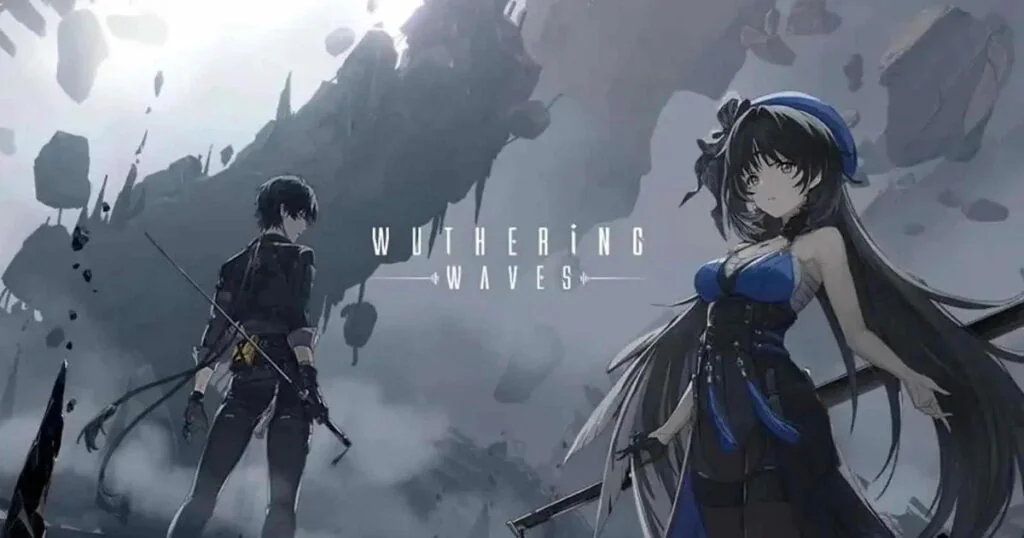
Wuthering Waves is an action open-world RPG developed by Kuro Games, powered by Unreal Engine 4 with dynamic combat mechanics and rich environments. However, intense visual assets and unoptimized resource management can cause severe stuttering, micro-freezes, and FPS drops across both PCs and mobile devices. This comprehensive guide walks through fundamental and advanced .ini configuration tweaks and scaling tools to stabilize your frame rate and deliver a fluid gameplay experience.
1. System Hardware Requirements
Review the minimum and recommended hardware specifications before configuring configuration files to establish realistic performance expectations for your hardware setup.
| Platform | Minimum Requirements | Recommended Specifications |
|---|---|---|
| Android | Snapdragon 835 / MediaTek G71/G72, 4 GB RAM, 12 GB+ free storage, Android 7.0+ | Snapdragon 8+ Gen 1 / Gen 2 / Gen 3 or Dimensity 8200+, 8 GB RAM, Android 10+ |
| iOS / iPadOS | iPhone 11 (A13 Bionic chip) or later, 4 GB RAM, iOS 13+ | iPhone 13 / 14 / 15 series (A15 Bionic chip or better), 6 GB RAM, iOS 15+ |
| Windows PC / Laptop | Intel Core i5 (9th Gen) / AMD Ryzen 2700, GTX 1060 / RX 570, 16 GB RAM, 30 GB+ storage | Intel Core i7 (9th Gen) / AMD Ryzen 3700, RTX 2060 / RX 5700 XT, 16 GB RAM, NVMe SSD |
In-game combat and dense outdoor foliage place tremendous strain on GPU shader pipelines and VRAM. Direct client-side configuration tweaks offer the most effective remedy for mid-range and low-end hardware configurations.
2. Advantages & Trade-offs of Configuration Tweaks
| Performance Benefits | Visual Trade-offs |
|---|---|
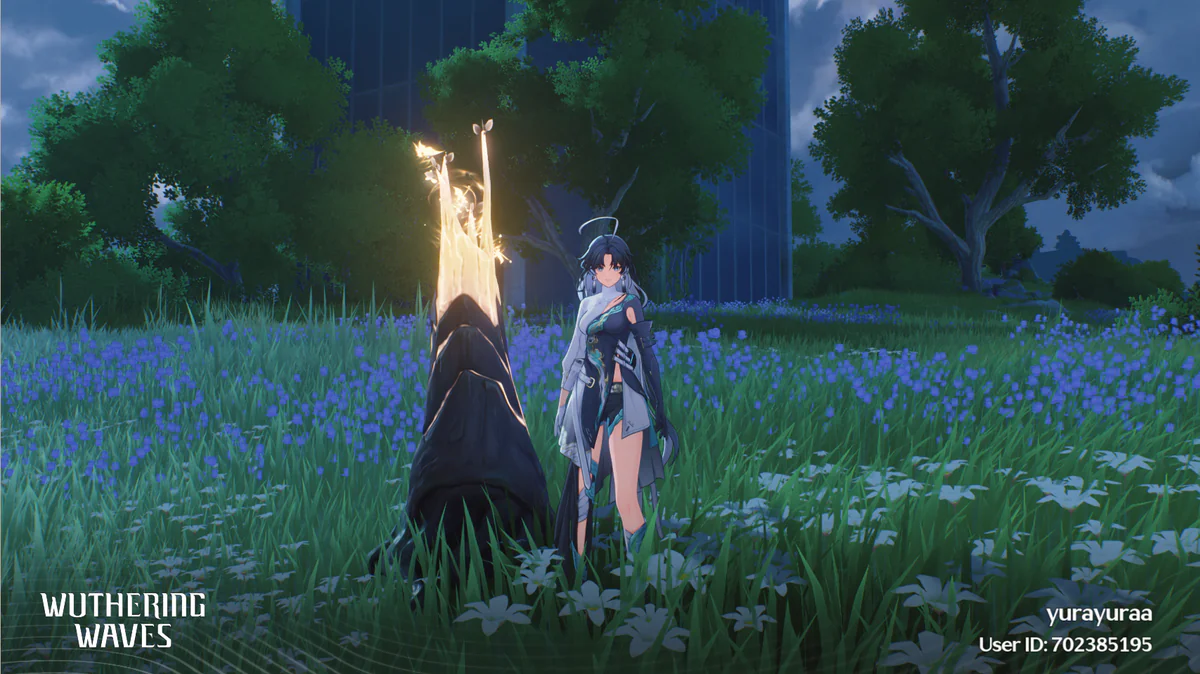
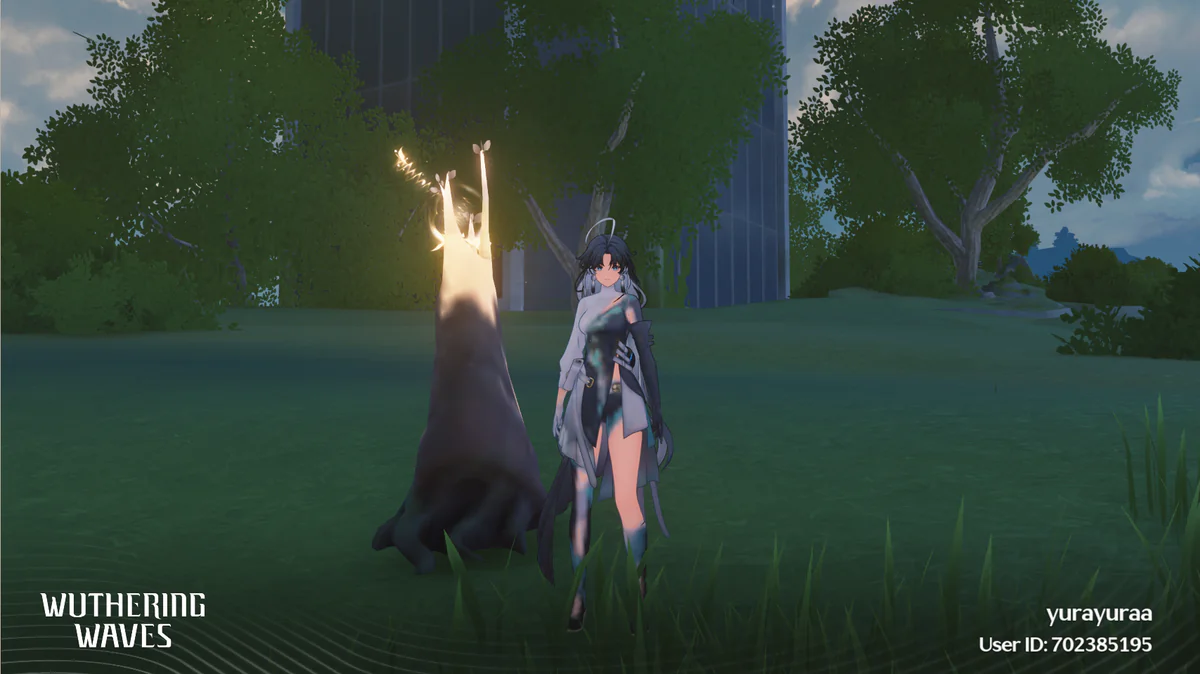
| Substantial FPS uplift (stabilizing volatile 25-30 FPS up to a solid 60 or 120 FPS). | Slightly softer 3D rendering depending on the chosen render resolution scale. |
| Consistent frame pacing with virtually zero micro-stutters during combat. | Reduced foliage density, draw distance, and dynamic reflection effects. |
| Significantly lower CPU/GPU thermal load, reducing battery drain on mobile phones. | Does not lower system RAM utilization (game assets still occupy memory). |
| Completely safe for user accounts as modifications only alter client graphics settings (.ini). | Requires following precise steps to prevent in-game menus from resetting configs. |
3. Android Optimization Guide
Step 1: In-game baseline graphics setup
Launch Wuthering Waves, open Settings -> select the Low or Very Low graphics preset, then completely exit the game application.
Step 2: Access game configuration storage
Use a file manager to navigate to the client configuration directory:
/sdcard/Android/data/com.kurogame.wutheringwaves/files/UE4Game/Client/Client/Saved/Config/WindowsNoEditor/
If your device restricts direct write access to the data folder, connect your phone to a computer with USB Debugging enabled and run adb pull / adb push, or use Shizuku paired with MT Manager or ZArchiver directly on the device.
Step 3: Edit GameUserSettings.ini
Open GameUserSettings.ini in a text editor and update the [ScalabilityGroups] block with the following parameters:
[ScalabilityGroups]sg.ResolutionQuality=50.000000sg.ViewDistanceQuality=1sg.AntiAliasingQuality=1sg.ShadowQuality=0sg.PostProcessQuality=1sg.TextureQuality=1sg.EffectsQuality=1sg.FoliageQuality=1sg.ShadingQuality=0Step 4: Advanced Engine.ini Tweaks (Optional for low-end phones)
For further performance gains, open Engine.ini in the same folder and append the following configuration block to the very bottom:
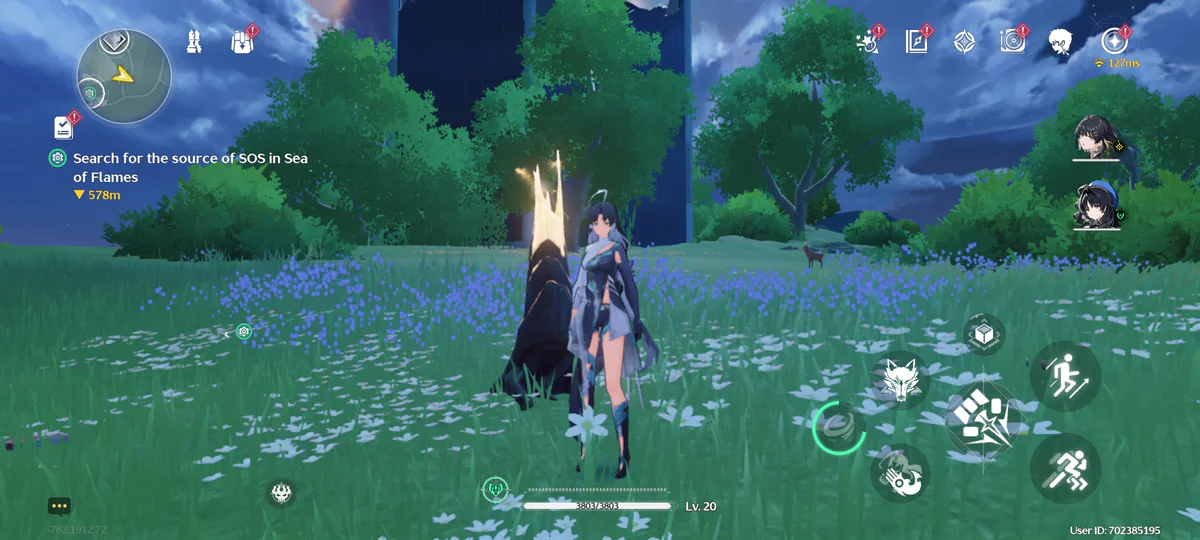
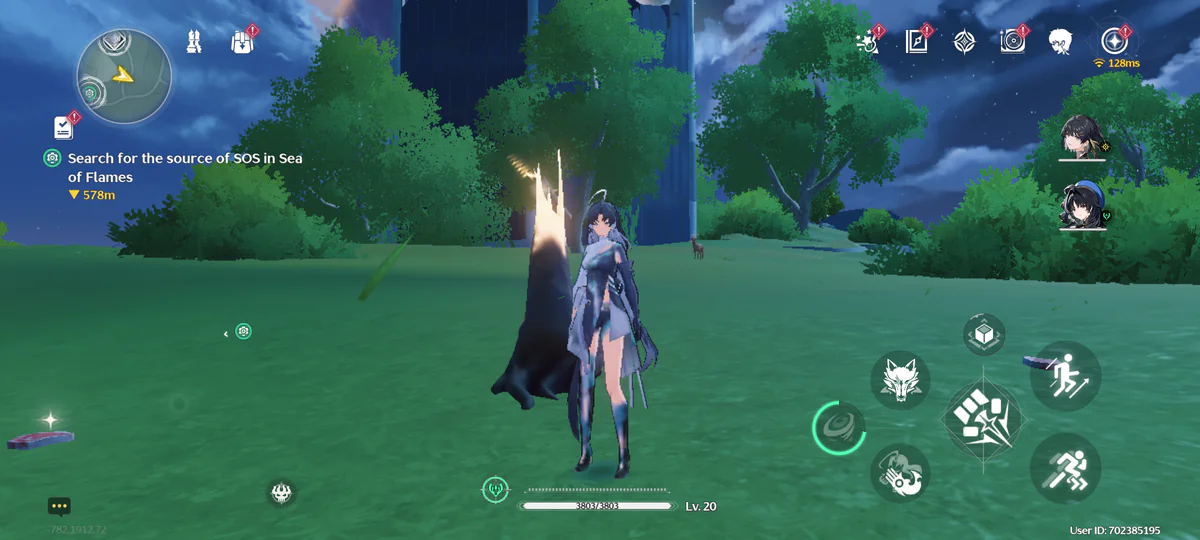
+Suppress=Scriptwarning+Suppress=Error+Suppress=Scriptlog+Suppress=Warning+Suppress=Report+Suppress=Cook [Core.Log]LogPluginManager=all offLogOnlineIdentity=all offLogOnlineSession=all offLogMemory=all offLogPakFile=all offLogTemp=all offLogLinker=all offLogOnline=all offLogOnlineGame=all offLogAnalytics=all offLogConfig=all offLogInteractiveProcess=all offLogInput=all offLogOnlineEntitlement=all offLogOnlineEvents=all offLogOnlineFriend=all offLogOnlinePresence=all offLogOnlineTitleFile=all offLogOnlineUser=all offGlobal=off [SystemSettings]r.Mobile.PixelProjectedReflectionQuality=1r.MaxQualityMode=0r.FullScreenMode=0r.SSGI.HalfRes=1r.Streaming.Boost=0r.TextureStreaming=1r.Streaming.PoolSize=1r.RenderTargetPoolMin=1r.OneFrameThreadLag=1r.PostProcessAAQuality=1r.AmbientOcclusionLevels=0r.DepthOfFieldQuality=0r.LensFlareQuality=0r.SceneColorFringeQuality=0r.EyeAdaptationQuality=0r.BloomQuality=0r.Tonemapper.GrainQuantization=0r.HighQualityLightMaps=0r.MotionBlurQuality=0r.Tonemapper.Quality=0r.ParticleLightQuality=0r.RefractionQuality=0r.SSR.Quality=0r.DetailMode=0r.MaterialQualityLevel=0r.SSS.Quality=0r.ShadowQuality=0r.Shadow.DistanceScale=0r.SkeletalMeshLODBias=0r.ViewDistanceScale=0r.LightFunctionQuality=0r.Shadow.CSM.MaxCascades=0r.Shadow.MaxResolution=0r.Shadow.RadiusThreshold=0r.Shadow.CSM.TransitionScale=0r.DistanceFieldShadowing=0r.DistanceFieldAO=0r.AmbientOcclusionMipLevelFactor=0r.AmbientOcclusionMaxQuality=0r.AmbientOcclusionRadiusScale=0r.AOQuality=0r.Atmosphere=0r.Shaders.Optimize=1r.Shaders.FastMath=1r.Streaming.AmortizeCPUToGPUCopy=1r.Streaming.MaxNumTexturesToStreamPerFrame=60r.Streaming.NumStaticComponentsProcessedPerFrame=60FX.AllowAsyncTick=1FX.BatchAsync=1FX.MaxCPUParticlesPerEmitter=0FX.MaxGPUParticlesSpawnedPerFrame=0foliage.OnlyLOD=0foliage.MinLOD=-1foliage.MinVertsToSplitNode=0foliage.OffGroundThreshold=0foliage.DiscardDataOnLoad=1grass.DiscardDataOnLoad=1sand.DiscardDataOnLoad=1glass.DiscardDataOnLoad=1concrete.DiscardDataOnLoad=1water.DiscardDataOnLoad=1wood.DiscardDataOnLoad=1metal.DiscardDataOnLoad=1Side-by-side screenshots demonstrate the foliage reduction and performance difference on mobile hardware:
4. PC & Laptop Optimization Guide
Step 1: Baseline settings in game
Open Wuthering Waves, set graphics to Very Low, switch screen mode to Windowed Mode (not FullScreen), then exit the game.
Step 2: Recommended 3D Resolution Scaling via Engine.ini
Navigate to your game installation path:
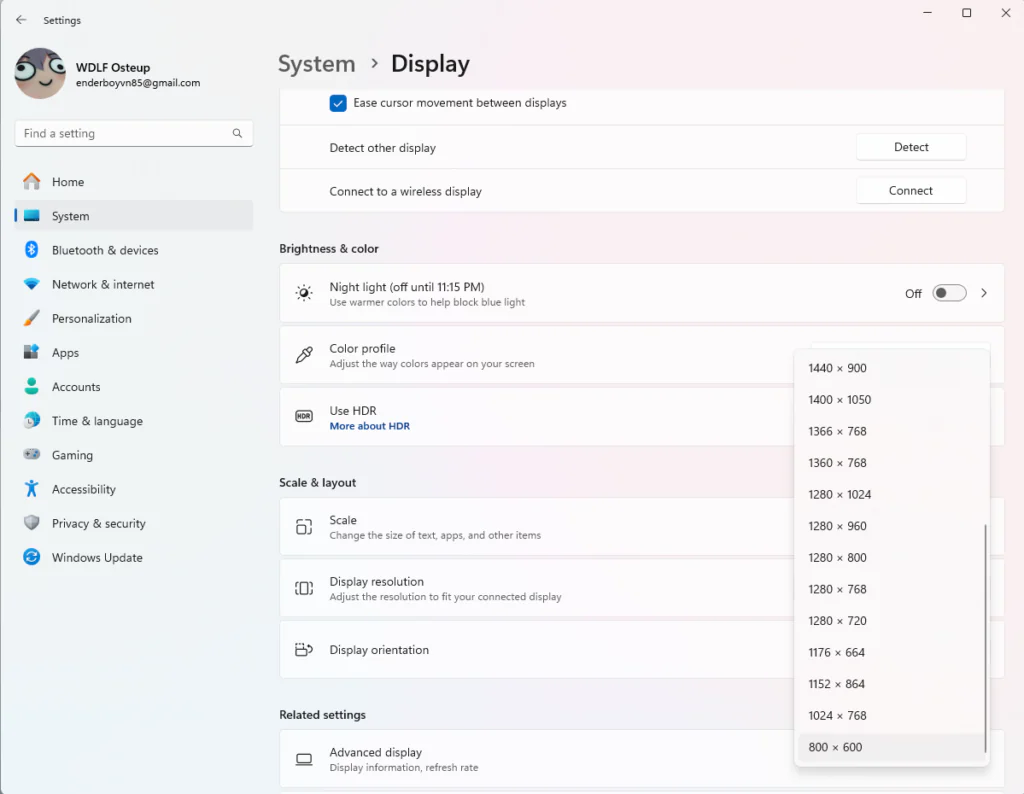
Wuthering Waves/Wuthering Waves Game/Client/Saved/Config/WindowsNoEditor/Instead of changing your entire Windows desktop resolution to 800x600 (which blurs text and window elements), simply open Engine.ini and append:
[SystemSettings]
r.ScreenPercentage=35
This maintains 100% crisp resolution on UI elements, health bars, and skill buttons, while rendering 3D scene elements at a lower resolution. You can increase this value to 50 for sharper visuals or toggle in-game Anti-Aliasing for smoother edges.
If you prefer standard configuration tuning, edit GameUserSettings.ini directly:
[ScalabilityGroups]sg.ResolutionQuality=60.000000sg.ViewDistanceQuality=0sg.AntiAliasingQuality=1sg.ShadowQuality=0sg.PostProcessQuality=0sg.TextureQuality=0sg.EffectsQuality=1sg.FoliageQuality=0sg.ShadingQuality=0Launch the game binary directly via Wuthering Waves.exe inside the game folder rather than through the launcher.
5. Frame Generation & Upscaling With Lossless Scaling
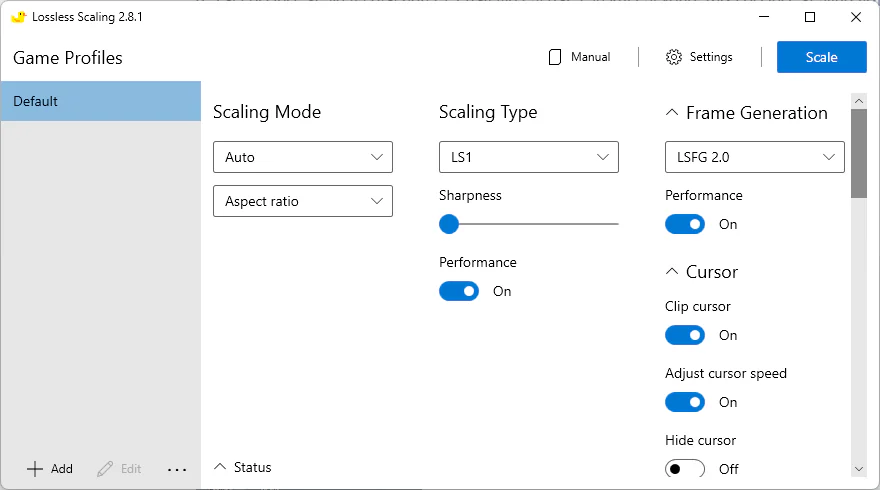
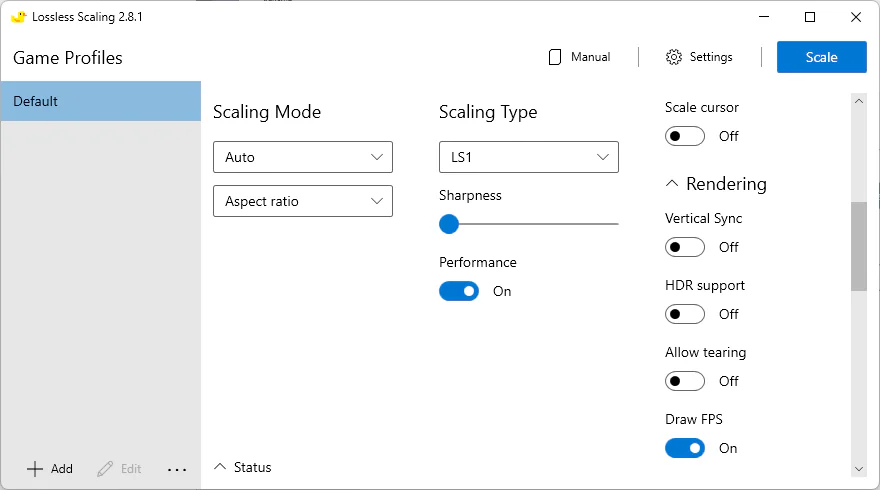
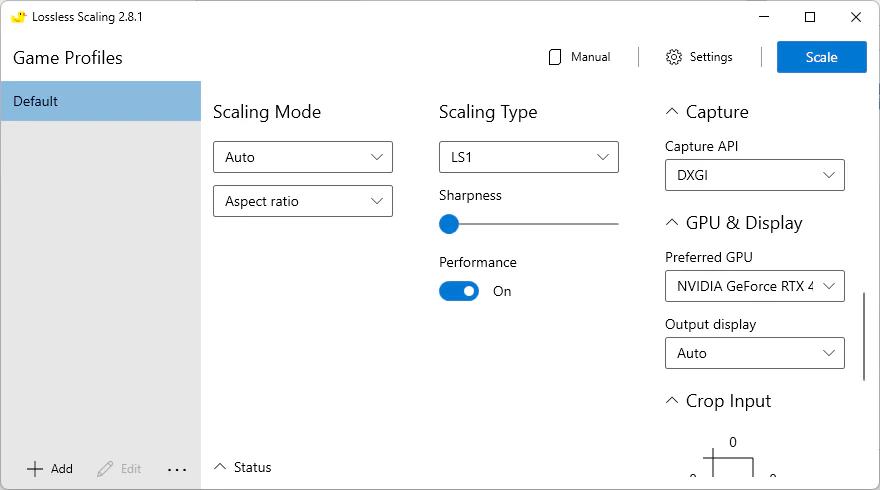
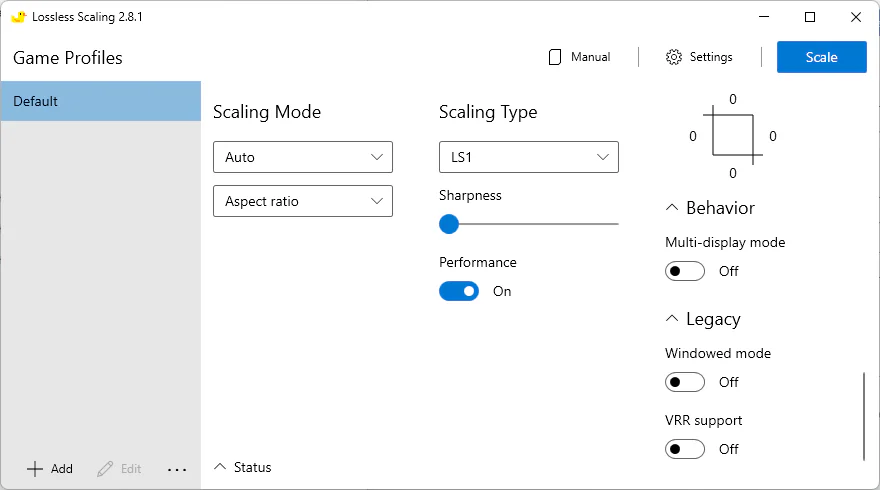
Lossless Scaling is a standalone utility that generates interpolated frames (LSFG) and applies spatial upscaling (LS1 / AMD FSR) without touching game memory or binary files, remaining 100% safe.
Configuration Workflow:
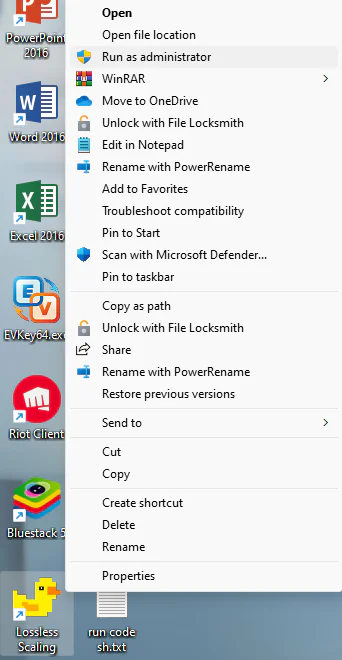
- Extract the archive and always launch Lossless Scaling via right-click -> Run as administrator.
- Under Scaling Mode: Select Custom and configure your preferred Scale Factor.
- Under Scaling Type: Choose LS1 or AMD FSR for high-quality edge reconstruction.
- Under Frame Generation: Enable LSFG 2.1 to double apparent frame rates.
- Under Preferred GPU: Select your dedicated graphics card (Nvidia GeForce or AMD Radeon).
- Click the Scale button, switch to the Wuthering Waves window within 5 seconds, and click into the game to trigger fullscreen scaling.
6. Visual Comparison & Measured Benchmarks
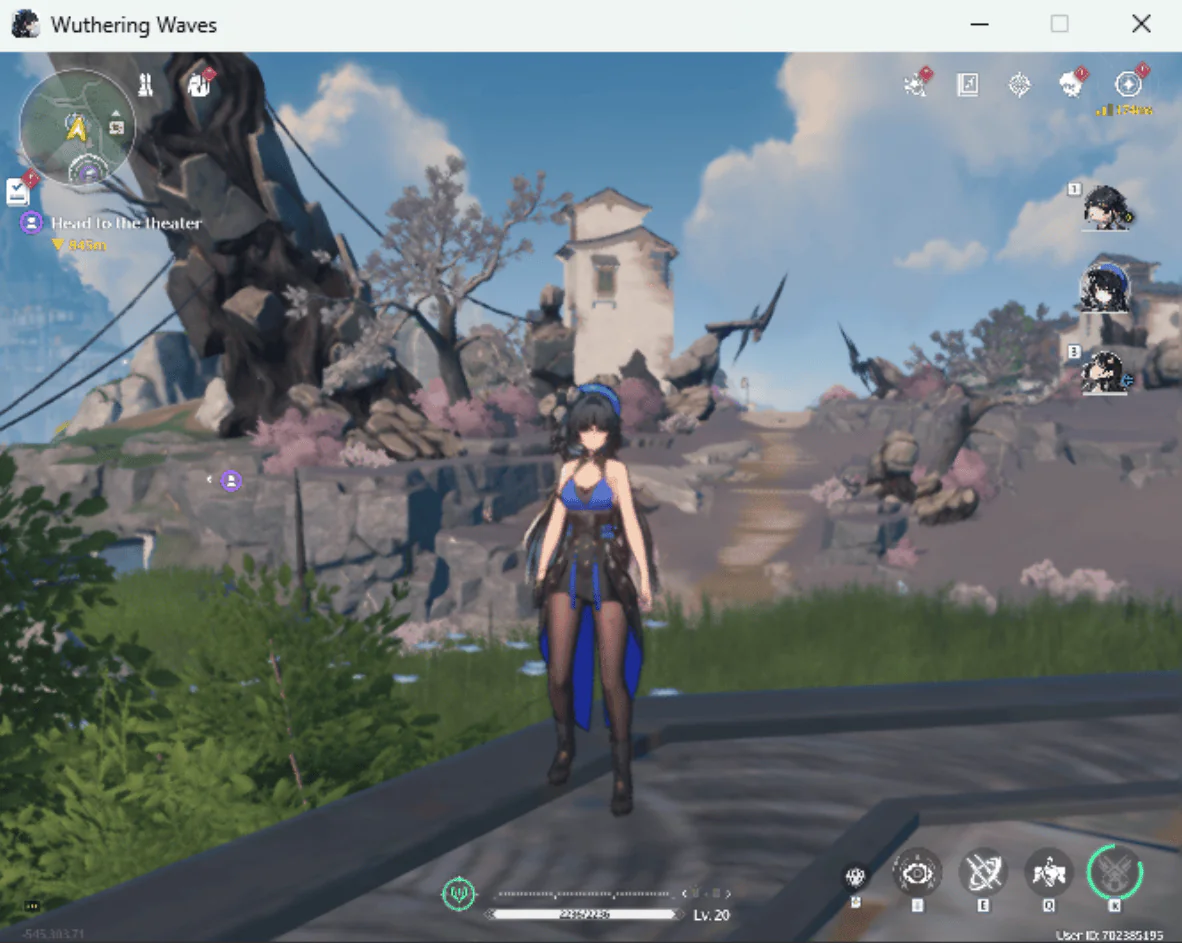
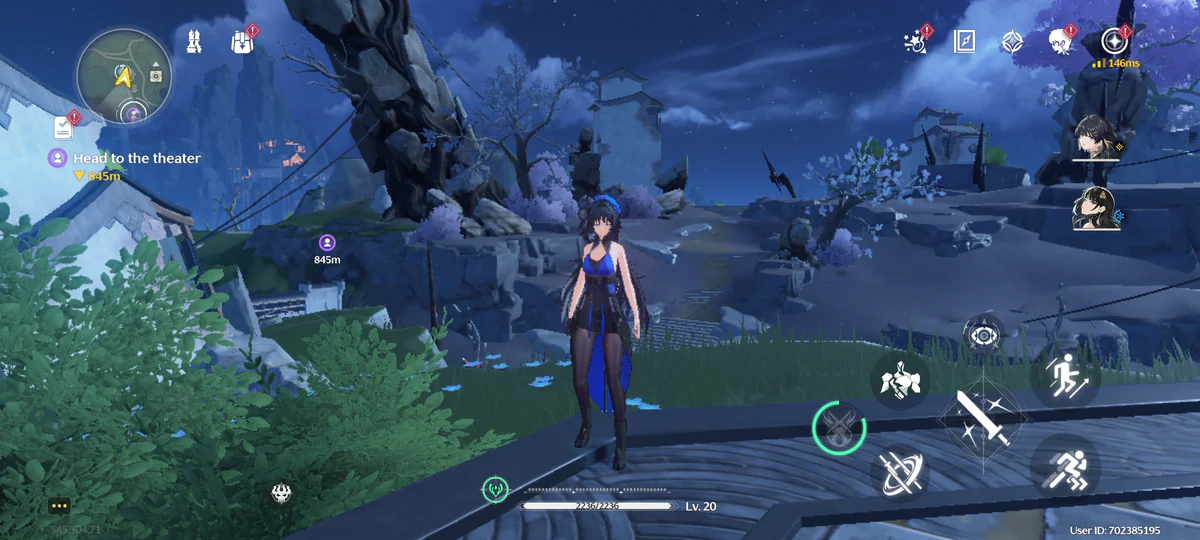
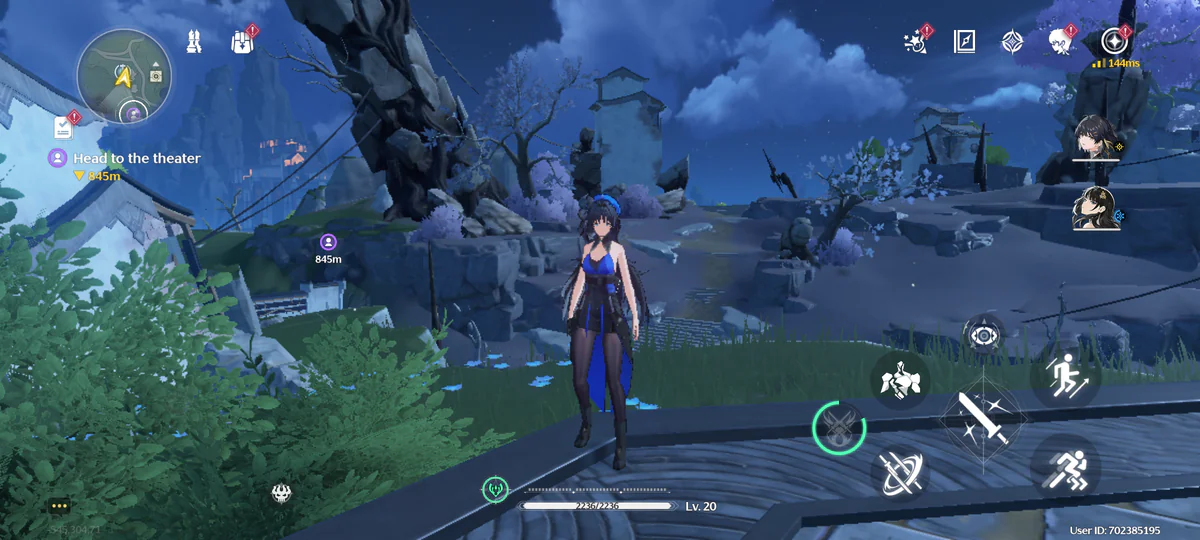
7. Frequently Asked Questions (FAQ)
Can modifying .ini files trigger an account ban from Kuro Games?
No. Both GameUserSettings.ini and Engine.ini are standard client-side Unreal Engine 4 configuration files. This process does not alter executable binaries, inject code into system memory, or interact with game servers, making it 100% compliant and safe.
Why do my custom settings reset back to default upon entering the game?
This typically occurs if you open the in-game Graphics menu after editing the files or when a new patch is deployed. To prevent this, save your edits, right-click the GameUserSettings.ini or Engine.ini file, select Properties, check the Read-only box, and click Apply.
What should I do if the mouse cursor disappears when using Lossless Scaling?
Ensure that the "Hide cursor" option is unchecked in Lossless Scaling settings. If the cursor still vanishes, simply press Alt + Tab to cycle to another window and return to the game to restore cursor visibility.
How can I revert to default graphics settings?
Open GameUserSettings.ini and Engine.ini and remove the added lines, or delete the files entirely. The game will automatically regenerate pristine default configuration files on the next launch.
These optimization techniques were gathered from field testing by Yurayuraa and shared by Nguyen Van Khanh. Best of luck on your journeys across Solaris-3!
Related Articles

BrotX Optimizer v7: Rootless Android System Tuning via Shizuku ADB
Guide to rootless Android system tuning with BrotX Optimizer v7 via Shizuku ADB: enable ANGLE Vulkan GPU, 0ms floating window touch, 80% charge protection, and 58 flags.

OOptimize: Android 7-15 Gaming Tweaks (Root & No-Root)
Optimize SurfaceFlinger and GPU Vulkan pipeline on Android 7-15 with OOptimize: stabilize FPS, eliminate frame drops, and minimize touch input latency.

RAM Purger: Stop Background Processes & Boost Android Gaming Like iPhone
Complete guide to the rootless RAM Purger (frozen.sh) shell script terminating 400+ background app tasks to reclaim RAM and eliminate frame drops on Android.

How to Lower Screen Resolution on Android for Maximum Gaming FPS
Step-by-step guide to downscale Android screen resolution without root: cut GPU load by up to 50%, prevent thermal throttling, and boost gaming FPS.
Comments(12)
Sign in to join the conversation
Sign in with Google, Facebook or Email to leave a comment and get notified of replies.
ko dùng đc Lossless Scale nx
Cách mới cho PC: LƯU Ý RẰNG NẾU BẠN LÀM CÁCH NÀY, THÌ KHÔNG CẦN LÀM CÁCH 2, 3, 4 Ở TRÊN BÀI VIẾT NỮA NHÉ –> Lợi ích của cách này là giảm resolution của 3D không cần chỉnh độ phân giải windows, các nút trên GUI của game vẫn rõ nét, chỉ có đồ họa 3D bị giảm 2. Vào thư mục [Wuthering Waves\Wuthering Waves Game\Client\Saved\Config\WindowsNoEditor] 3. Sửa file [Engine.ini], thêm đoạn code này ở cuối cùng của file: "` [SystemSettings] r.ScreenPercentage=35 "` sau đó lưu lại (nên bật thêm khử răng cưa [Anti-aliasling] trong game để đỡ bị nát hơn nhé, bạn muốn hình ảnh 3D rõ nét hơn có thể tăng số 35 lên nhé, còn muốn mượt hơn thì giảm xuống nữa nhưng hình ảnh sẽ bị nát đấy) 4. Lưu lại và vào game thôi, nếu bạn muốn dùng thêm Lossless Scaling thì có thể xem từ cách 5 ở trên bài viết nha!!! à quên nữa, cái code này tui tham khảo ở đây nhé, nhưng mà tui thấy dòng này ok thôi, có thử copy full code low end chép vào chạy và cái kết game nuốt từ 2.5gb -> 5.2gb ram nên k khuyến khích nhé https://www.reddit.com/r/WutheringWaves/comments/1d07cku/ue4_engine_tweaks_to_improve_visuals_and_reduce/
lúc đầu thì toàn giật giật lag lag, ping auto >500 và >300, cực hiếm gặp ping vàng với xanh lắm. nhờ bài này mà bây giờ cảm thấy ping xanh và vàng hiện nhiều hơn so lúc đầu, tuy giờ ping đỏ cũng hay hiện nhưng chỉ 200-250 chứ không hay >500 và >300
hữu ích thật, lúc đầu máy toàn bị giật giật nặng kinh khủng, toàn auto ping >500 hay >300 và cực hiếm gặp ping vàng với xanh lắm. nhờ bài này giúp ping đỡ tệ hơn, khả năng ping xanh và vàng hiện nhiều hơn lúc mới đầu tuy bây giờ ping vẫn đỏ, kiểu từ 200-250 gì đó nhưng đỡ hơn cái >500 và >300
Nó tự reset thì sao bạn
Em thậm chí mất cả chuột :v
Sao em nó ko full screen được vậy anh?
Thấy hay thì comment tích cực nheeeee