
How to Unlock Brevent on Android 11 & Below via PC (No Root Guide)

Brevent remains one of the most effective background management and performance tuning tools available for the Android ecosystem. It enables users to freeze standby services, suppress persistent bloatware, and execute elevated shell scripts (such as setprop and ADB commands) entirely without root permissions. While devices running Android 12 or later can activate Brevent standalone via Wireless Debugging, smartphones running Android 11 and below (notably Android 8, 9, and 10) frequently lack stable wireless pairing surfaces. Connecting via a USB cable to a Windows PC using ADB is the established, zero-risk, and 100% reliable method to start the Brevent server daemon.
- Target Objective: Start the background Brevent server daemon on Android 8.0 through 11.0 devices without unlocking the bootloader or tampering with system integrity.
- Required Hardware: A Windows PC or laptop, a reliable USB data cable, and an Android handset with Developer Options enabled.
- Completely Non-Invasive: The activation relies strictly on standard Android Open Source Project (AOSP) debugging interfaces, leaving personal data intact and warranties unaffected.
- Session Persistence: The server daemon runs in volatile system RAM. If the device restarts or powers off, the process terminates automatically and requires running a single terminal command via PC to reactivate.
1. Technical Requirements & Environment Setup
Ensure all prerequisites are in place prior to launching the debugging bridge:
| Component | Specification | Functional Role |
|---|---|---|
| Android Smartphone | Android 8.0 through Android 11.0 | Must have Developer Options unlocked and USB Debugging toggled active. |
| Host Computer | Windows 10 or Windows 11 | Provides the terminal environment to dispatch shell instructions via Command Prompt. |
| ADB Bridge Suite | Android SDK Platform-Tools | Supplies the adb.exe binary to communicate with the Android subsystem. |
| USB Cable | Standard Data-Sync Cable | Carries reliable data packets; avoid low-grade charge-only cables without data pins. |
| Brevent App | Latest Stable Release | Pre-installed on the Android handset via Google Play Store or official APK repositories. |
2. Download Brevent & PC Platform-Tools Suite
Download the official Brevent application and Google's lightweight Android SDK Platform-Tools suite via the secure links below:
Brevent PC Activation Toolkit
Includes the official Brevent Android package and standalone Windows ADB platform utilities
Extract platform-tools zip directly to C:adb on your computer
3. Step-by-Step Activation Procedure
Follow these 4 sequential steps to start the Brevent background service:
Step 1: Enable Developer Options & USB Debugging
On your Android handset:
- Navigate to Settings > scroll down to About phone.
- Locate the Build number entry and tap it rapidly 7 consecutive times until the system prompt confirms "You are now a developer!".
- Return to the main Settings menu > tap System (or Additional settings on custom OEM skins) > open Developer options.
- Toggle the switch next to USB debugging to the ON position.
| Enabling USB Debugging in Android Developer Options |
|---|
|
Step 2: Connect USB Cable & Authorize Debugging Prompt
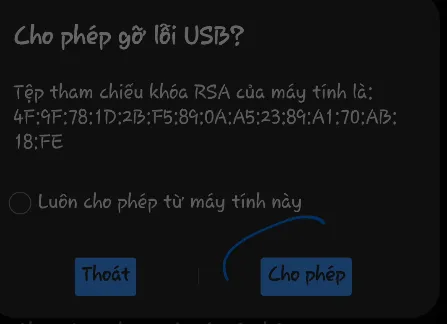
Connect the Android phone to your PC via a USB cable. An authorization modal titled "Allow USB debugging?" will promptly appear on the mobile display:
- Check the box labeled Always allow from this computer.
- Tap Allow (or OK) to establish cryptographic handshaking.
| Granting RSA Key Fingerprint Authorization on Device |
|---|
|
Step 3: Launch Terminal on PC & Verify Device Recognition
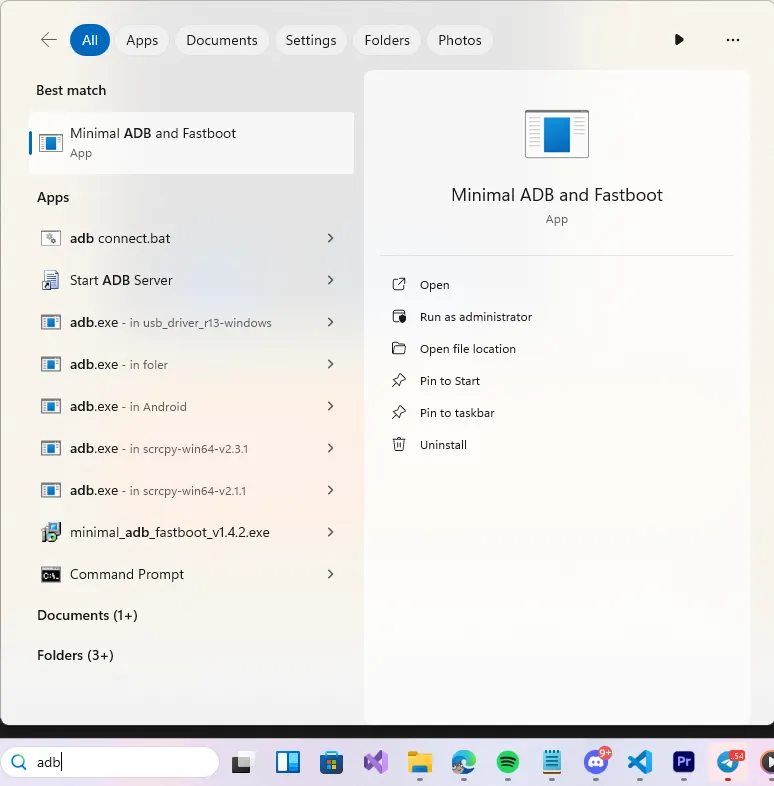
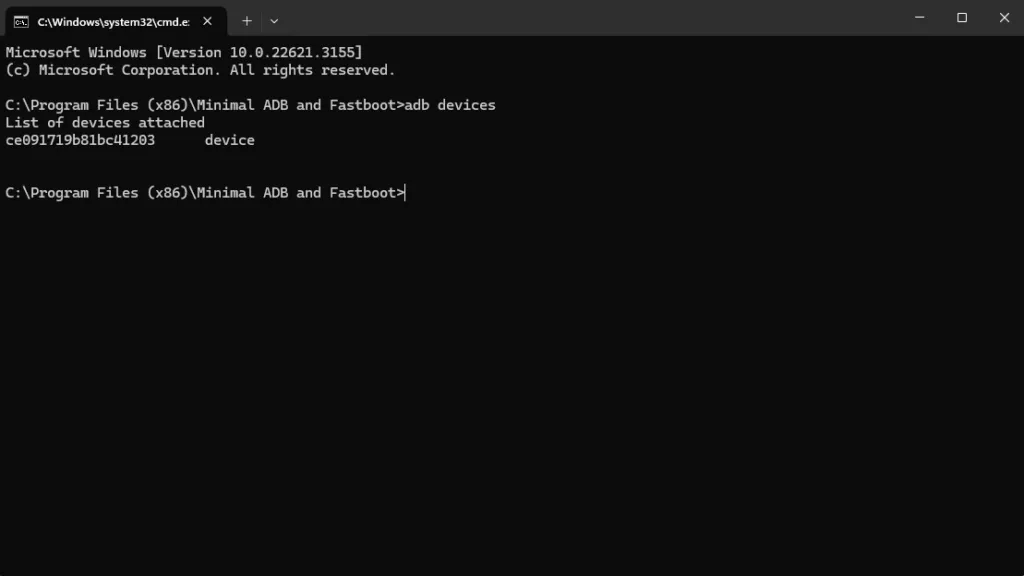
On your Windows machine, open the folder where you extracted the ADB tools (e.g., C:\platform-tools). Click the address bar at the top, type cmd, and press Enter to launch Command Prompt directly in that directory. Run the following command to check device connection status:
adb devices| Executing adb devices Command | Successful Attached Device State |
|---|---|
|
|
Inspect the output under the List of devices attached header:
- If a serial string followed by
deviceis reported (e.g.,988a1b44 device), communication is properly established. - If the output reads
unauthorized, wake the phone display and confirm the USB debugging authorization prompt explained in Step 2.
Step 4: Execute the Brevent Server Initialization Command
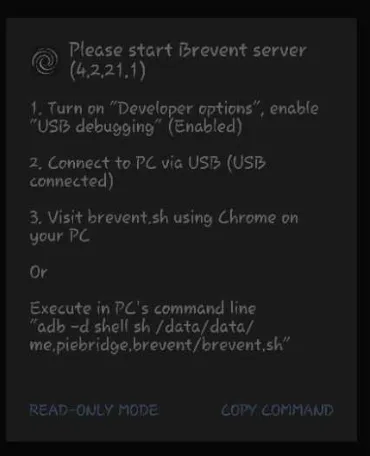
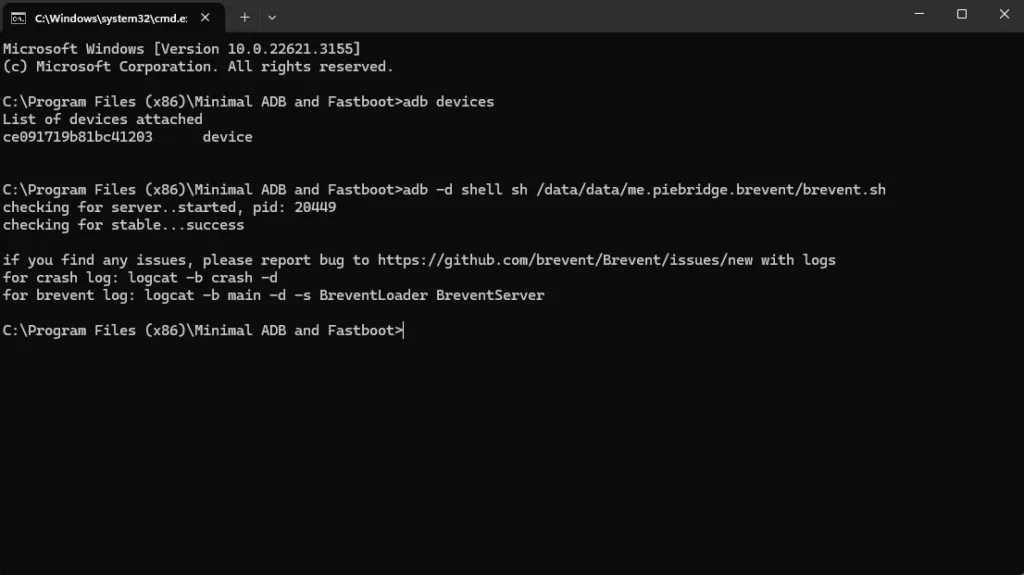
With the handset showing in device mode, paste the following command into your terminal window and press Enter:
adb -d shell sh /data/data/me.piebridge.brevent/brevent.sh| Brevent Background Daemon Successfully Started |
|---|
|
The console will print status indicators similar to:
checking for server..started, pid: [Process_ID]checking for stable...successOnce you observe success, the Brevent server daemon is actively operational. You may safely unplug the USB cable from the PC and launch the Brevent app on your handset to freeze standby applications or execute system optimization scripts.
4. Operational Notes & Troubleshooting Common Issues
Does restarting (rebooting) the phone revoke the unlocked status?
Yes. Because this workflow does not write modifications into system root partitions, the Brevent daemon resides exclusively within volatile RAM. When Android reboots, all user-spawned ADB shell processes are flushed by design. To restore service after a reboot, simply reconnect to your PC and re-run the Step 4 command.
Can I turn off "USB debugging" after activating Brevent?
No. Toggling off USB debugging immediately terminates the ADB subsystem on the phone, bringing down the Brevent daemon with it. Keep USB debugging enabled for ongoing functionality.
What causes "'adb' is not recognized as an internal or external command"?
This syntax error indicates that Command Prompt is not executing within the folder containing adb.exe. Navigate directly to your extracted platform-tools directory, type cmd into Windows Explorer's address bar, and press Enter to ensure the shell opens with the binary in its immediate path.
Why does "adb devices" output an empty list?
An empty device list points to missing OEM USB drivers, an incompatible cable (charge-only with no data conductors), or a faulty USB port. Switch to a rear motherboard USB port on desktop machines, use the OEM cable, and install universal Google USB drivers or your specific manufacturer driver package.
Related Articles

BrotX Optimizer v7: Rootless Android System Tuning via Shizuku ADB
Guide to rootless Android system tuning with BrotX Optimizer v7 via Shizuku ADB: enable ANGLE Vulkan GPU, 0ms floating window touch, 80% charge protection, and 58 flags.

OOptimize: Android 7-15 Gaming Tweaks (Root & No-Root)
Optimize SurfaceFlinger and GPU Vulkan pipeline on Android 7-15 with OOptimize: stabilize FPS, eliminate frame drops, and minimize touch input latency.

RAM Purger: Stop Background Processes & Boost Android Gaming Like iPhone
Complete guide to the rootless RAM Purger (frozen.sh) shell script terminating 400+ background app tasks to reclaim RAM and eliminate frame drops on Android.

How to Lower Screen Resolution on Android for Maximum Gaming FPS
Step-by-step guide to downscale Android screen resolution without root: cut GPU load by up to 50%, prevent thermal throttling, and boost gaming FPS.
Comments(0)
Sign in to join the conversation
Sign in with Google, Facebook or Email to leave a comment and get notified of replies.
No comments yet. Be the first to join the conversation!