
How to Use ADB Shell on Windows 10/11: Complete Beginner's Guide

ADB (Android Debug Bridge) is a versatile command-line utility developed by Google that establishes a direct communication bridge between your computer and the Android operating system. Through the ADB Shell prompt, you can run hardware optimization scripts, completely uninstall non-removable OEM bloatware without rooting, grant elevated permissions to apps like Shizuku and Brevent, or customize your display resolution for higher gaming frame rates. This comprehensive guide walks you through setting up and using ADB Shell on Windows 10 & 11 from start to finish.
1. What Is ADB and Why Should You Use ADB Shell?
Standard Android settings menus only present high-level configuration toggles approved by your device manufacturer. Crucial system optimizations and pre-installed background bloatware (such as carrier trackers, Samsung Bixby, or vendor cloud telemetry) are locked behind protected system permissions.
ADB functions via a Client-Server architecture: your PC issues commands over a USB connection, and the adbd background daemon running on Android executes those instructions with elevated system-level authority without tripping security flags.
| Action | Standard Android Phone UI | Via ADB Shell on PC |
|---|---|---|
| Uninstalling OEM Bloatware | Uninstall button disabled; only Disable available | Permanently removed via pm uninstall |
| Granting Special App Permissions | Requires full device rooting or unlocked bootloader | Granted safely via pm grant commands |
| Running Performance Shell Scripts (.sh) | Mobile terminal apps often lack elevated permissions | Executes flawlessly without permission errors |
| Changing Screen Resolution & DPI | Limited strictly to predefined manufacturer presets | Freely adjustable via wm size and wm density |
2. Download Official SDK Platform-Tools from Google
You do not need to install heavy development environments or the multi-gigabyte Android Studio suite. Simply download Google's lightweight, standalone SDK Platform-Tools package:
3. Step-by-Step Guide to Connecting ADB Shell on Windows
Step 1: Enable USB Debugging on Your Android Phone
- Open Settings > About phone.
- Locate the Build Number and tap it rapidly 7 times until you see the confirmation message: "You are now a developer!" (On Xiaomi devices, tap the MIUI/HyperOS version 7 times).
- Return to the main Settings menu > go to System > Developer options.
- Scroll down and toggle on USB Debugging. For Xiaomi / Redmi: Also enable Install via USB and USB debugging (Security settings). For Realme / OPPO: Enable Disable permission monitoring if present.
Step 2: Open Command Prompt in the Platform-Tools Folder
Extract the downloaded platform-tools_rXX-windows.zip archive. You will obtain a folder named platform-tools containing essential binaries like adb.exe and fastboot.exe.
Pro tip: Open the platform-tools folder in Windows File Explorer, click directly on the folder address bar at the top, type cmd, and press Enter. A Command Prompt window will instantly open directly in that directory.
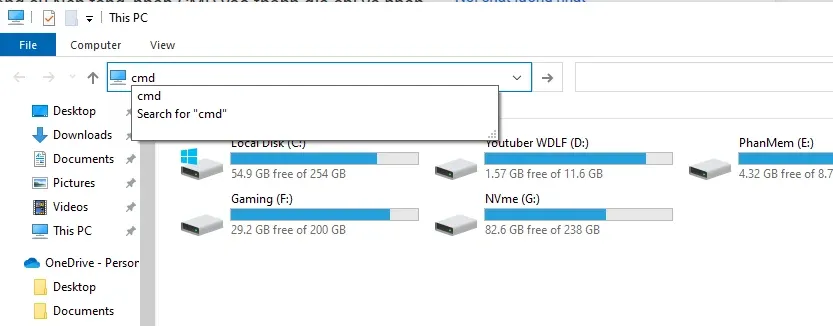
Step 3: Connect your phone and verify device authorization
Connect your phone to your PC via a USB data cable (select File Transfer / MTP mode on your phone screen). In the Command Prompt window, type:
adb devices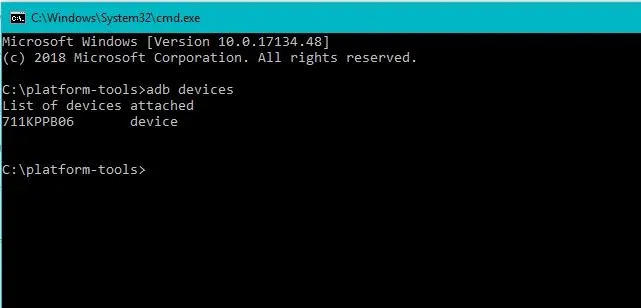
A prompt will appear on your phone screen asking to Allow USB debugging?. Check the box for "Always allow from this computer" and tap Allow.
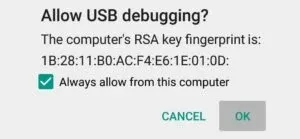
Run the command adb devices once more. When your device serial number appears accompanied by the word device (rather than unauthorized or empty), your connection is established.
Step 4: Launch into the Interactive ADB Shell
To enter the direct Linux command-line shell of your Android device, type:
adb shell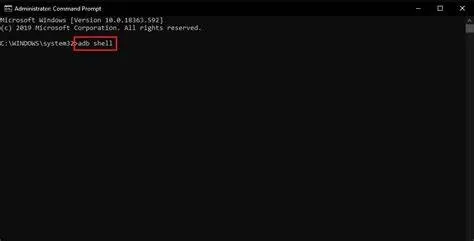
From this interactive prompt, you can execute optimization scripts or manage packages:
# Execute a performance tuning script placed in your Download directorysh /storage/emulated/0/Download/BoostCPU.sh # Uninstall a stubborn bloatware package without rootpm uninstall -k --user 0 com.example.bloatware
To exit the Android shell and return to standard Windows Command Prompt, simply type exit and press Enter.
4. Troubleshooting Common ADB Connection Errors
Error: "adb: command not found" or unrecognized command in PowerShell?
If using PowerShell instead of standard Command Prompt (CMD), PowerShell requires local executable syntax with a .\ prefix. Type .\adb devices and .\adb shell instead of plain adb.
Error: adb devices displays "unauthorized"?
This occurs when the RSA authorization key prompt was missed or declined on the phone. Unlock your phone, replug the USB cable, and watch for the "Allow USB debugging?" dialog. If it fails to appear, navigate to Developer Options and tap Revoke USB debugging authorizations, then reconnect.
Error: "List of devices attached" is completely empty?
Commonly caused by charge-only USB cables lacking data transfer wires, or missing Windows OEM USB drivers. Try using a rear motherboard USB port, a verified data-sync cable, or install Google's official USB Driver package.
Related Articles

BrotX Optimizer v7: Rootless Android System Tuning via Shizuku ADB
Guide to rootless Android system tuning with BrotX Optimizer v7 via Shizuku ADB: enable ANGLE Vulkan GPU, 0ms floating window touch, 80% charge protection, and 58 flags.

OOptimize: Android 7-15 Gaming Tweaks (Root & No-Root)
Optimize SurfaceFlinger and GPU Vulkan pipeline on Android 7-15 with OOptimize: stabilize FPS, eliminate frame drops, and minimize touch input latency.

RAM Purger: Stop Background Processes & Boost Android Gaming Like iPhone
Complete guide to the rootless RAM Purger (frozen.sh) shell script terminating 400+ background app tasks to reclaim RAM and eliminate frame drops on Android.

How to Lower Screen Resolution on Android for Maximum Gaming FPS
Step-by-step guide to downscale Android screen resolution without root: cut GPU load by up to 50%, prevent thermal throttling, and boost gaming FPS.
Comments(0)
Sign in to join the conversation
Sign in with Google, Facebook or Email to leave a comment and get notified of replies.
No comments yet. Be the first to join the conversation!