
OsteBoss Game Turbo: Boost FPS & Optimize Android Gaming Without Root
When gaming on Android, the most frustrating bottlenecks rarely stem from a sheer lack of silicon power. More often, they are caused by aggressive background tasks waking up CPU cores, notifications obstructing combat controls, or the OS silently dropping display refresh rates due to minor thermal spikes. Instead of being locked to specific gaming OEMs, Game Turbo in OsteBoss brings a versatile in-game floating dock to any Android device—connecting via Shizuku or Root to boost FPS, optimize gaming hardware, and stabilize frame rates without permanently altering system partitions.
Core Highlights of OsteBoss Game Turbo:
- Dual Connection Modes: Operates seamlessly in Shizuku Mode (Rootless) or automatically detects Root Access (Superuser) to unlock kernel-level CPU/GPU clock governors.
- Authentic Frame Rate Measurement: Directly reads frame rendering timestamps from Android's native
SurfaceFlingergraphic pipeline, reflecting true gameplay smoothness rather than simulated guesswork. - Tiered 20-Tool Catalog: Packed with essential conveniences (notification block, screen recording) and deep system optimizations (refresh rate locking, Vulkan/ANGLE renderer, AOT speed compilation, and Wi-Fi ping stabilization).
- Automatic Rollback Engine (LIFO): Safely reverses every applied system parameter back to its exact baseline snapshot as soon as you exit the game or rotate your screen back to portrait.
1. Preparing the Operating Environment: Shizuku or Root?
Unlike conventional booster apps that merely offer superficial cleanup, OsteBoss Game Turbo interfaces directly with native operating system management APIs. Consequently, it requires an elevated environment via Shizuku or Root privilege.
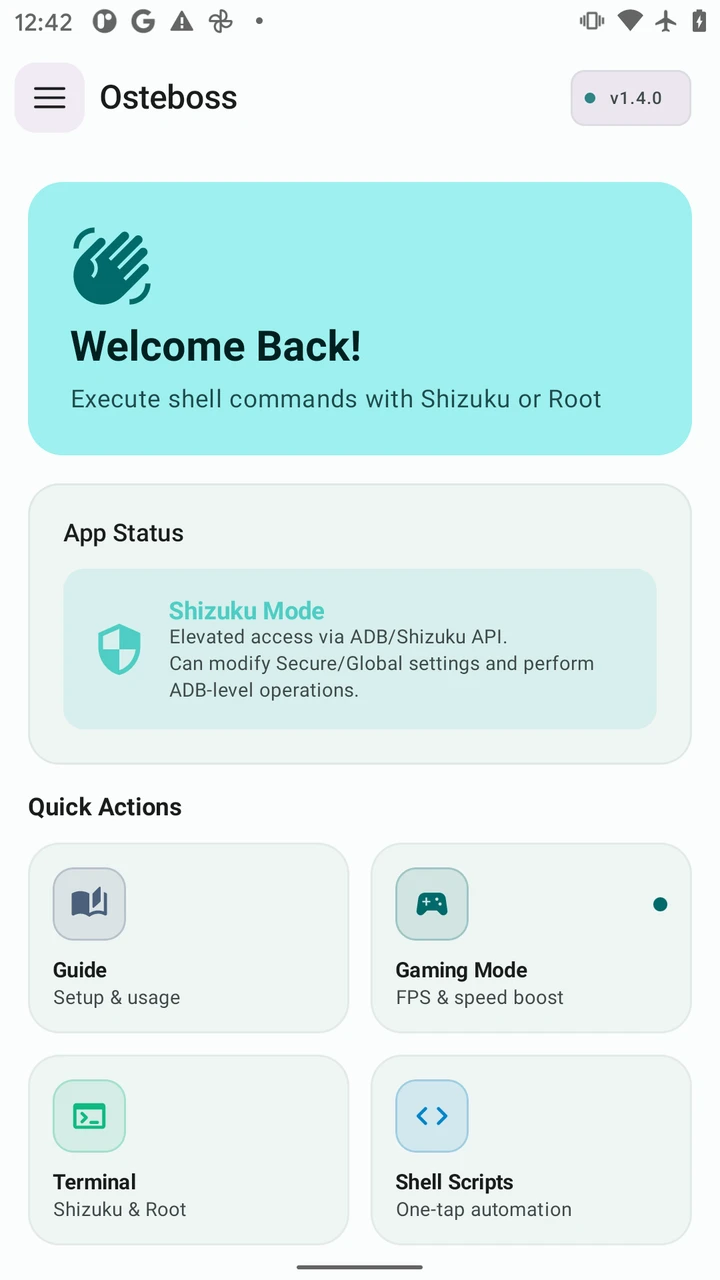
Shizuku Mode (For Stock Android Devices, Zero Root Required)
Shizuku harnesses Android's native Wireless Debugging service introduced in Android 11+ or a one-time ADB computer connection. This grants elevated privileges to modify System/Global settings, manage AppOps permissions, and trigger package compilers completely safely—without tripping Knox, voiding hardware warranties, or modifying system partitions.
- Install the official Shizuku app from Google Play or GitHub.
- Enable Developer Options in Android Settings and toggle on Wireless Debugging.
- Pair Shizuku using the 6-digit pairing code once, then tap Start.
- Launch OsteBoss and authorize Shizuku permission when prompted.
Root Mode (For Magisk, KernelSU, and APatch Users)
If your device is already bootloader unlocked and rooted, setup is instantaneous:
- Launch OsteBoss. The app automatically requests Superuser access.
- Tap Grant on your root manager.
- OsteBoss confirms UID 0 privileges, unlocking deeper hardware governors including CPU scaling profiles, GPU minimum floor clocks, and thermal mitigation guards.
2. Launching via Game Space Library
To ensure game settings remain centralized and overlay triggers only appear when relevant, OsteBoss includes a dedicated Game Space launcher hub.
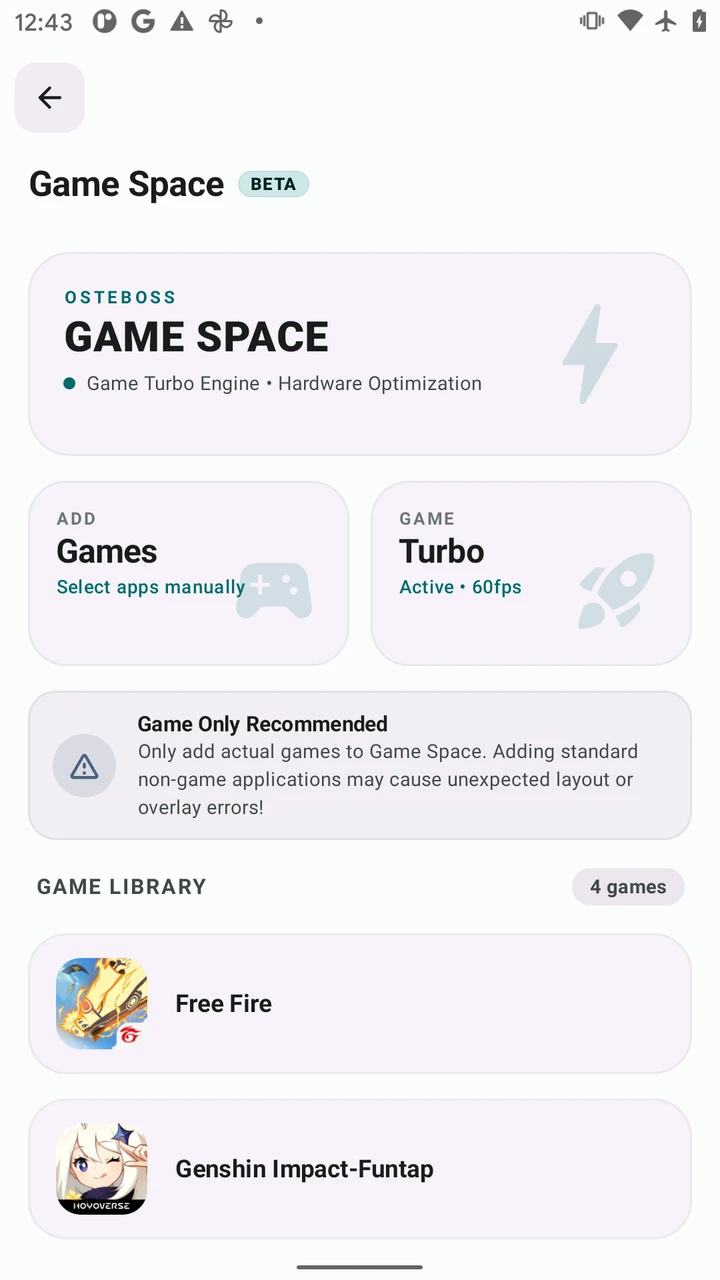
When you add your favorite titles to Game Space (such as Free Fire, PUBG Mobile, Wild Rift, or Genshin Impact), OsteBoss binds dedicated performance parameters to each package. Launching any registered game in landscape orientation reveals a subtle white trigger bar at the top-left bezel. Swiping inward from the screen edge smoothly expands the Game Turbo dock.
3. Game Turbo Main Interface: Performance Dashboard
The primary tab (Performance) features a sleek, minimalist dark aesthetic with Osteup's signature amber accents, visualizing hardware telemetry in real time without blocking essential combat viewports.
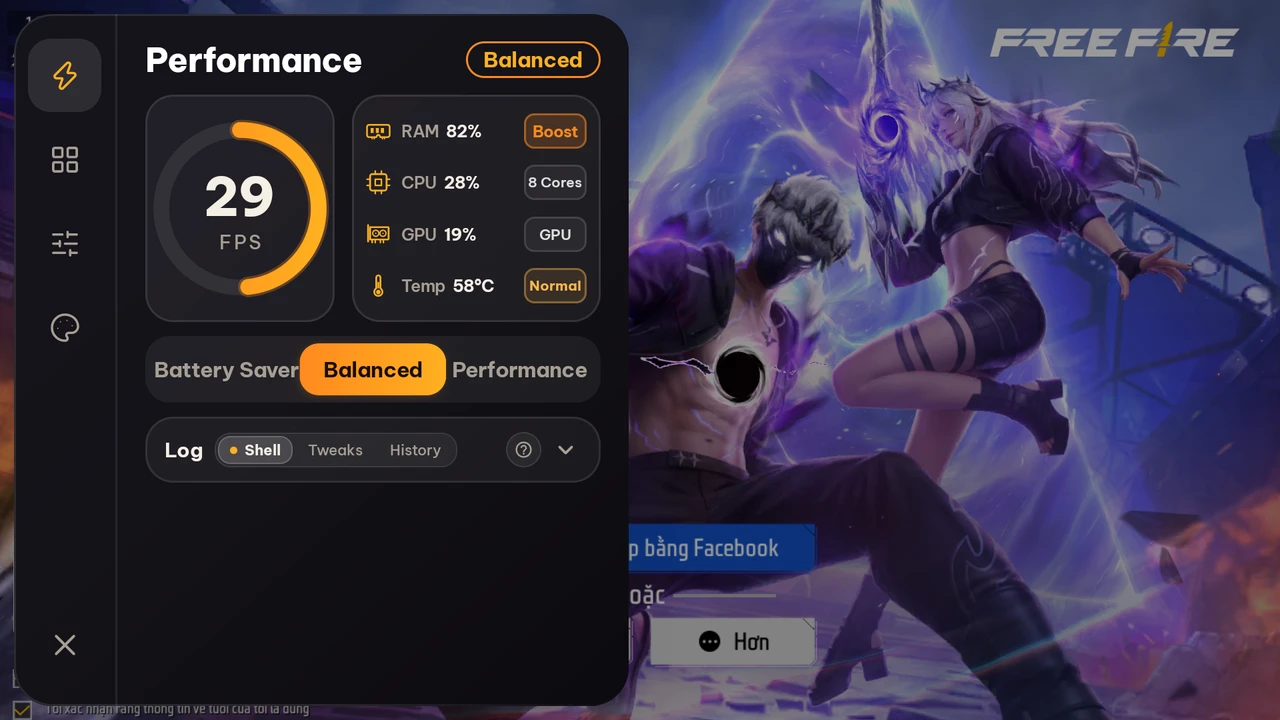
Key Performance Telemetry Components:
- Real-Time FPS Circular Meter: Rather than approximating frame counts with superficial timers, the engine queries Android's
SurfaceFlingergraphic compositor layer. Each successfully rasterized frame buffer delivered to the display is sampled at 500ms intervals, giving players accurate visibility into micro-stutters and frame pacing drops. - Hardware Resource Cluster: RAM (%): Real-time global memory consumption with a quick Boost trigger to purge cached background bloat on demand via the RAM Purger Engine. CPU (%): Aggregated CPU utilization across all 8 processing cores. GPU (%): Active graphic rasterizer loading percentage. Temp (°C): Live SoC thermal sensor readout with clear warning tiers: Normal (<50°C), Warm (50-60°C), or Hot (>60°C).
- 3 Performance Mode Switches: Battery Saver: Gently clamps peak clock speeds and refresh rates, maximizing battery life and reducing thermal generation for light tasks. Balanced (Recommended): Calibrated harmony between frame stability and thermal dissipation, ideal for over 90% of gaming sessions. Performance Mode: Unleashes system scheduling priorities, ensuring CPU and GPU clusters aggressively stay in high-readiness states during intense firefights.
- Live Terminal & Logging View: Transparently outputs command traces, tweak executions, and memory purge histories in real time.
4. Game Turbo Toolbox: 20 Tiered Optimization Utilities
Tapping the Grid icon on the left rail opens the deep toolbox. All 20 tools are organized into 3 clear access tiers matching your device's authorization level.
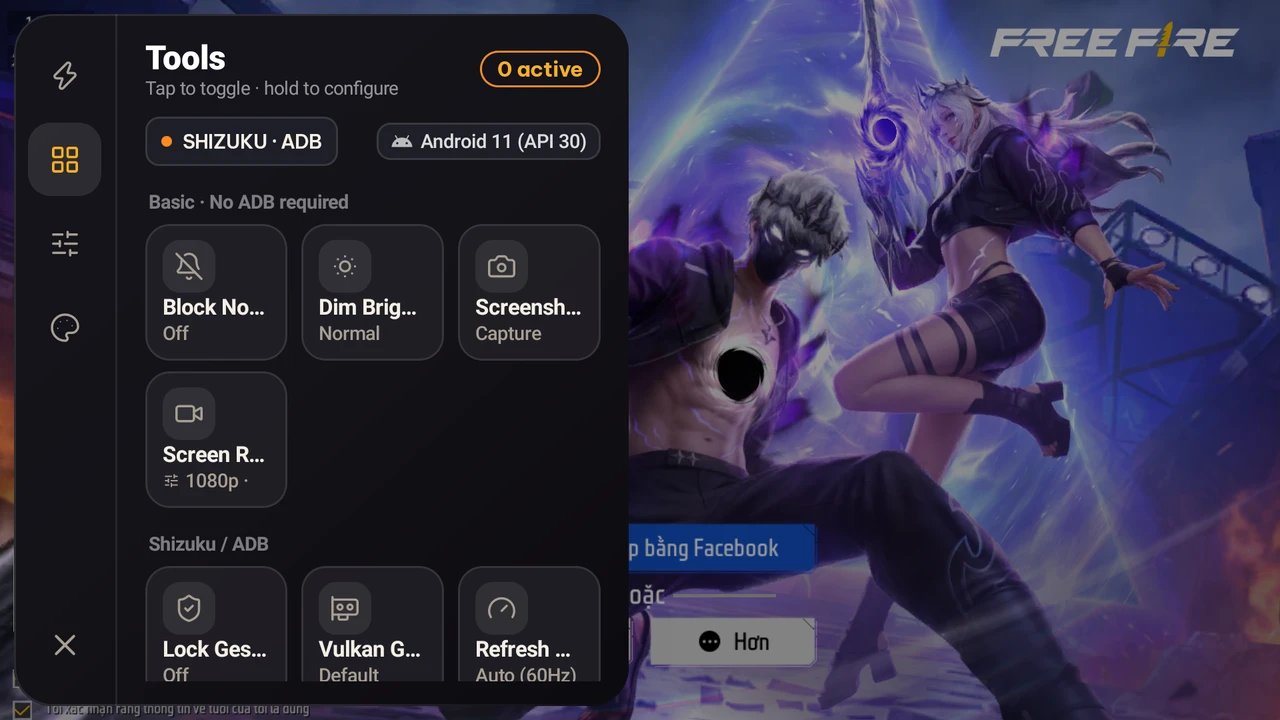
Tier 1: Standard Tools (Zero ADB / Zero Root Required)
- Block Notifications (DND): Suppresses intrusive incoming banners, phone calls, and background notifications during critical match moments.
- Dim Brightness: Lowers display brightness to prevent thermal escalation and palm fatigue during extended sessions.
- Instant Screenshot: Hides the Game Turbo dock for a single frame to capture clean, unblemished in-game screenshots saved directly to your media gallery.
- Smooth Screen Recorder: Records high-definition 1080p gameplay clips at stable bitrates with configurable 3-second countdowns and automatic dock minimization.
Tier 2: Elevated System Controls (Shizuku / ADB)
Connecting Shizuku unlocks deep control over Android system frameworks previously restricted to OEM system builds:
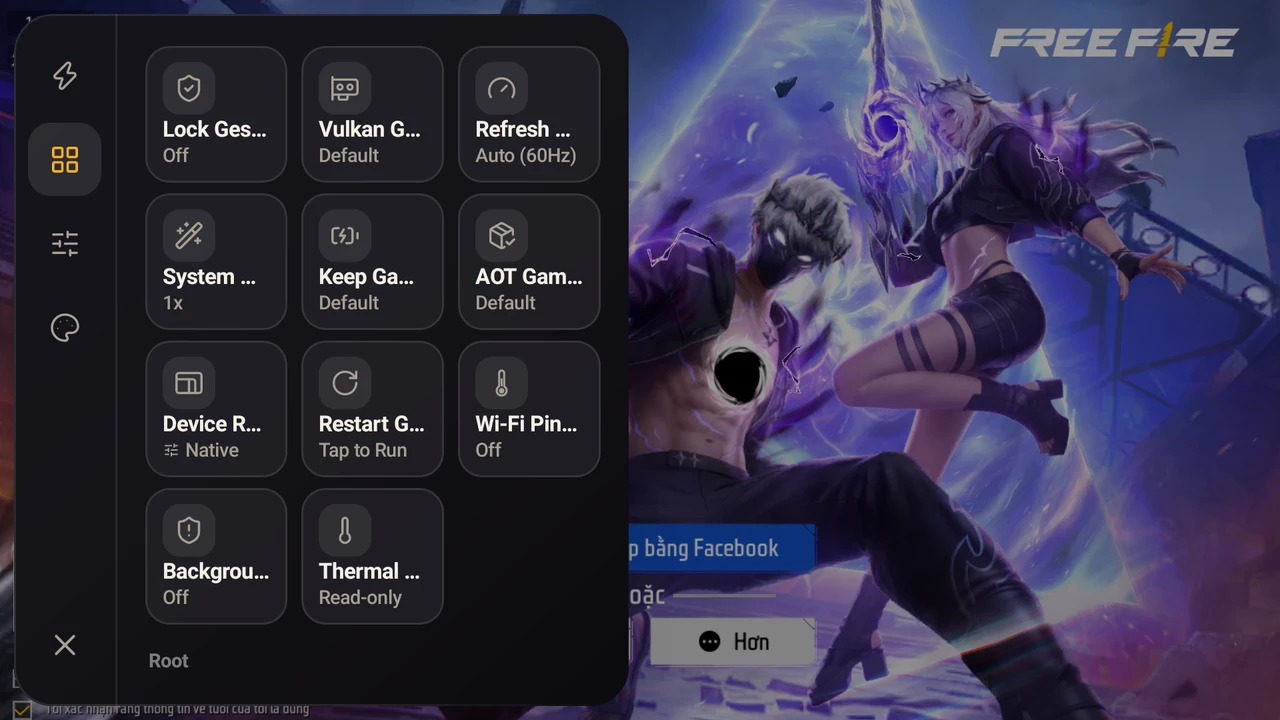
- Lock Gestures: Disables edge swipe gestures that accidentally trigger navigation bars or notification shades during chaotic gameplay.
- Vulkan Graphics / ANGLE: Routes game OpenGL ES pipelines through Android's modern ANGLE Vulkan driver, offloading CPU overhead to modern GPUs.
- Refresh Rate Lock: Forces display panels to lock strictly at 60Hz, 90Hz, 120Hz, 144Hz, or maximum hardware refresh, preventing aggressive thermal throttling from dropping refresh rates down to 60Hz mid-combat.
- System Animation Optimization: Scales system transition and window animation curves to 0.5x or disabled, cutting redundant compositor rendering latency.
- Keep Game Active (Standby Bucket): Assigns the running game process into Android's
ACTIVEbattery bucket, preventing the OS from throttling CPU allocations when switching tabs briefly. - AOT Pre-Compilation (Speed-Profile / Speed): Invokes Android's native Dex2Oat engine to compile game bytecode ahead-of-time into machine code, slashing stage loading times and eliminating JIT micro-stutters.
- Device Resolution Downscale: Safely scales screen render resolution to 80% or 70% of native dimensions, drastically easing GPU rasterizer fill-rate loads on mid-range devices.
- Restart Game: Purges cached session state and relaunches the active game cleanly in one tap during network connection drops.
- Wi-Fi Ping Stabilization: Suppresses background Wi-Fi scanning routines in the OS, terminating erratic ping spikes during competitive engagements.
- Background App Suppression (AppOps): Temporarily restricts background execution rights for resource-heavy social and e-commerce apps while inside your game session.
Tier 3: Kernel Interventions (Root Superuser Exclusive)
For devices with rooted Superuser privileges, Game Turbo provides direct kernel-level tuning options:
- CPU Governor Scaling: Sets CPU scaling governors to
performanceorschedutil, enforcing immediate frequency step-ups for demanding game scenes. - Peak Frequency Ceiling: Caps maximum CPU clock ceilings (100%, 80%, or 60%) to mitigate thermal buildup on notoriously hot chipsets.
- GPU Minimum Floor Clock: Raises the idle frequency floor of mobile GPUs, preventing clock drops during sudden visual scene transitions.
- Thermal Guard: Safely manages thermal trip thresholds to sustain competitive framerates without risking hardware longevity.
5. Customization Dashboard & Floating Mini HUD
The Customize tab (Sliders icon) lets players adapt the overlay to their exact visual and ergonomic preferences.
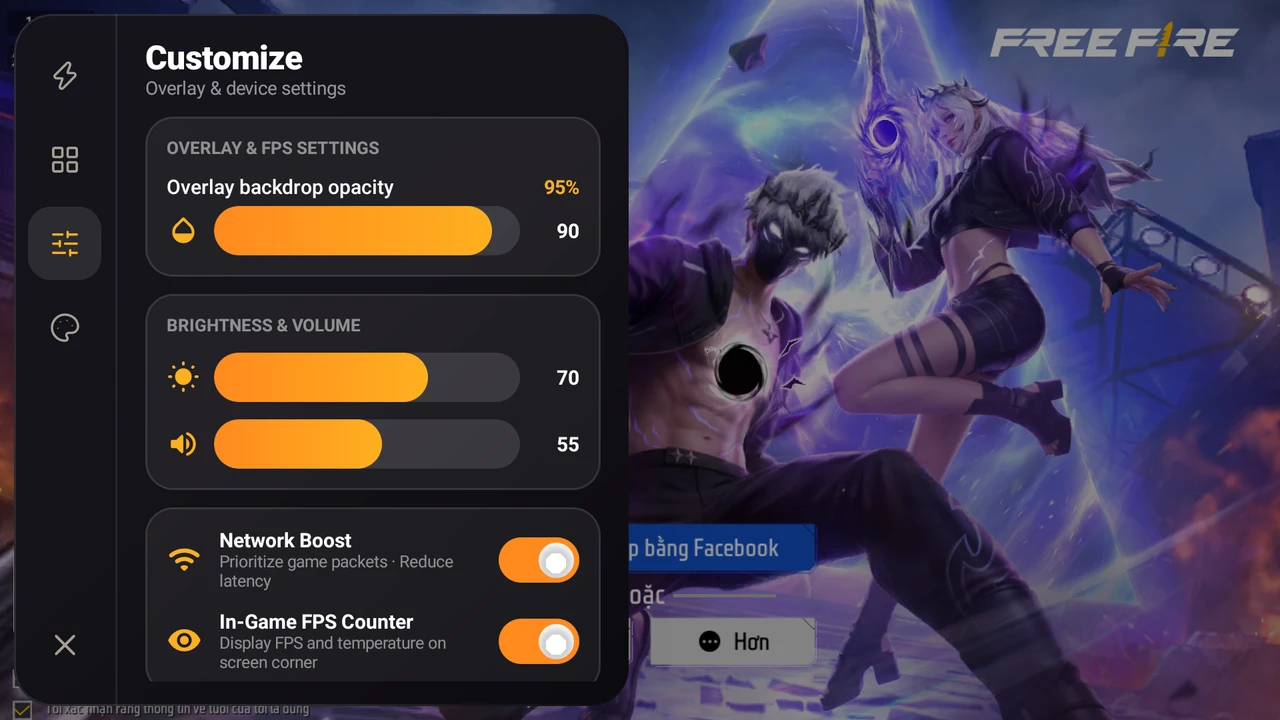
Practical Customization Features:
- Dock Opacity Slider: Modulates background translucency between 50% and 95%, allowing you to see through the dock and track live gameplay while tweaking settings.
- Quick Brightness & Volume Sliders: Seamlessly adjust audio levels and screen luminescence on the fly without dragging down the intrusive system notification shade.
- Network Boost: Prioritizes UDP gaming packet dispatching for reduced round-trip latency to multiplayer servers.
- In-Game FPS Counter (Mini HUD): Spawns a compact, draggable floating pill showing live FPS and SoC temperatures on screen throughout your matches.
6. Safe Rollback Architecture (Zero-Touch LIFO Engine)
The primary concern when tuning mobile performance is leaving the device in an unstable state after closing the game—such as remaining stuck at lowered resolutions or retaining battery-draining refresh locks.
How the OsteBoss Baseline Snapshot & Rollback Engine Works:
Prior to applying any optimization (refresh rates, resolution, animations, or app execution rules), Game Turbo snapshots the exact original baseline values. When you exit the game session or rotate the phone back to portrait orientation, the LIFO Rollback Engine executes in reverse chronological order, cleanly restoring 100% of the device's original baseline settings.
| Evaluation Criteria | Generic Tweaks & Random Scripts | OsteBoss Game Turbo |
|---|---|---|
| Connection Method | Mandatory Root or system partition edits | Dual Mode: Shizuku (Rootless) & Root |
| System Integrity | High bootloop risk, fragile modifications | 100% safe, zero modifications to boot/system |
| FPS Metric Accuracy | Simulated guesswork with substantial variance | Direct readouts from Android's SurfaceFlinger |
| Post-Game Recovery | Manual reversal required, prone to omissions | Automatic LIFO rollback on game exit |
| Warranty & Knox Status | Trips Knox, breaks banking & streaming DRM | Preserves Knox and device warranty in Shizuku mode |
7. Comprehensive Tool Matrix & Compatibility
Refer to the breakdown below to match Game Turbo capabilities with your device setup:
| Tool Name | Required Privilege | Android Support | Real-World In-Game Impact |
|---|---|---|---|
| Block Notifications (DND) | Standard (Tier 1) | Android 9+ | Prevents heads-up banner interruptions |
| Screenshot & Recorder | Standard (Tier 1) | Android 9+ | Captures 1080p highlights with auto-dock hide |
| Lock Gestures | Shizuku / ADB | Android 9+ | Stops accidental navigation swipes |
| Vulkan Graphics / ANGLE | Shizuku / ADB | Android 10+ | Lowers CPU dispatch cost via Vulkan pipelines |
| Refresh Rate Lock | Shizuku / ADB | Android 10+ | Prevents OS thermal drops back to 60Hz |
| Wi-Fi Ping Stabilization | Shizuku / ADB | Android 9+ | Halts background Wi-Fi sweeps, ending ping spikes |
| AOT Pre-Compilation | Shizuku / ADB | Android 9+ | Eliminates JIT frame stutter, accelerates load times |
| Device Resolution Downscaling | Shizuku / ADB | Android 9+ | Eases GPU fill-rate strain on mid-range hardware |
| Background App Limiter | Shizuku / ADB | Android 9+ | Frees RAM and CPU cycles for game processing |
| CPU/GPU Clock Tuning | Root Superuser | All Rooted OS | Immediate governor ramp-up for smooth frame times |
When to Enable Game Turbo and When Is It Unnecessary?
While OsteBoss Game Turbo delivers tangible frame stabilization and responsiveness gains, applying it to appropriate workloads ensures optimal efficiency:
- Recommended for: Fast-paced competitive multiplayer titles (PUBG Mobile, Free Fire, Wild Rift, Call of Duty: Mobile) requiring locked frame rates and zero Wi-Fi latency spikes, as well as demanding open-world games (Genshin Impact, Honkai: Star Rail) needing aggressive RAM clearing and process stability.
- Unnecessary for: Casual 2D puzzles (Candy Crush, Sudoku, Chess) or everyday media streaming and web browsing, where default Android governors already run with maximum efficiency without adjusting refresh rates or freezing background services.
Hardware Test Bench & Validation:
All screenshots featured in this guide were captured directly on a physical Google Pixel 2 (Qualcomm Snapdragon 835, Android 11 API 30) running Free Fire. Connected wirelessly via Shizuku, the device maintained an authentic 29–30 FPS gameplay baseline, reclaimed RAM usage from 78% down to 73% upon tapping Boost, and safely rolled back all parameters upon exiting the game.
Experience Game Turbo on OsteBoss
Download the official OsteBoss application to boost FPS, optimize gaming hardware, and eliminate in-game lag safely on Android without root.
8. Frequently Asked Questions (FAQ)
Does using OsteBoss Game Turbo void my device warranty?
Not when using Shizuku Mode (Wireless Debugging). This mode leverages legitimate Android developer APIs without unlocking bootloaders, modifying system partitions, or altering Knox and Widevine L1 security certificates.
Will Game Turbo trigger anti-cheat bans in multiplayer games?
Zero risk. OsteBoss Game Turbo optimizes host Android OS parameters (memory allocation, display refresh locks, process scheduling, and animation curves). It never injects into game memory spaces, modifies APK binaries, or intercepts game network packets, ensuring 100% compliance with Garena, Riot Games, Mihoyo, and Krafton anti-cheat policies.
Does the Boost RAM button risk closing my running game?
No. The memory reclamation service intentionally excludes the foreground game package. It only releases memory held by cached non-essential background processes and system buffers.
Why does display refresh rate sometimes drop from 120Hz to 60Hz during long matches?
This is standard thermal throttling implemented by OEM skins (MIUI, One UI, ColorOS). When SoC temperatures reach 42–45°C, the system drops display frequencies to curb power draw. Enabling the Refresh Rate Lock in Game Turbo OsteBoss overrides this behavior, maintaining a consistent high-refresh experience throughout competitive sessions.
Related Articles

BrotX Optimizer v8: Rootless Android System Tuning via Shizuku ADB
Guide to rootless Android system tuning with BrotX Optimizer v8 via Shizuku ADB: enable ANGLE Vulkan GPU, 0ms floating window touch, 80% charge protection, and 64 flags.

iOS Lag Fix & Jailbreak iPhone Optimization: Debloat Script for Gaming FPS
Complete iOS lag fix and performance optimization guide for jailbroken iPhone & iPad: perf.sh debloat script disabling 100+ daemons to boost gaming FPS and lower temps.

OOptimize: Android 7-15 Gaming Tweaks (Root & No-Root)
Optimize SurfaceFlinger and GPU Vulkan pipeline on Android 7-15 with OOptimize: stabilize FPS, eliminate frame drops, and minimize touch input latency.

RAM Purger: Stop Background Processes & Boost Android Gaming Like iPhone
Complete guide to the rootless RAM Purger (frozen.sh) shell script terminating 400+ background app tasks to reclaim RAM and eliminate frame drops on Android.
Comments(0)
Sign in to join the conversation
Sign in with Google, Facebook or Email to leave a comment and get notified of replies.
No comments yet. Be the first to join the conversation!