
How to Enable Blood and Corpses in Valorant PC (Show Mature Content)

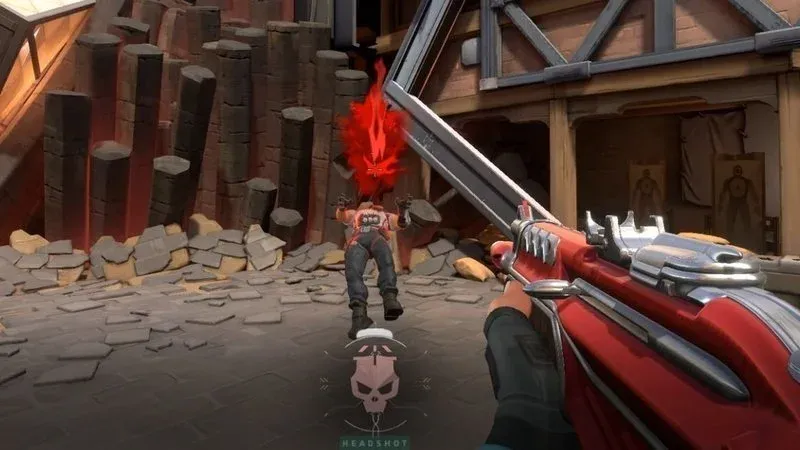
When playing Valorant in certain regional clients or servers with strict rating compliance (such as Vietnam and select Asian regions), mature visual feedback is disabled by default. Fallen agents are replaced by floating hologram banners, and bullet impact feedback displays subtle sparks instead of distinct blood splatters. This step-by-step guide explains how to safely re-enable the Show Mature Content, Show Corpses, and Show Blood options on Valorant PC.
1. Why Are Blood and Corpses Disabled in Valorant?
Depending on national entertainment ratings and local publisher requirements, Riot Games must adhere to strict age restriction guidelines (frequently 12+ or 16+). To satisfy these standards without creating completely separate game binaries, regional client settings lock out visual gore and physical agent ragdoll bodies by default.
| Visual Parameter | Censored Default Mode | Unlocked Mature Content Mode |
|---|---|---|
| Eliminated enemies | Circular hologram banner / player token | Agent body falls in realistic ragdoll posture |
| Hit registration feedback | Sparks, dust bursts, or faint yellow puffs | Distinct colored blood splatters on impact |
| Combat situational awareness | Cluttered by floating circular holograms | Clear visual confirmation of downed angles |
| In-game Settings menu | Show Mature Content toggle is hidden | Mature Content, Corpses, and Blood options visible |
2. Will Enabling Blood and Corpses Trigger a Riot Vanguard Ban?
Account security is a top priority for competitive tactical shooter players, especially with Riot Vanguard operating at the kernel level.
VALORANT-Win64-Shipping.exe. Instead, it resets region configuration flags within local client configuration files so the game engine exposes previously hidden UI toggles. There are no reported account bans associated with re-enabling this standard game feature.
3. Download Valorant Blood and Corpses Enable Tool
Download the lightweight utility below. The archive is clean, verified against malware, and requires no complicated installation.
4. Step-by-Step Instructions to Unlock Settings on PC
The unlock process takes less than a minute. Ensure Valorant and the Riot Client are completely closed before starting.
Step 1: Extract the utility
After downloading Tool_Turn_On_Effect_Blood_Valorant.zip, right-click the archive and select Extract All... using the password osteup. Place the executable Tool_Turn_On_Effect_Blood.exe onto your Desktop for easy access.
Step 2: Run the configuration tool
Double-click Tool_Turn_On_Effect_Blood.exe (or right-click and choose Run as administrator). The utility will locate your local Valorant directory and update the regional configuration.
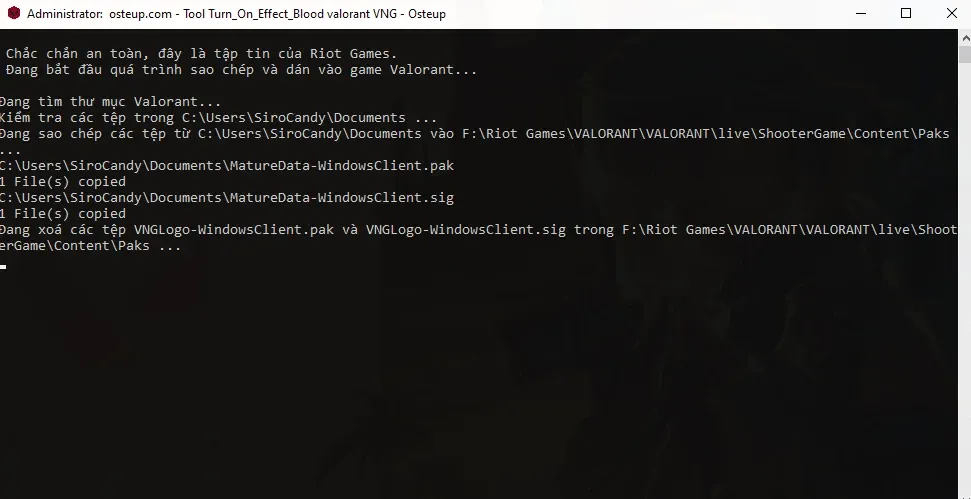
Step 3: Confirm execution completion
Once the console prompt confirms that configuration files have been updated, press any key on your keyboard to close the terminal window.
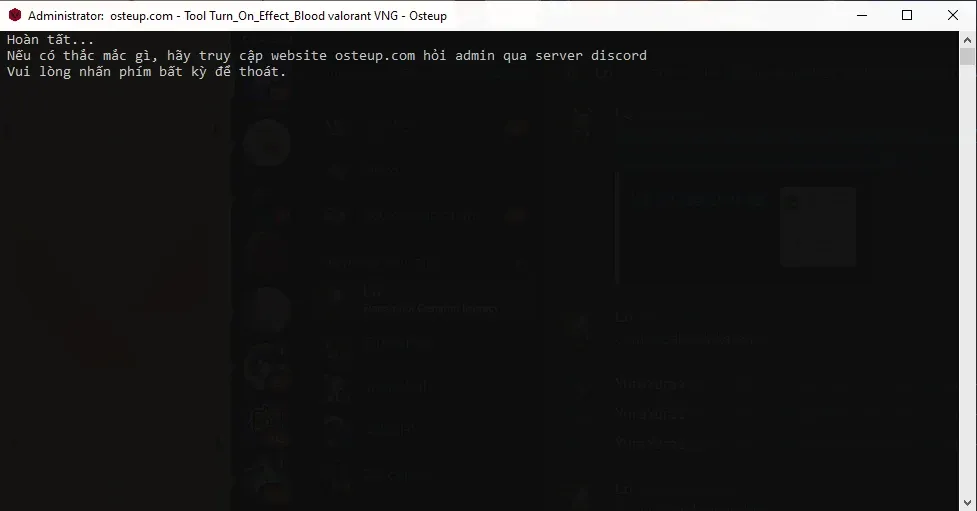
Step 4: Launch Valorant and enable in-game settings
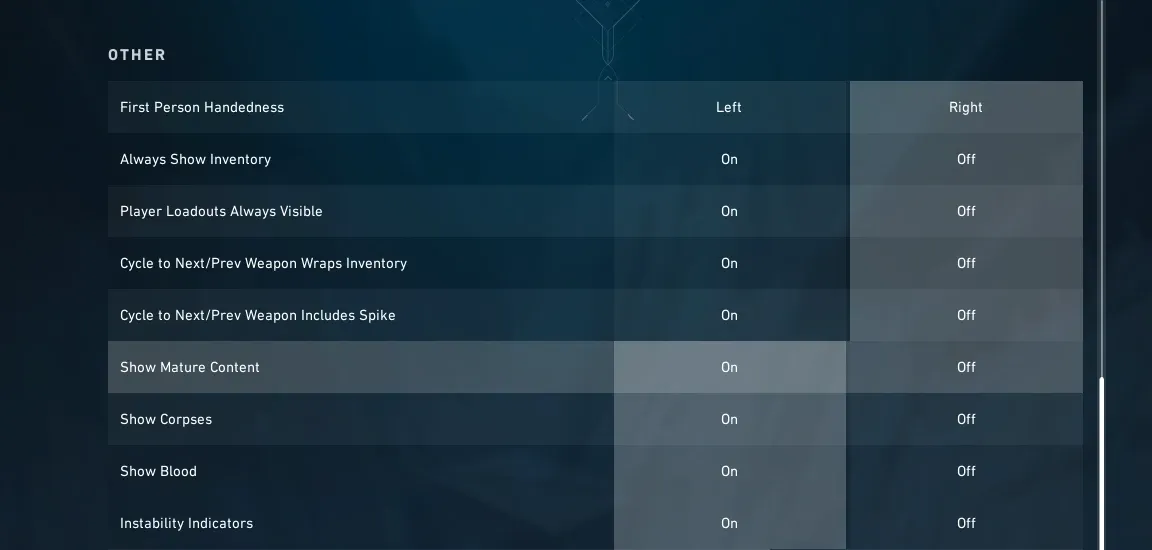
Open the Riot Client and launch Valorant. If a game patch is available, allow it to complete installation first. Then configure the in-game settings:
- Open the Settings menu by clicking the gear icon in the top-right corner or pressing Esc.
- Navigate to the General tab and scroll down to the Other category.
- Locate the newly revealed Show Mature Content option and switch it to On.
- Enable both sub-options that appear: Show Corpses: Switch to On to view physical fallen agent models. Show Blood: Switch to On for responsive impact feedback splatters.
5. Frequently Asked Questions (FAQ)
Why did the effects disappear after a game update?
Official client updates from Riot Games frequently overwrite local configuration manifests. To restore blood and corpse animations after a patch, simply run the tool once again while the game is closed.
Can I customize the color of the blood feedback?
Yes. Under General Settings, Valorant features an accessibility Colorblind Mode. Switching between Protanopia, Deuteranopia, and Tritanopia modifies bullet hit markers and blood feedback to yellow, purple, or vivid red based on your preference.
Does displaying bodies and blood decrease in-game FPS?
No noticeable performance drop occurs. These asset models and particle effects are native components of Valorant's Unreal Engine pipeline and have negligible impact on modern gaming PCs.
Related Articles

RimikoOS 11 PRO: Lightweight Windows 11 Lite OS for Low-End PCs & Gaming
Download RimikoOS 11 PRO (Build 22631.4112 23H2), a debloated Windows 11 Lite ISO with no telemetry, removed Edge, and optimized RAM for low-end gaming PCs.

How to Use Windows MSRT (Malicious Software Removal Tool)
Learn how to launch Microsoft Malicious Software Removal Tool (MSRT) using the mrt command to scan and remove worms, trojans, and malicious software on Windows 10/11.

Essential CMD & PowerShell Commands to Boost Windows 10/11 Performance
Master native Windows terminal tweaks: disable CPU-heavy RAM compression, unlock Ultimate Performance power scheme, and minimize gaming input latency.

Windows BCDEdit Optimization: Tweaks for Latency and FPS Stability
Learn how to configure Windows BCD store via elevated Command Prompt to optimize system timers, reduce DPC latency, and stabilize frame pacing in games.
Comments(0)
Sign in to join the conversation
Sign in with Google, Facebook or Email to leave a comment and get notified of replies.
No comments yet. Be the first to join the conversation!